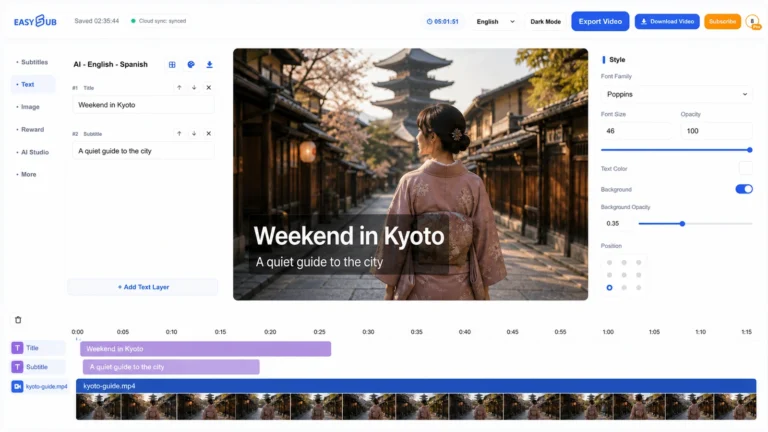
Use EasySub’s auto subtitle generator to turn speech in video or audio into editable, time-synced subtitles. Upload your media or paste a YouTube or video URL, choose the source language, and generate your first draft with AI.
Start free with 30 transcription minutes each month. Review names, numbers and timing before publishing. Translate into 150+ languages, then export a captioned video or download SRT, VTT, ASS or TXT. Check your account allowance and export settings for plan limits and watermark rules.
Try the subtitle editor with a sample · Compare plans and allowances
What Is an Auto Caption Generator?
An auto caption generator uses AI speech recognition to convert spoken audio into synchronized video captions. With EasySub, you can review the generated text, correct recognition errors, adjust caption timing and styles, translate captions, burn them into the video, or download separate caption files.
How to Automatically Add Captions to a Video
To automatically add captions to a video, simply follow these three steps: upload your video or audio, generate and proofread the AI-generated captions, and export the video with captions or the caption file. The entire process can be completed online, without the need to transcribe each sentence or manually set the timeline for each caption.
1. Upload Your Video or Audio
First, drag and drop your local video or audio file into the EasySub upload area, or click the upload button to select a file. You can also paste any YouTube or video URL directly into the EasySub input field.
After uploading, select the original language of the video. Setting the source language correctly helps the AI recognize speech, accents, and sentence structure more accurately. Before processing begins, confirm the following:
- Whether the file format is supported;
- Whether the file size and video duration are within your account limits;
- Whether the speech in the video is clear;
- Whether background music drowns out the speakers’ voices, or if multiple people are speaking at the same time.
2. Generate and Edit AI Captions
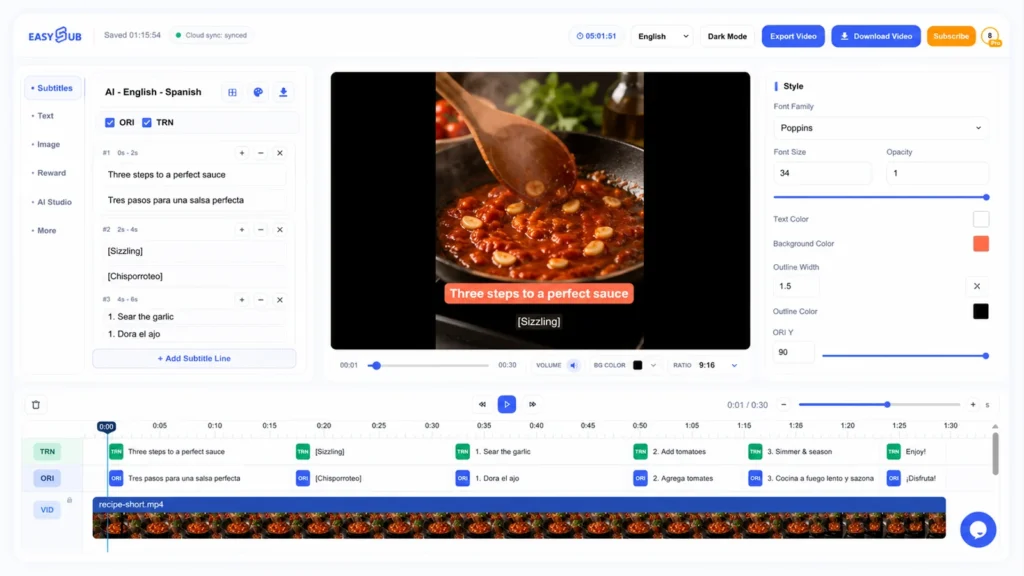
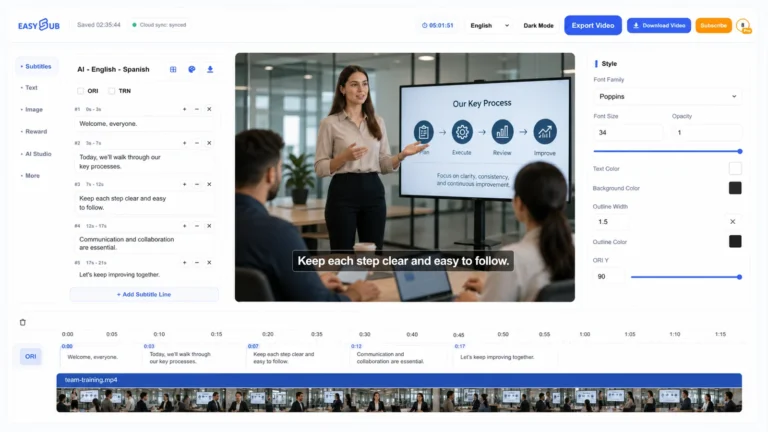
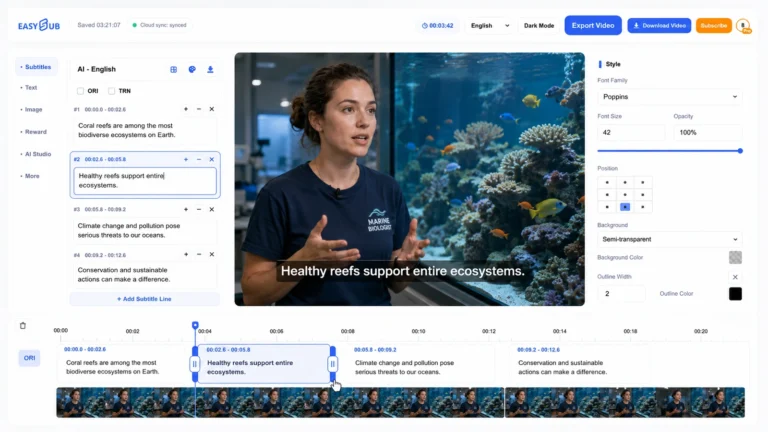
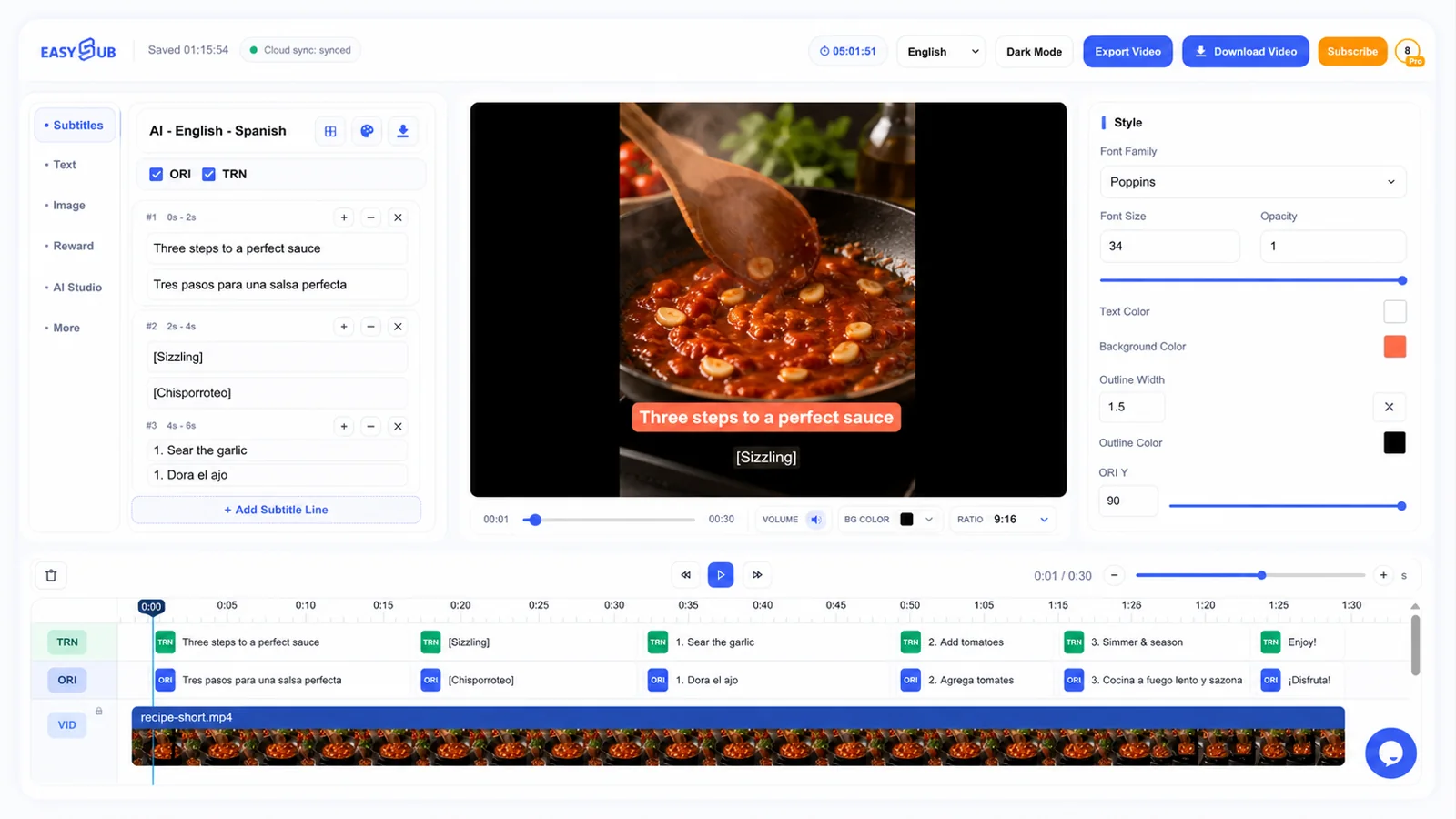
After selecting a language, EasySub will recognize the speech in the video and automatically generate captions synchronized with the audio timeline. All you need to do is review and edit the AI-generated results. You can further adjust the caption text, punctuation, font, font size, and color.
Choose how AI splits your subtitles
Select AI Model for meaning-based segmentation, Speech Interval Model for clear pauses, or Subtitle Length Model when you need more uniform line lengths. Review the result and add, merge or remove segments where needed.
Edit original and translated subtitles separately
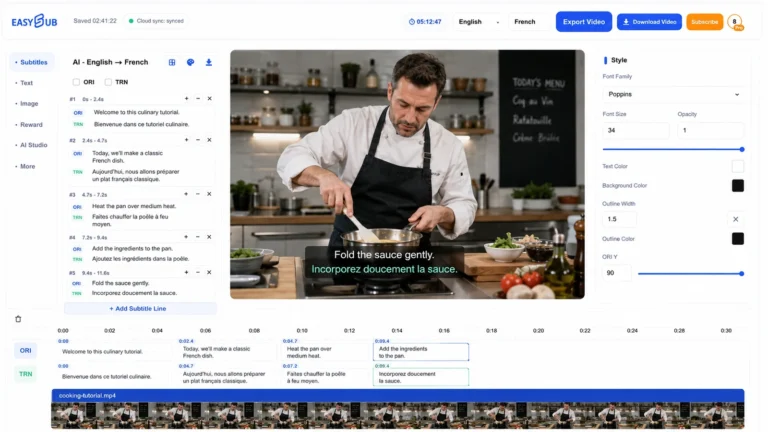
In the editor, ORI controls the original subtitles and TRN controls the translation. Adjust each track’s font, size and vertical position, then check the preview for overlapping lines. Use the timeline to fine-tune when each subtitle appears.
3. Export Your Captioned Video or Caption File
After proofreading and styling, you can choose different export methods based on your publishing platform. If the captions need to be displayed at all times, you can burn the captions directly into the video and then export the video with captions. This method is suitable for TikTok, Instagram Reels, YouTube Shorts, and social media ads.
If the platform supports a separate subtitle track, you can also download the subtitle file:
| Export Format | Primary Uses |
|---|---|
| SRT | YouTube, media players, and video editing software |
| VTT | Website videos and HTML5 players |
| TXT | Transcripts, article organization, and content repurposing |
Everything You Need to Generate and Edit Video Captions
EasySub offers a full suite of features—from speech recognition, caption editing, and style design to multilingual translation and video export—helping you complete your video captioning in a single workflow.
- Automatic Speech Recognition
Automatically recognizes speech in video or audio and generates AI captions synchronized with the timeline. The clearer the recording, the more accurate the initial recognition of AI-generated captions tends to be. - Caption Text and Timing Editor
Use the online caption editor to correct typos, punctuation, sentence structure, and line breaks. You can also adjust the start and end times for each caption to ensure the text aligns precisely with the speaker’s voice. - Custom Caption Styles
Customize the font, font size, color, background, shadow, and display position of your captions. You can also add animated captions to make captions in short videos clearer and more aligned with your brand’s visual identity. - Multilingual Caption Translation
First, select the source language for speech recognition, then choose the target language for translation. You can generate single-language or multilingual caption versions and review the translation results before exporting. - Burn Captions into Video
Permanently burn captions into the video frame to ensure they display correctly even after uploading to TikTok, Instagram Reels, or other platforms that do not support separate caption tracks. - Download SRT, VTT, and TXT Files
Download SRT files for use with YouTube, media players, and video editing software; download VTT files for use with websites and HTML5 players; download TXT files for organizing transcripts and reusing content. - Edit Captions Before Export
Even after AI-generated captions are created, you can still proofread them manually. Before publishing, pay close attention to proper names, numbers, brand names, technical terms, punctuation, and the timeline to avoid using unreviewed automatic recognition results directly. - Browser-Based Caption Generator
All operations can be completed within a browser, without the need to install additional software. You can upload, generate, edit, and export captions online, and manage your projects through your account.
Export Captions in the Format You Need
EasySub supports exporting videos with subtitles, as well as SRT, VTT, and TXT files. You can choose the appropriate format based on the publishing platform, player requirements, and your post-editing needs.
| Output Type | Use Case | EasySub Steps |
|---|---|---|
| Captioned Video | TikTok, Instagram Reels, YouTube Shorts, advertising videos, and cross-platform publishing | Permanently embed captions into the video frame; no need to rely on the player’s captioning feature after export |
| SRT | YouTube, mainstream players, and video editing software | Use the SRT caption generator to download a standalone file containing caption text and timecodes |
| VTT | Website videos, HTML5 players, and online course platforms | Use the VTT caption generator to export WebVTT files, making it easy for web players to load captions |
| TXT | Video transcripts, article summaries, meeting notes, and content repurposing | Download plain text transcripts without caption formatting, making them easy to copy, edit, and repurpose |
Captioned Video
Captioned Video embeds subtitles directly into the video frame, creating hardcoded captions that cannot be turned off. This method is suitable for social media and advertising platforms because the text remains visible even if users mute the audio or the platform does not support separate subtitle tracks.
SRT Caption File
SRT is a commonly used caption file format that primarily stores caption text, line numbers, and start and end times. It is suitable for uploading to YouTube, importing into video editing software, or using in players that support external captions.
VTT Caption File
VTT is similar to SRT but is better suited for websites and HTML5 video players. In addition to text and timecodes, WebVTT also supports partial positioning and styling information, making it easier to display closed captions in web videos.
TXT Video Transcript
TXT retains only the text content from the video and does not include subtitle timecodes or display styles. You can use the download video transcript feature to transcribe the video audio into articles, class notes, meeting minutes, or social media posts.
Open Captions vs. Closed Captions
Open Captions are permanently embedded in the video frame and cannot be turned off by viewers; Closed Captions, on the other hand, exist as a separate subtitle track or subtitle file, and viewers can freely turn them on or off.
| Comparison | Open Captions | Closed Captions |
|---|---|---|
| Display Method | Permanently displayed in the video frame | Turned on and off by the user or the player |
| Output Method | Export a video with hardcoded captions | Export caption files such as SRT or VTT |
| Suitable Platforms | TikTok, Instagram Reels, YouTube Shorts, social media ads | YouTube, website players, online course platforms |
| Style Control | Set font, color, size, position, and animation before exporting | Display style is typically controlled by the player or platform |
| Language Switching | Typically displays only the hardcoded language version | Multiple language caption tracks can be added |
| Key Advantages | Does not rely on platform captioning features; displays on any device | More flexible; users can turn off or switch languages |
| Key Limitations | Cannot be turned off; modifying subtitles requires re-exporting the video | Requires the publishing platform or player to support subtitle files |
Captions primarily display dialogue and important audio information in the original language, while subtitles are typically used to translate dialogue into another language; however, these two terms may be used interchangeably across different platforms and regions.
| Captions vs. Subtitles: Comparison | Captions | Subtitles |
|---|---|---|
| Primary Purpose | To help viewers understand a video when they cannot hear or cannot clearly hear the audio | To help viewers understand dialogue in different languages |
| Common Languages | Usually the same as the video’s original language | Usually translated into another language |
| Content Included | Dialogue, speakers, music, laughter, and other important sounds | Primarily includes character dialogue |
| Use Cases | Mute viewing, accessibility for the hard of hearing, educational content, and social media videos | Movie translations, multilingual videos, and international communication |
| Common Formats | Open Captions, Closed Captions, SRT, or VTT | Translated subtitle files or multilingual subtitle tracks |
What Are Captions?
Captions not only display what characters say but may also include important non-verbal sounds that affect content comprehension, such as:
[Music][Applause][Door slams]- Speaker names or identities
Therefore, captions are better suited for silent viewing, accessible videos, online courses, and social media content. They can be directly embedded into the video or uploaded separately as SRT or VTT files.
Subtitles are primarily used to translate dialogue in a video into a target language. They typically assume that viewers can hear music, intonation, and ambient sounds, so they do not necessarily include this non-verbal information.
For example, an English video can generate separate Spanish, French, or Japanese subtitles to help viewers in different countries understand the content.
Why Are the Two Terms Often Used Interchangeably?
On YouTube, TikTok, and some video editing tools, “captions” and “subtitles” are often treated as similar features. When making a choice, don’t rely solely on the name; instead, confirm whether the output includes audio descriptions, whether language translation is required, and whether viewers can turn off the subtitles.
Choose “Captions” when you need to present the original-language dialogue and important audio information; choose “Subtitles” when you need to translate the video’s dialogue into another language.
Need to create or translate multilingual subtitles? Use EasySub’s AI Subtitle Generator.
Create Automatic Captions for Any Type of Video
EasySub can automatically generate captions for short videos, long videos, podcasts, courses, and commercial content, and adjust the caption style, position, and export format based on different platforms.
Baked-in dynamic captions are best suited for short videos, while SRT or VTT exports are ideal for YouTube, courses, and website videos; for podcasts and commercial content, you can retain both video captions and TXT transcripts.
- TikTok Caption Generator
Generates dynamic captions for 9:16 vertical videos, allowing you to adjust fonts, animations, and display positions before exporting. Captions should avoid mobile interface areas such as usernames, the comments section, and bottom buttons. You can also burn captions directly into the video, making it easier for users to watch with the sound muted. - YouTube Caption Generator
Generate time-synced captions for YouTube tutorials, interviews, podcasts, and long-form videos. You can download SRT or VTT files to upload to YouTube. When targeting an international audience, you can also create caption versions in different languages. - Instagram Reels Caption Generator
Automatically add captions optimized for vertical viewing to Instagram Reels. - Podcast and Interview Captions
Convert podcasts, interviews, and multi-person conversations into editable captions and transcripts. - Online Course Captions
Generate synchronized captions for instructional videos, how-to demonstrations, and online courses. You can proofread technical terms, adjust the segmentation of complex sentences, and export caption files to upload to course platforms. Multilingual captions also help learners from different linguistic backgrounds understand the course content. - Marketing and Business Video Captions
Add captions to product demos, webinars, LinkedIn videos, employee training, and internal communication content.
Supported Languages, File Formats and Export Options
EasySub supports multilingual speech recognition, translation into over 150 languages, uploading of common audio and video formats, and export of SRT, VTT, ASS, and TXT subtitle files. Before starting processing, please confirm that the source language, file format, and account quota meet your project requirements.
| Project | EasySub Support |
|---|---|
| Speech Recognition Languages | Supports multilingual speech recognition and transcription. Dedicated algorithm optimizations have been implemented for English, Chinese, Japanese, French, Persian, Russian, Korean, and Spanish. |
| Regional Accents | Supports regional accents and dialects for some major languages. Recognition accuracy may be affected by accent intensity, recording quality, and background noise. |
| Translation Languages | Supports translating generated captions into over 150 languages. Source language recognition and target language translation are two separate steps. |
| Video Input Formats | Supports common video formats such as MP4, MOV, AVI, and MKV. |
| Audio Input Formats | Supports common audio formats such as MP3, WAV, and M4A. |
| YouTube URL Import | Supports importing media by pasting any YouTube or video URL into the input field, without first downloading the file to your device. |
| Caption Export Formats | Supports exporting to formats such as SRT, VTT, ASS, and TXT. |
| Video Export | You can embed captions into the video and export videos suitable for platforms such as YouTube, TikTok, Instagram, Facebook, and LinkedIn. |
| Maximum File Size | The file size and duration you can process depend on the current account allowance, browser stability, network conditions and the options shown in the workspace. |
| Maximum Video Duration | Supports processing videos of 1 hour, 2 hours, or longer; the actual duration that can be processed depends on file size, upload speed, and available transcription quotas for your account. |
| Usage Limits | The duration of caption generation and the number of video exports depend on the selected plan. The Free, Pay-as-You-Go, and Pro plans have different transcription quotas and export limits. |
| Watermark | Whether exported videos include the EasySub watermark depends on your current plan and actual export settings. |
| Browser Support | EasySub runs directly in your browser without requiring any software installation and is available on both desktop and mobile devices. We recommend using the latest versions of Chrome or Safari. |
Why Use EasySub to Generate Video Captions?
EasySub’s core value is: Quickly generate, edit, translate, and export subtitles right in your browser—no software installation required.
- Online Operation: Upload videos or audio directly—no software download required.
- Editable Results: Correct recognition errors, modify subtitle content, and adjust the timeline.
- Multiple Export Options: Export videos with subtitles, or download SRT, VTT, and TXT files.
- Multilingual Support: Generates subtitles in the source language first, then translates them into the target language.
- Greater Control Over the Process: Allows for manual proofreading after generation to avoid using incorrect subtitles directly.
- Clear Usage Guidelines: File limits, watermarks, export resolution, and plan differences are clearly displayed before use. Users of the free version receive a monthly allowance of 30 minutes.
Generate Captions for Your Video Now
Upload your video, generate editable captions, customize their appearance, and export a captioned video or subtitle file in one workflow.