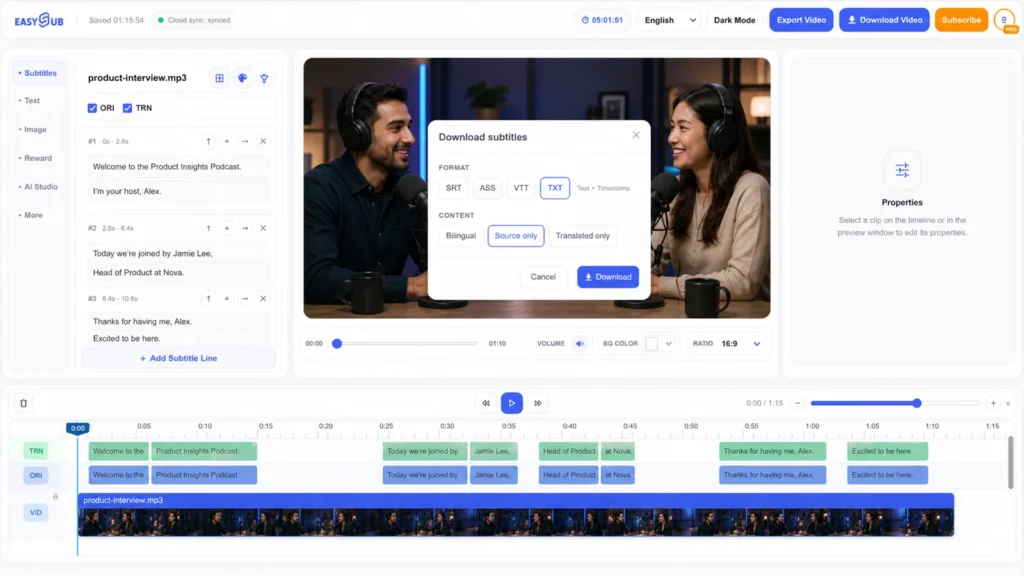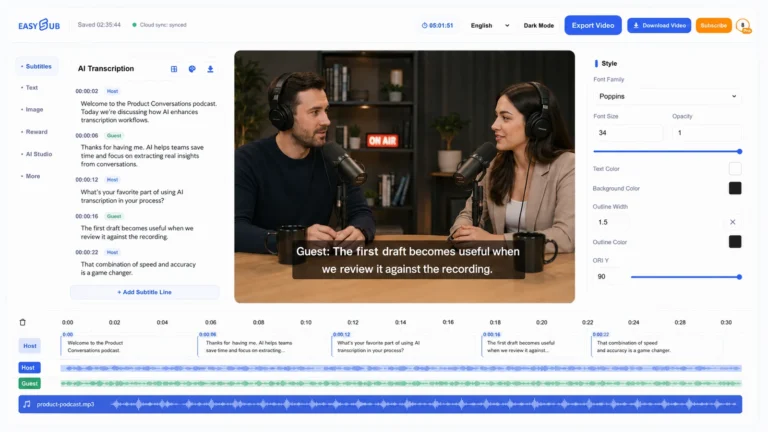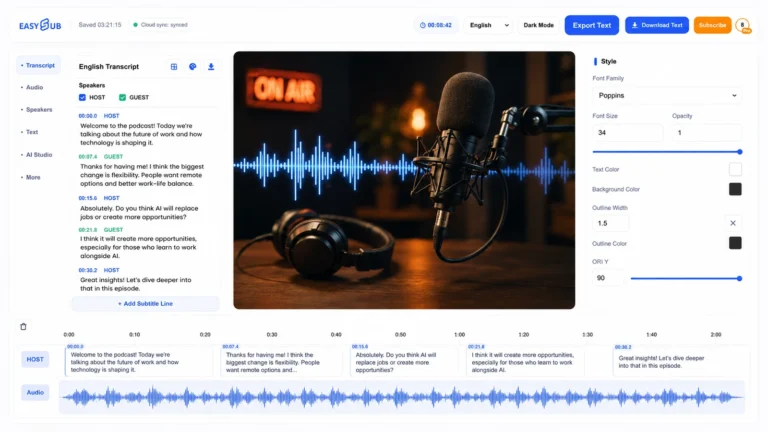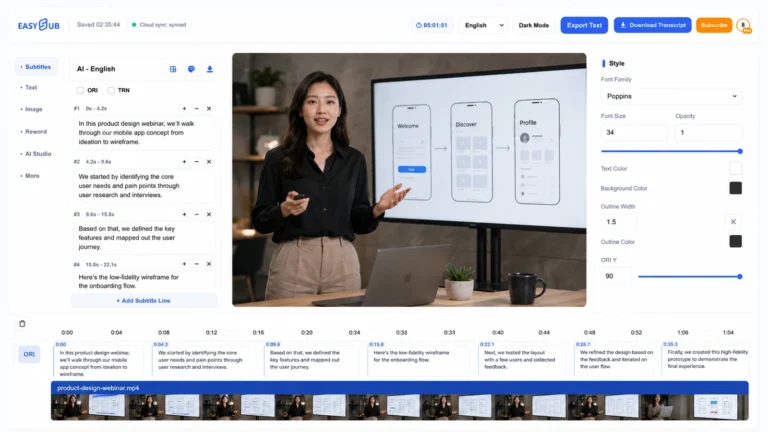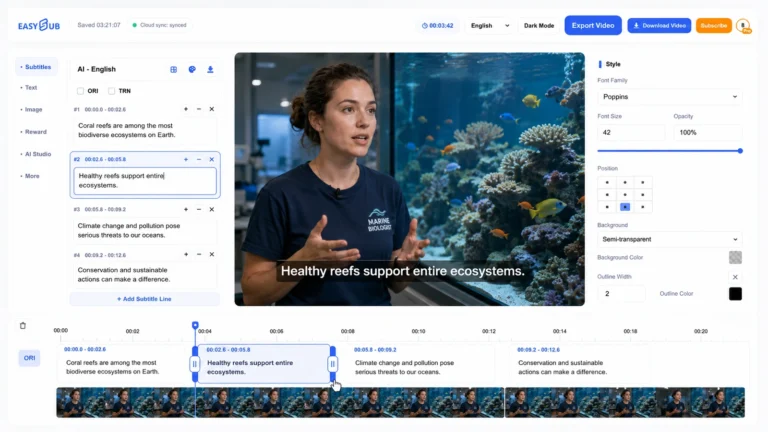
Convert spoken audio into editable text without manually replaying every sentence. EasySub AI Speech to Text accepts video or audio as the source, creates a time-aligned transcript draft, and keeps the words beside the media preview so you can verify what was actually said before downloading the result.
What is AI speech to text?
AI speech-to-text software uses automatic speech recognition to turn a recording into written words. Unlike a static transcript service, EasySub places the recognized text in a media workspace with playback and timing context. That makes it easier to inspect a sentence, correct it, and reuse the reviewed result for subtitles, captions, translation, show notes, or an editing brief.
The generated draft should be treated as a starting point. Recording quality, accents, overlapping voices, names, numbers, specialist vocabulary, and background noise all influence recognition. A careful review is especially important when the transcript will be published, translated, quoted, or used for accessibility.
How to convert speech to text with EasySub
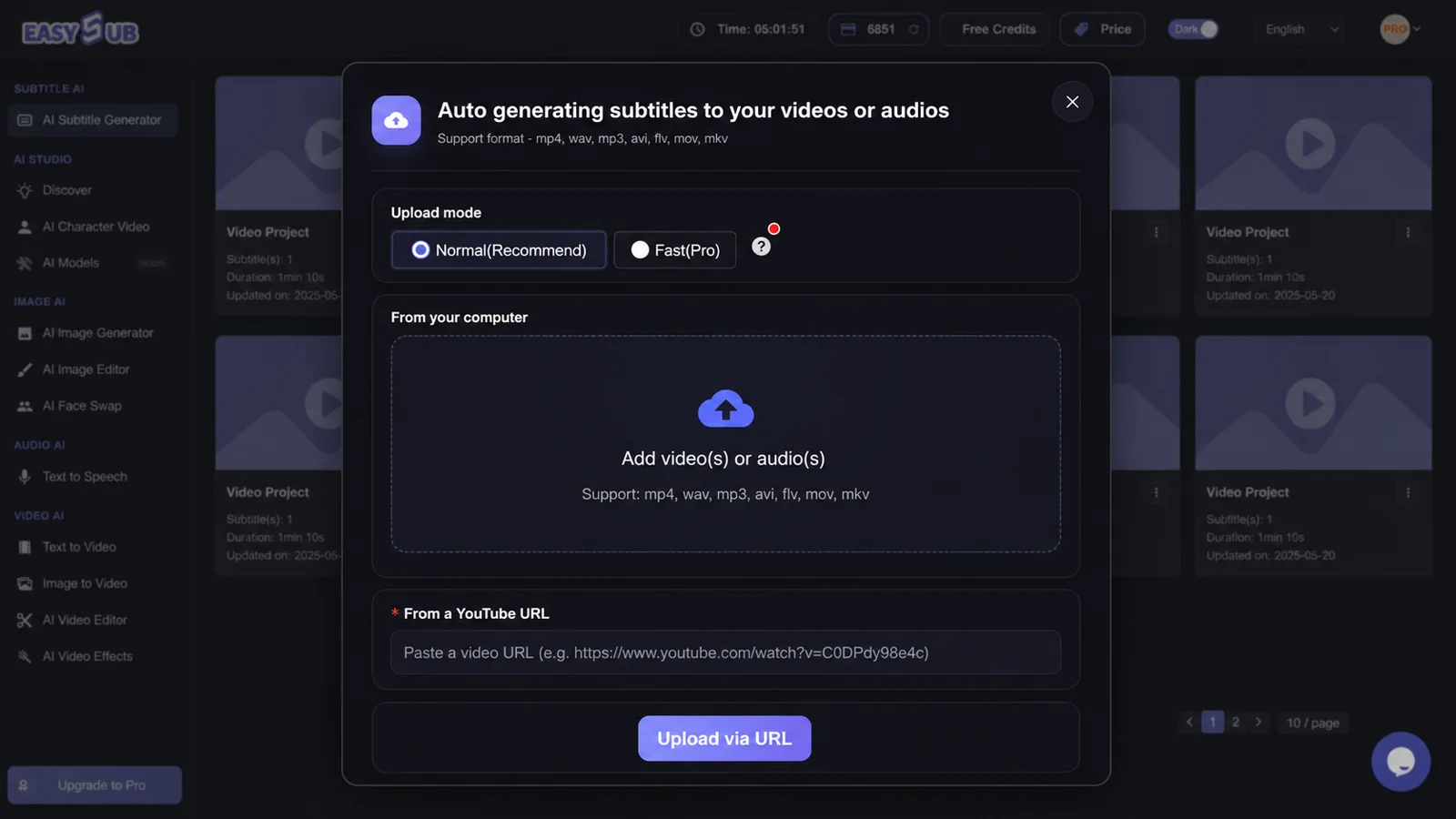
- Upload the source. Choose a clear video or audio file you are allowed to process. Prefer the original recording over a heavily compressed copy.
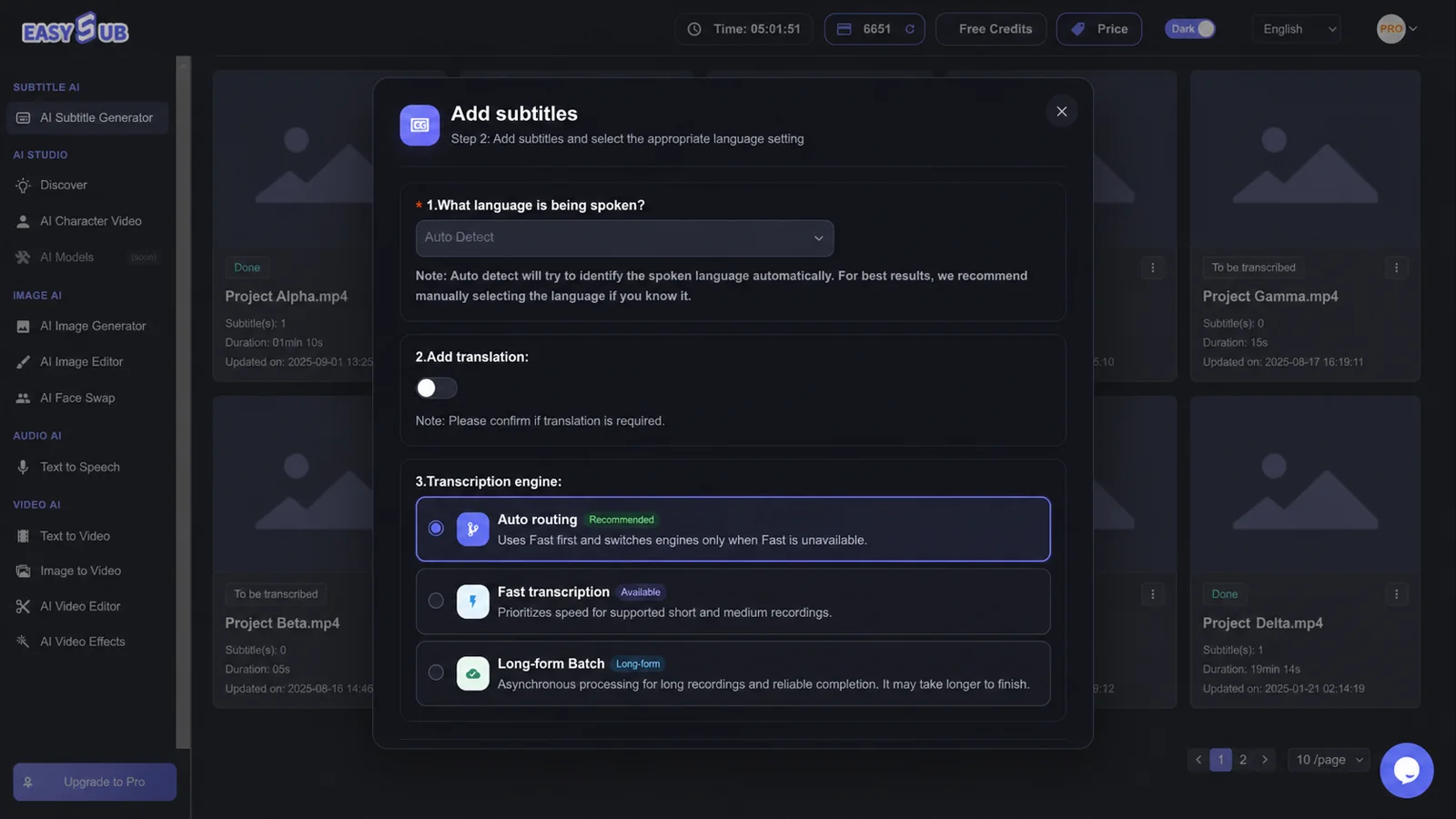
- Set the spoken language. Pick the language heard in the recording. This is separate from any translation you may create later.
- Generate the transcript draft. Let EasySub align recognized phrases with the media so each section can be checked in context.
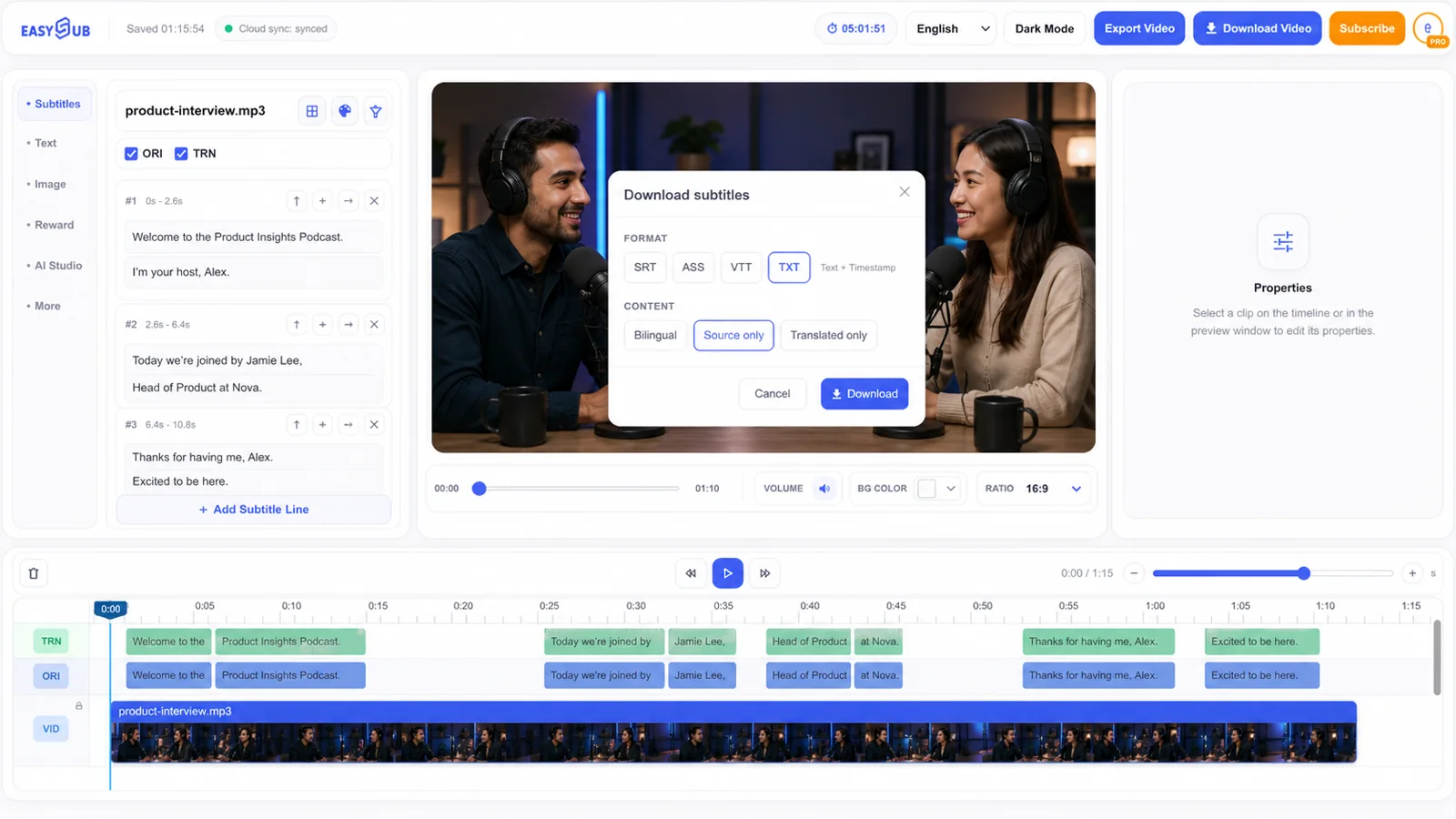
- Edit and deliver. Correct wording and segmentation, then download TXT for a transcript or a timed subtitle format for playback.
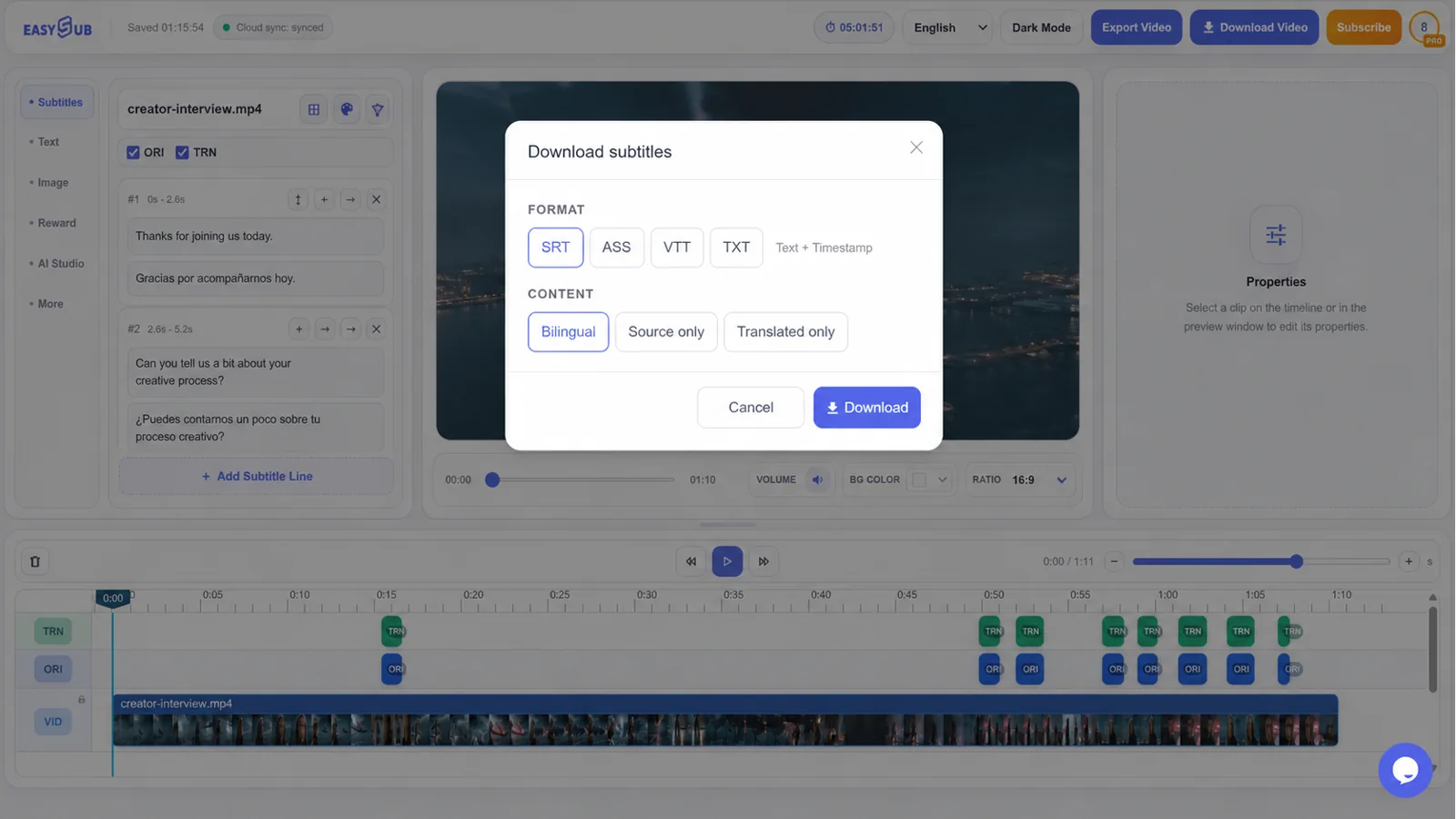
Choose the output that matches the next task
| Output | Best suited to | What to verify |
|---|---|---|
| TXT | Article drafts, meeting notes, research, show notes, and text review. | Paragraph breaks, speaker labels, names, and whether timestamps are needed. |
| SRT | Video editors, common media players, and creator platforms. | Cue timing, line breaks, sequence order, and the matching video version. |
| VTT | Web video and HTML5 caption workflows. | Player compatibility, language metadata, and timing after upload. |
| ASS | Supported playback or editing workflows that need richer subtitle styling. | Style support in the destination and final on-screen placement. |
How to improve transcript quality
Keep voices close to the microphone and reduce music, room echo, or fan noise when possible.
Search for names, dates, prices, acronyms, product terms, and negatives that could alter meaning.
Replay ambiguous sections instead of correcting a sentence from text alone.
For interviews and podcasts, confirm who is speaking whenever the transcript will be quoted. For tutorials, standardize commands and interface labels. For multilingual recordings, avoid assuming one language setting will accurately represent every switch between languages; inspect those transitions separately.
Useful speech-to-text workflows
- Podcast and interview transcripts: create a searchable draft, verify quotations, and prepare notes or a readable transcript.
- Video production: find useful sections faster, prepare captions, and give editors a text reference tied to the recording.
- Courses and training: turn lesson narration into reviewable text, then deliver captions or supporting notes.
- Localization preparation: establish a reviewed source-language transcript before translation so early recognition errors do not spread.
- Accessibility: use the transcript as the foundation for accurate, synchronized captions after timing and relevant sound information are reviewed.
Turn a recording into editable text
Generate the first transcript in EasySub, then review it against the audio before you publish, quote, translate, or caption it.