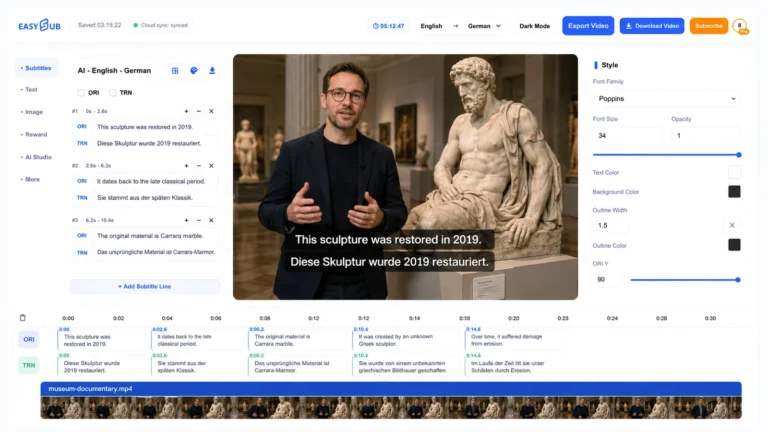
Turn spoken video or audio into an editable SubRip subtitle file without typing every timecode by hand. EasySub’s AI SRT Generator creates a synchronized draft, gives you a browser-based review workspace, and exports a clean .srt file for video editors, players, course platforms, and publishing tools.
What is an AI SRT generator?
An AI SRT generator uses speech recognition to create subtitle text and align each line with the corresponding part of a recording. The result can be downloaded in SubRip Subtitle format, commonly identified by the .srt extension. An SRT file is plain text: every cue has a sequence number, a start and end timecode, and one or more lines of dialogue.
Automatic generation is the beginning of the workflow, not the final quality check. Names, numbers, accents, overlapping speakers, background music, and technical vocabulary can affect a first draft. EasySub keeps the generated cues editable so you can compare them with the source before delivery.
How to generate an SRT file from video or audio
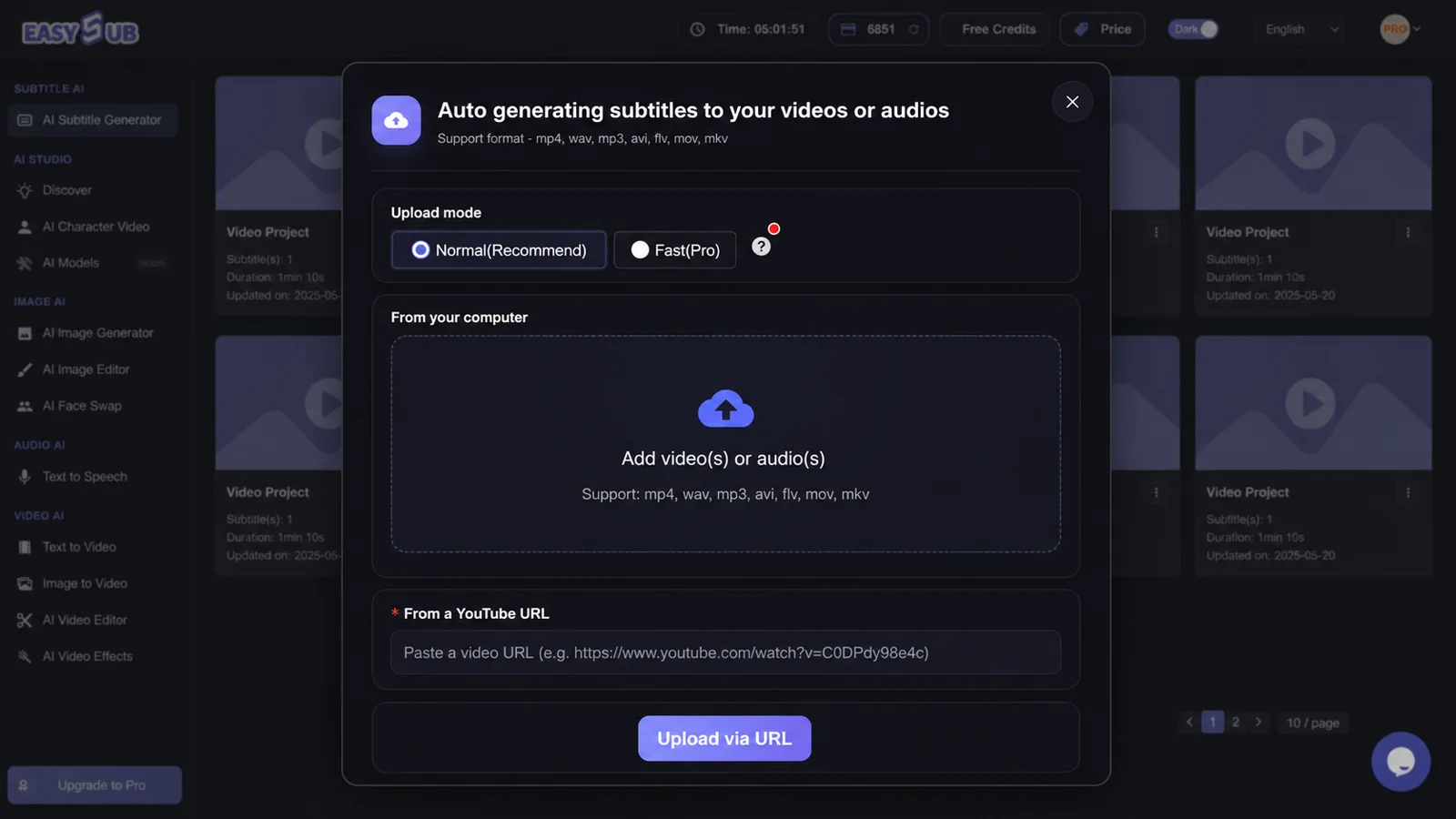
- Upload authorized media. Start a subtitle project with the clearest video or audio file available. A supported YouTube URL can also be used when you have permission to process the content.
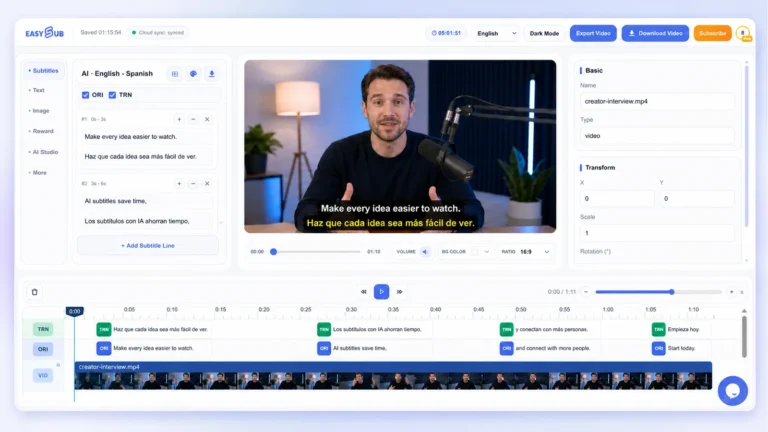
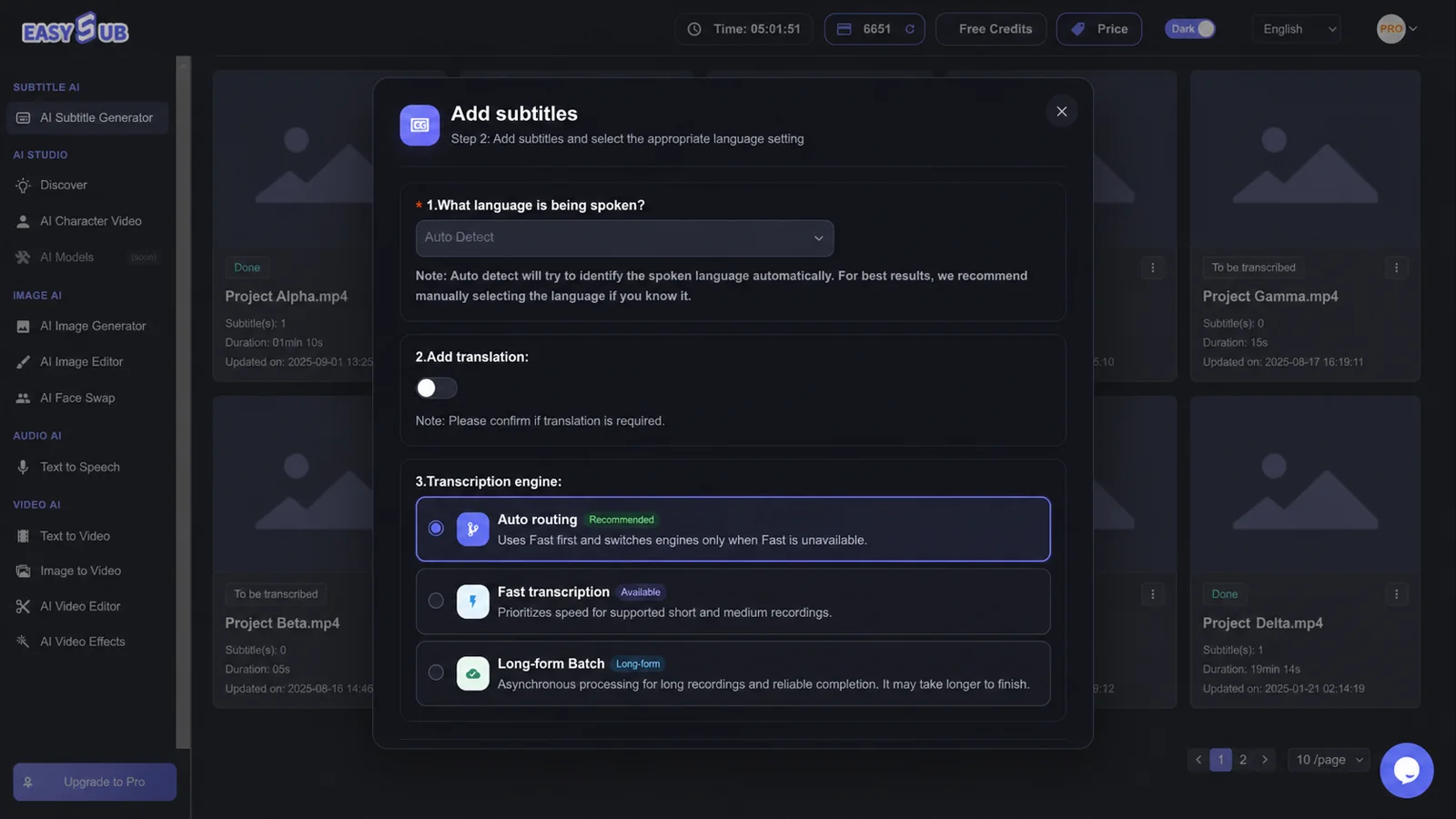
- Choose the source language. Select the language actually spoken in the recording. Add a translation only when the project needs a second-language subtitle track.
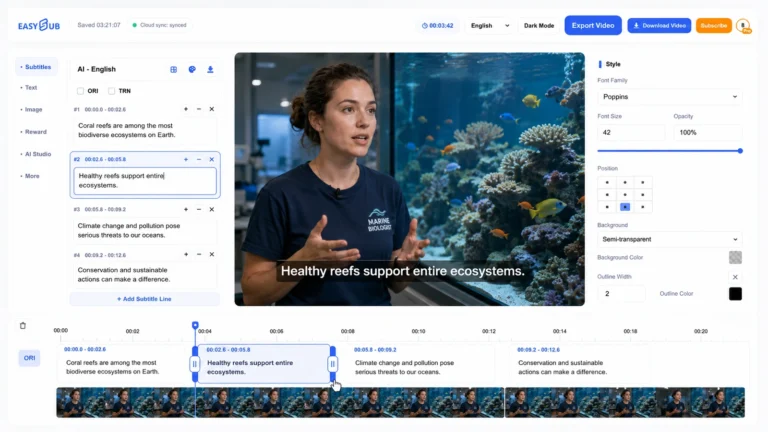
- Generate and review the draft. Correct names, punctuation, line breaks, speaker changes, and timing while watching the preview and timeline.
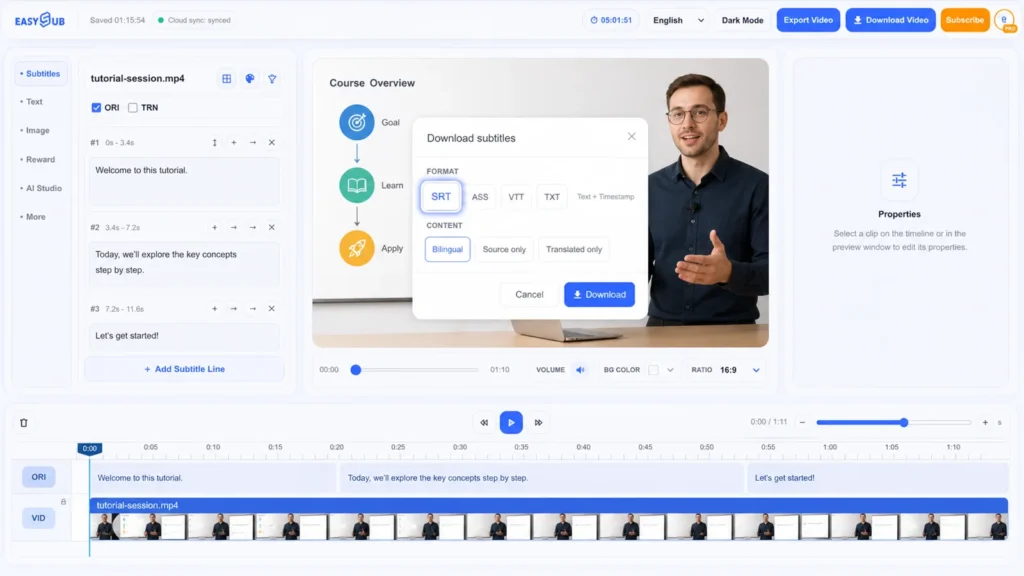
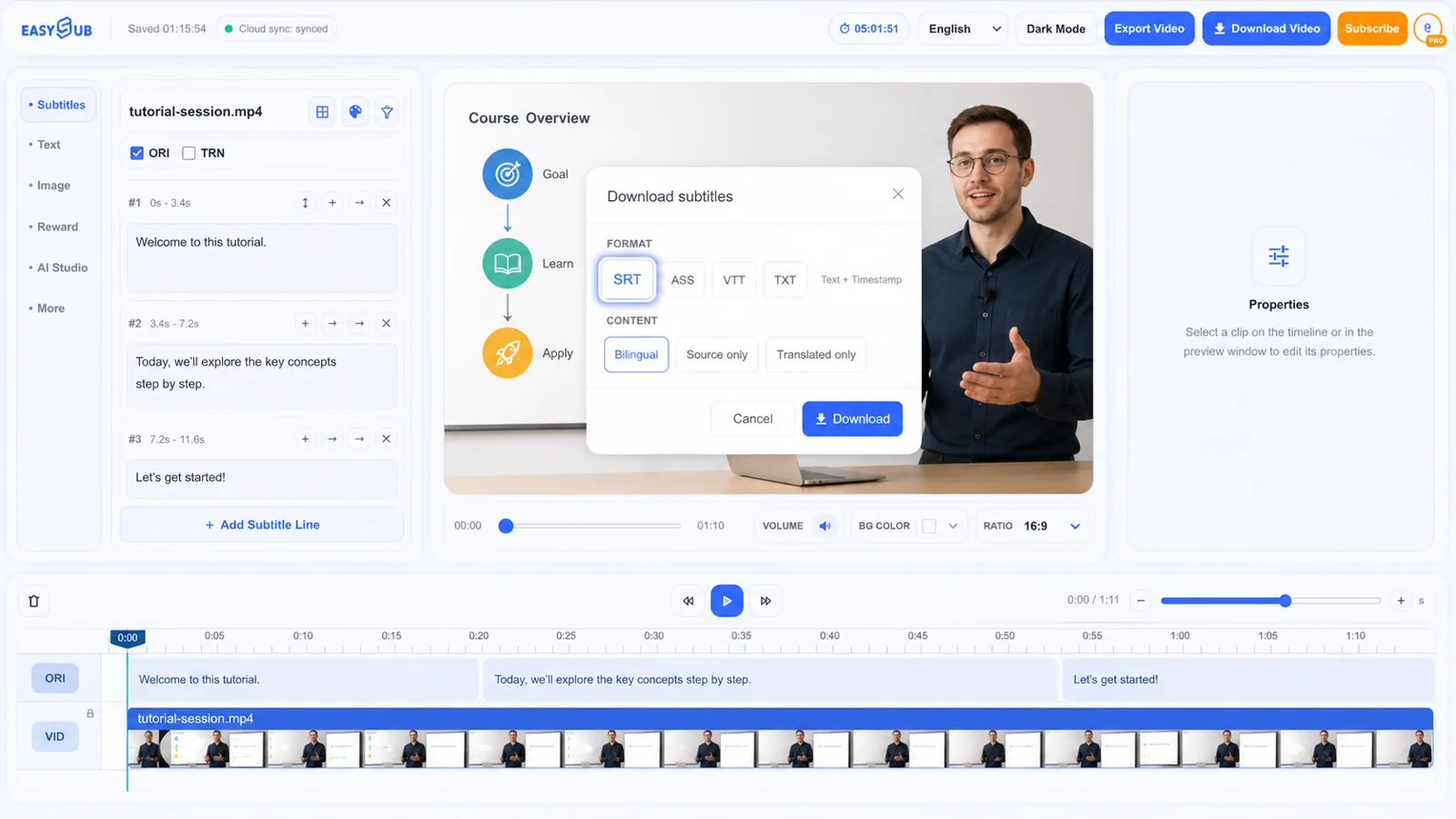
- Download as SRT. Open the subtitle download dialog, select SRT and the required source or translated track, then test the file in its destination player or editor.
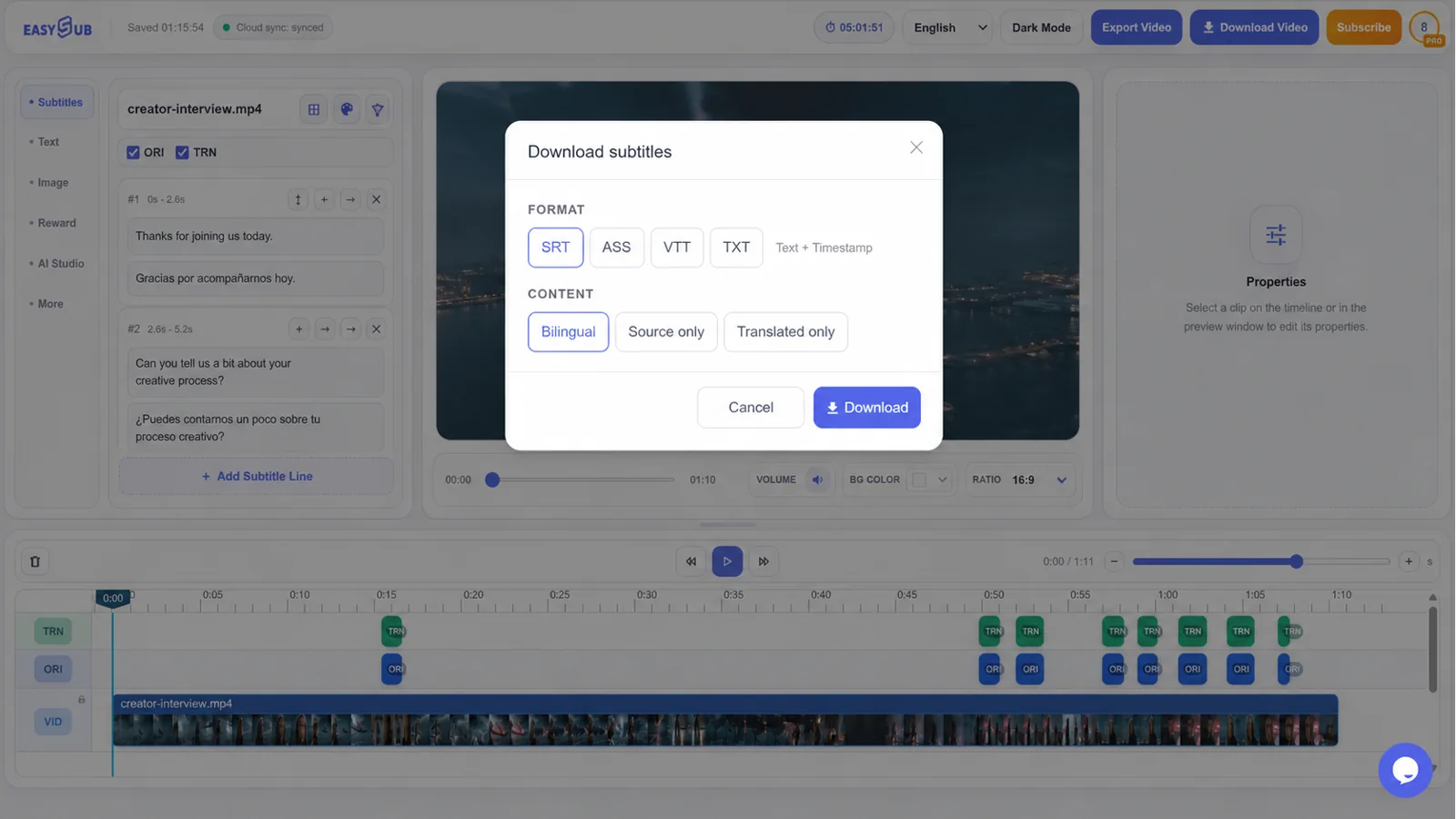
Review the cues before you export
A usable SRT file must be accurate and comfortable to read. Play the opening, several cuts in the middle, and the closing section while checking the highlighted cues. Pay special attention to proper nouns, product names, numbers, negatives, and any sentence that crosses a scene change.
| Review item | What to check | Why it matters |
|---|---|---|
| Text | The subtitle matches the spoken meaning, including names and numbers. | A small recognition error can change the message. |
| Timecodes | Each cue appears with the speaker and leaves at a natural pause. | Late or lingering subtitles make viewers work harder. |
| Line breaks | Break phrases at natural grammatical points and keep the text scannable. | Readable grouping is more useful than filling every available character. |
| Sequence | Cue numbers and time ranges remain in chronological order. | Malformed ordering can cause import or playback problems. |
| Destination test | Open the final SRT beside the correct video in the target app. | Players and editors can interpret styling and encoding differently. |
SRT format example
1
00:00:01,000 --> 00:00:04,200
Welcome to this tutorial.

2
00:00:04,500 --> 00:00:08,000
Today, we'll work through the process step by step.
SRT uses a comma between seconds and milliseconds. Save the file with the .srt extension and keep its filename easy to match with the source video. For multilingual delivery, use clear language labels such as lesson.en.srt and lesson.es.srt.
When SRT is the right output
Upload a separate subtitle track so viewers can turn captions on or off and creators can maintain language versions.
Import timed dialogue into an editor that accepts SRT, then verify formatting and timing after import.
Pair lessons with a lightweight subtitle file when the learning platform supports selectable captions.
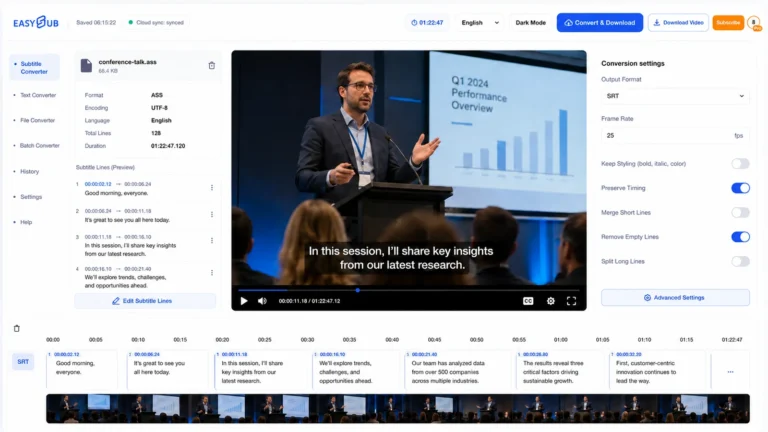
SRT stores text and timing but offers limited styling. Choose ASS when a supported workflow needs richer placement or formatting, VTT for web-video features, or TXT when you only need transcript text. EasySub’s download dialog exposes SRT, ASS, VTT, and TXT so the output can match the next step.
Create a timed SRT draft
Open the subtitle workspace, generate the first version, and review it against the recording before delivery.