Het belangrijkste verschil tussen gesloten ondertiteling en open ondertiteling is of kijkers de ondertiteling kunnen aanpassen. Gesloten ondertiteling (CC) is een apart ondertitelingsspoor dat kijkers kunnen in- of uitschakelen. Dit maakt het geschikter voor situaties waarin meertalige ondertiteling vereist is, nabewerking en YouTube. Open ondertiteling daarentegen is direct in het videobeeld ingebed en wordt altijd weergegeven; kijkers kunnen deze niet uitschakelen. Daarom is open ondertiteling beter geschikt voor TikTok, Instagram Reels, advertenties en video's die een consistente ondertitelingsstijl vereisen. Als je prioriteit geeft aan... kijkersbediening, meertalige ondersteuning en bewerkbaarheid van ondertiteling, Kies voor ondertiteling; als u prioriteit geeft aan Altijd zichtbare bijschriften, visuele consistentie en delen via sociale media, Kies 'Ondertiteling inschakelen'.
Inhoudsopgave
Gesloten ondertiteling versus open ondertiteling: een snelle vergelijking
| Functie | Ondertiteling | Ondertiteling inschakelen |
|---|---|---|
| Kunnen kijkers ze uitzetten? | Ja | Nee |
| Maakt dit deel uit van het videobeeld? | Meestal niet | Ja |
| Kijkerbediening | Hoog | Geen |
| Meerdere talen | Makkelijker te beheren met aparte ondertitelingssporen | Vereist doorgaans aparte videoversies met ondertiteling. |
| Bewerken na publicatie | Makkelijker; je kunt de ondertitelingstrack bijwerken. | Meestal is het nodig om de video te bewerken en opnieuw te renderen. |
| Bijschriftstijl | Dat hangt af van de speler, het platform en het ondertitelingsformaat. | Je hebt de controle over het lettertype, de grootte, de kleur, de positie en de visuele stijl. |
| Platformondersteuning vereist | Ja, de speler moet ondertiteling ondersteunen. | Er is geen aparte ondertitelingsfunctie nodig. |
| Het beste voor | YouTube, cursussen, webinars, trainingen, meertalige video's | TikTok, Reels, Shorts, advertenties, sociale video's |
| De beste keuze wanneer | Je hebt flexibiliteit en controle over de kijker nodig. | Je hebt ondertitels nodig om ze zichtbaar te houden. |
Wat zijn gesloten en open ondertiteling?
Zowel gesloten als open ondertiteling zijn tekstberichten die synchroon lopen met de audio van de video. Gesloten ondertiteling bestaat echter als een apart ondertitelingsspoor dat kijkers kunnen in- of uitschakelen, terwijl open ondertiteling direct over de video heen wordt geplaatst en altijd wordt weergegeven.
Wat zijn ondertitels?
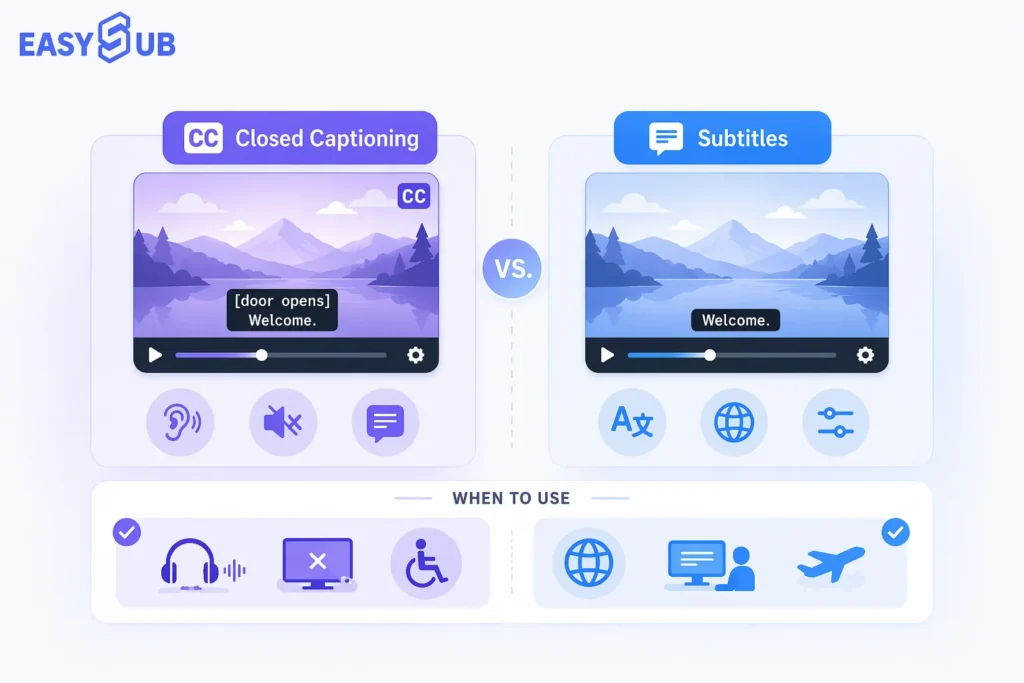
Ondertiteling (CC) is een vorm van ondertiteling die kijkers naar eigen inzicht kunnen in- of uitschakelen. Ze worden synchroon met de video afgespeeld als een apart onderdeel. ondertitelingsspoor. Wanneer de video wordt afgespeeld, leest de speler de tekst en tijdstempels uit de ondertitels en toont de bijbehorende inhoud op het juiste moment.
Ondertiteling kan in verschillende formaten worden aangeboden. De twee meest voorkomende zijn:
- SRT (.srt): Neemt ondertitels op met behulp van tekst en tijdscodes. Grote videoplatformen zoals YouTube ondersteunen dit formaat.
- WebVTT (.vtt): Het Web Video Text Tracks-formaat, gedefinieerd door het W3C, kan worden gebruikt voor video-ondertitels en andere tijdgesynchroniseerde tekstsporen.
Daarom, als u dat nodig heeft Gesloten ondertiteling maken, je kunt eerst Exporteer een SRT- of VTT-bestand en upload dit vervolgens als een aparte ondertitelingstrack naar een ondersteund platform.
Wat zijn ondertitels?
Open Captions zijn ondertitels die direct in het videobeeld zijn ingebed en niet door de kijker kunnen worden uitgeschakeld. De W3C definieert ondertitels die niet kunnen worden uitgeschakeld als 'open ondertiteling'.
Bij het maken van ondertiteling worden de ondertitels samen met de originele video weergegeven: zodra het renderen is voltooid, worden de ondertitels onderdeel van het videobeeld. De speler hoeft geen aparte ondertitelingsbalk meer te lezen. Daarom blijven de ondertitels zichtbaar, zelfs als je de video naar een ander platform uploadt.
Je zult ook vaak termen tegenkomen zoals ingebrande ondertitels of hardgecodeerde ondertitels. Deze beschrijvingen geven een manier weer om ondertitels permanent in het videobeeld weer te geven.
8 belangrijke verschillen tussen gesloten en open ondertiteling
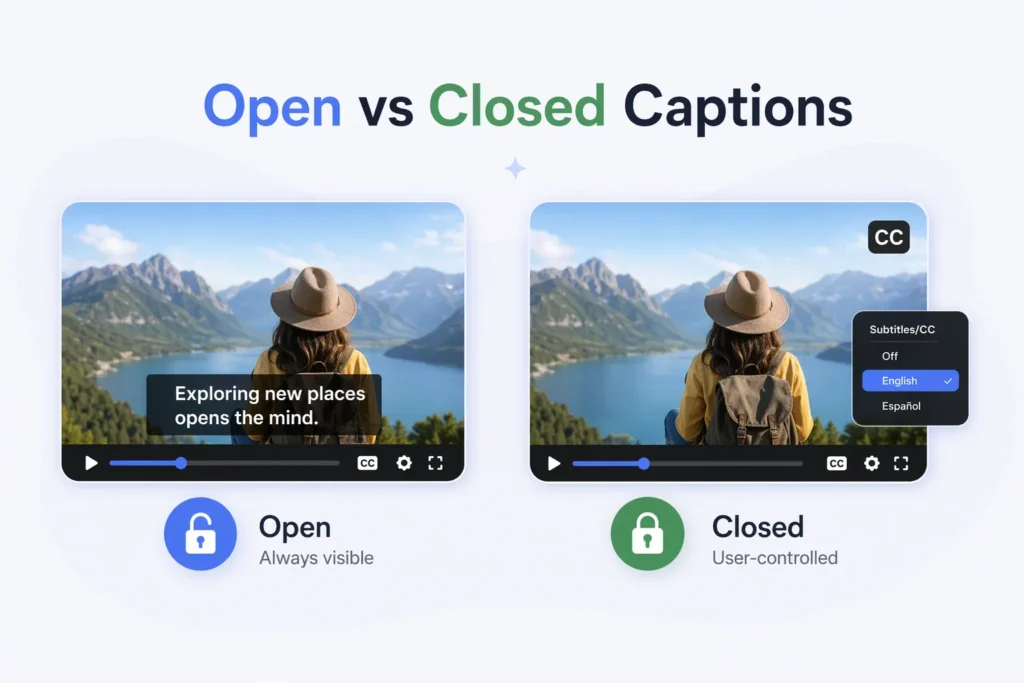
In ondersteunde mediaspelers kunnen gesloten ondertitels worden in- of uitgeschakeld, terwijl open ondertitels niet kunnen worden uitgeschakeld.
1. Kijkersbediening
Bij gesloten ondertiteling heeft de kijker de controle, terwijl bij open ondertiteling de maker van de video zelf kan beslissen of deze wordt weergegeven.
Met gesloten ondertiteling kunnen kijkers deze naar behoefte in- of uitschakelen. Open ondertiteling daarentegen wordt van begin tot eind van de video weergegeven en kan niet door de kijker worden uitgezet.
Als uw content gericht is op een publiek met verschillende kijkgewoonten, raad ik gesloten ondertiteling aan. Voor content zoals advertenties en korte video's, waarbij het essentieel is dat de tekst zichtbaar is, is open ondertiteling geschikter.
2. Hoe ondertitels worden opgeslagen
Gesloten ondertiteling is doorgaans te vinden in een apart ondertitelingsspoor; open ondertiteling is direct in de video zelf geïntegreerd.
Ondertiteling kan met de video worden gesynchroniseerd via een ondertitelingsbestand dat tekst en tijdscodes bevat. YouTube legt uit dat ondertitelingsbestanden de ondertitelingstekst en de weergavetijd vastleggen en het uploaden van afzonderlijke ondertitelingsbestanden ondersteunen.
Open ondertiteling wordt daarentegen direct in de video opgenomen tijdens het exporteren. Zodra dit is voltooid, ziet de speler het standaard videobeeld in plaats van een aparte ondertitelingsbalk die onafhankelijk kan worden aangestuurd.
3. Stijl van bijschriften
Als je waarde hecht aan het visuele ontwerp van je ondertitels, bieden Open Captions je doorgaans meer controle. Je kunt het lettertype, de lettergrootte, de kleur, de positie, de achtergrond, de markering van trefwoorden en de animatie-effecten aanpassen om ervoor te zorgen dat de ondertiteling aansluit bij de stijl van je video. Het uiteindelijke uiterlijk van gesloten ondertiteling wordt daarentegen beïnvloed door het ondertitelingsformaat, de mediaspeler, het platform en de instellingen van de kijker. Sommige apparaten ondersteunen aanpassingen aan het lettertype, de lettergrootte, de tekstkleur, de achtergrondkleur en de transparantie, dus je kunt niet garanderen dat gesloten ondertiteling er op alle apparaten precies hetzelfde uitziet.
4. Meerdere talen
Als een video in meerdere talen beschikbaar moet zijn, is het over het algemeen aan te raden om prioriteit te geven aan ondertiteling. Je kunt dezelfde video behouden en aparte ondertitelingssporen in verschillende talen toevoegen, zoals Engels, Spaans, Frans of Duits, zodat kijkers direct hun voorkeurstaal kunnen selecteren. Open Captions werkt anders, omdat de ondertitels direct op het videobeeld worden weergegeven. Als je vier talen nodig hebt, moet je doorgaans vier aparte versies van de video met ondertiteling exporteren.
5. Bewerken en bijwerken
Ondertiteling is beter geschikt voor content die voortdurend moet worden herzien.
Stel dat de ondertiteling van de video onjuist is. “50 klanten” als “15 klanten.” Als je ondertiteling gebruikt, hoef je meestal alleen de ondertiteltrack te bewerken of te vervangen, zonder de hele video opnieuw te hoeven maken. Als de tekst echter al als open ondertiteling in de video is opgenomen, moet je de ondertiteling meestal bewerken, de video opnieuw renderen en vervolgens een nieuwe versie exporteren.
Daarom raad ik aan om voor cursussen, trainingsmateriaal, productpresentaties en regelmatig bijgewerkte content een apart bestand met ondertitels te gebruiken.
6. Platformcompatibiliteit
Gesloten ondertiteling is afhankelijk van de ondertitelingsfunctionaliteit van de speler, terwijl open ondertiteling over het algemeen geen extra ondersteuning voor ondertiteling vereist.
Om ondertiteling correct te laten werken, moet het publicatieplatform het bijbehorende ondertitelingsbestand kunnen lezen. Ondersteunde bestandsformaten kunnen per platform verschillen. YouTube ondersteunt bijvoorbeeld meerdere ondertitelings- en closed caption-formaten, waaronder SRT en WebVTT.
Ondertiteling is al in het videobeeld ingebed. Zolang de video normaal afspeelt, verschijnt de ondertiteling doorgaans ook.
7. Toegankelijkheid en kijkersvoorkeuren
Het voordeel van gesloten ondertiteling is dat kijkers meer controle hebben. Het voordeel van open ondertiteling is dat de ondertiteling niet verdwijnt als de gebruiker deze niet heeft ingeschakeld.
8. Productieworkflow
Ondertiteling volgt doorgaans deze workflow: Genereren → Bewerken → Exporteren naar SRT/VTT → Ondertitelingstrack uploaden
Open Captions volgt doorgaans deze workflow: Genereren → Bewerken → Stijl → In video branden → Exporteren
Zijn open of gesloten ondertiteling beter?
Voor de meeste gebruikers die video's langdurig moeten publiceren, beheren of vertalen, raad ik gesloten ondertiteling aan. Als uw voornaamste doel is om de ondertiteling altijd zichtbaar te houden en in het visuele ontwerp van de video te integreren, is open ondertiteling een betere keuze. Het W3C maakt ook een duidelijk onderscheid tussen de twee: gesloten ondertiteling kan door de kijker worden weergegeven of verborgen, terwijl open ondertiteling altijd wordt weergegeven.
Wanneer moet je ondertiteling gebruiken?
Als u publiceert Lange YouTube-video's, online cursussen, webinars, trainingsvideo's of meertalige content, Ik raad aan om ondertiteling te gebruiken. Dit geeft kijkers de mogelijkheid om zelf te bepalen of ze ondertiteling willen zien en maakt het later eenvoudiger om verschillende taalversies te bewerken en te beheren.
- Je wilt dat kijkers de ondertiteling kunnen in- of uitschakelen.
- Een enkele video moet meerdere talen ondersteunen.
- Ondertitels moeten mogelijk in de toekomst worden aangepast.
- Je moet een grote hoeveelheid videocontent op de lange termijn beheren.
- Je publiceert cursussen, trainingsvideo's, webinars of langere YouTube-video's.
Wanneer moet je ondertiteling gebruiken?
- Bij het maken van korte video's zoals voor TikTok, Instagram Reels of YouTube Shorts.
- Het maken van advertenties voor sociale media of promotievideo's
- Wanneer ondertitels altijd moeten worden weergegeven
- Wanneer u consistente controle nodig hebt over lettertype, kleur, positie, markering of animatie-effecten.
- Wanneer je wilt dat ondertitels onderdeel uitmaken van het visuele ontwerp van de video.
- Wanneer je niet wilt dat kijkers handmatig de ondertiteling inschakelen.
- Wanneer het publicatieplatform geen betrouwbare ondertitelingsfunctie of ondersteuning voor ondertitelsporen biedt.
Gesloten versus open ondertiteling per platform en gebruikssituatie
| Platform / Gebruiksscenario | Aanbevolen | Waarom |
|---|---|---|
| Lange YouTube-video's | Gesloten / Beide | YouTube ondersteunt aparte ondertitelingssporen en meertalige ondertiteling. Je kunt ondertitels in de nabewerking bewerken zonder de hele video opnieuw te hoeven exporteren. |
| TikTok | Open | Korte video's moeten snel informatie overbrengen. Door ondertitels direct in beeld te tonen, zien kijkers de tekst en blijft de visuele stijl consistent. |
| Instagram Reels | Open | Als ondertitels dienen als informatiebronnen, om belangrijke trefwoorden te benadrukken of om visuele begeleiding te bieden, zijn open ondertitels beter geschikt om een consistente uitstraling te behouden. |
| YouTube Shorts | Open / Beide | Gebruik Open Captions als de ondertiteling onderdeel is van het video-ontwerp; als je ook de ondertitelingsfuncties van het platform nodig hebt, kun je ook Closed Captions toevoegen. |
| Online cursussen | Gesloten | Cursussen vereisen doorgaans langdurig onderhoud, meertalige versies en herzieningen van de ondertiteling. Een aparte ondertitelingstrack is gemakkelijker te beheren. |
| Webinars | Gesloten | Bij opgenomen webinars is het vaak nodig om de ondertiteling te bewerken, vertalen of hergebruiken. Ondertiteling is beter geschikt voor onderhoud achteraf. |
| Bedrijfstraining | Gesloten | De trainingsinhoud kan regelmatig worden bijgewerkt of specifiek worden afgestemd op medewerkers die verschillende talen spreken. Aparte ondertitelingssporen bieden meer flexibiliteit. |
| Videoadvertenties | Open | Belangrijke informatie in advertenties kan niet afhankelijk zijn van kijkers die actief ondertiteling inschakelen. Open Captions zorgt ervoor dat ondertiteling altijd wordt weergegeven. |
| Openbare tentoonstellingen | Open | In omgevingen zoals beursschermen en displays in winkelcentra kunnen kijkers de ondertitelingsinstellingen doorgaans niet aanpassen, waardoor Open Captions – die altijd worden weergegeven – praktischer is. |
| Meertalige inhoud | Gesloten | Je kunt meerdere ondertitelingssporen in verschillende talen voor dezelfde video beheren zonder de hele video voor elke taal opnieuw te hoeven genereren. YouTube ondersteunt het toevoegen van ondertitels in verschillende talen aan video's. |
Gesloten versus open ondertiteling voor toegankelijkheid
Zowel gesloten als open ondertiteling kan de toegankelijkheid van video's verbeteren; de sleutel is of de ondertiteling accuraat, gesynchroniseerd, volledig en gemakkelijk leesbaar is. WCAG 2.2 vereist dat audio-inhoud in vooraf opgenomen, gesynchroniseerde media van ondertiteling wordt voorzien, maar specificeert niet dat alleen gesloten ondertiteling moet worden gebruikt. De W3C erkent zowel gesloten ondertiteling (die kan worden uitgeschakeld) als open ondertiteling (die niet kan worden uitgeschakeld).
Zijn ondertitels toegankelijker?
Als je kijkers meer controle wilt geven, raad ik ondertiteling aan. Gebruikers kunnen ondertiteling naar behoefte in- of uitschakelen. Op mediaspelers en apparaten die deze functie ondersteunen, kunnen gebruikers ook aanpassen hoe de ondertiteling wordt weergegeven. Ondertiteling moet echter ook belangrijke non-verbale geluiden bevatten die nodig zijn om de video te begrijpen, zoals muziek, gelach, geluidseffecten en informatie over de spreker.
Zijn ondertitels toegankelijk?
Ja, ondertiteling biedt ook voordelen op het gebied van toegankelijkheid. De ondertitels worden permanent in de video weergegeven, zodat kijkers niet hoeven te zoeken naar een CC-knop of de ondertiteling handmatig hoeven in te schakelen.
Wat kenmerkt een hoogwaardige ondertiteling?
Of je nu kiest voor gesloten of open ondertiteling, deze moet aan de volgende kenmerken voldoen:
- Nauwkeurigheid: Ondertiteling moet dialogen, namen, getallen en belangrijke geluiden die nodig zijn voor het begrijpen van de inhoud nauwkeurig weergeven.
- Synchronisatie: Ondertiteling moet zo goed mogelijk synchroon lopen met de bijbehorende gesproken tekst en beelden. Merkbare vertragingen of voorsprongen maken het voor kijkers moeilijker om de inhoud te begrijpen.
- Volledigheid: Laat geen delen van de dialoog weg. Alle gesproken tekst, belangrijke geluidseffecten en andere audio-informatie die nodig is om de video te begrijpen, moeten volledig worden weergegeven. De FCC beschouwt volledigheid ook als een kwaliteitsnorm voor ondertiteling.
- Leesbaarheid: Ondertiteling moet snel en gemakkelijk te lezen zijn. Vermijd te veel tekst op één scherm, complexe opmaak of een gebrek aan visueel contrast met de achtergrond. Voor Open Captions moet u met name het lettertype, de grootte en de achtergrond controleren om ervoor te zorgen dat de tekst in verschillende scènes duidelijk leesbaar blijft.
- Plaatsing: Ondertitels mogen geen gezichten, productinformatie, grafieken of andere belangrijke visuele elementen verbergen die nodig zijn om de video te begrijpen.
Kan AI zowel open als gesloten ondertiteling genereren?
Ja. AI kan eerst automatisch de audio in een video transcriberen om ondertitels met een tijdlijn te genereren en deze vervolgens exporteren als gesloten ondertitels of open ondertitels, afhankelijk van uw behoeften. Als je ondertiteling voor doven en slechthorenden nodig hebt, kun je losse ondertitelingsbestanden downloaden, zoals SRT of VTT. Voor open ondertiteling kunnen de ondertitels direct in de video worden weergegeven.
Hoe maak je ondertiteling (zowel open als gesloten ondertiteling) met EasySub?
Met EasySub kunt u het hele proces in de volgende 5 stappen voltooien:
Stap 1: Upload je video
Upload het video- of audiobestand waaraan je ondertiteling wilt toevoegen. EasySub ondersteunt ook het importeren van content via een YouTube-videolink.
Stap 2: Ondertiteling genereren met AI
Selecteer de originele taal van de video, zodat de AI automatisch spraak herkent en ondertitels met een tijdlijn genereert. U hoeft niet elke zin te transcriberen of handmatig tijdstempels voor elke regel in te stellen.
Stap 3: Controleren en bewerken
Zodra de generatie voltooid is, controleer dan de tekst, de tijdlijn, de namen, de getallen en de technische termen. Als de AI fouten maakt, kunt u de ondertiteltekst en de tijdstempels direct bewerken. EasySub biedt momenteel een online functie voor het bewerken van ondertitels.
Stap 4: Vertalen indien nodig
Als uw video bedoeld is voor een publiek dat verschillende talen spreekt, kunt u de ondertiteling vertalen. De huidige toolpagina van EasySub biedt hiervoor ondersteuning. vertaling in meer dan 150 talen, waardoor u meertalige content binnen dezelfde ondertitelingsworkflow kunt verwerken.
Stap 5: Kies uw uitvoer
Als je nodig hebt Ondertiteling, Je kunt losstaande ondertitelingsbestanden zoals SRT of VTT downloaden en deze vervolgens uploaden naar platforms die ondertitelingssporen ondersteunen.
Als je nodig hebt Ondertiteling inschakelen, Je kunt de bewerkte ondertitels direct in de video exporteren, waardoor de ondertitels onderdeel worden van het uiteindelijke videobeeld. EasySub ondersteunt momenteel zowel het downloaden van ondertitelbestanden als het exporteren van video's met ondertitels.
Maak ondertiteling (gesloten of open) met EasySub
Met EasySub kunt u eerst ondertitels genereren met behulp van AI, ze vervolgens controleren, vertalen en bewerken, en tot slot de ondertitelingsbestanden downloaden of de video met ondertitels direct exporteren, afhankelijk van uw publicatieplatform.
Genereer, bewerk, vertaal en exporteer video-ondertitels met behulp van AI.
Gesloten ondertiteling versus open ondertiteling: veelgestelde vragen
Vraag 1: Wat is het verschil tussen open ondertiteling en gesloten ondertiteling?
Open ondertiteling wordt permanent op het videoscherm weergegeven, terwijl gesloten ondertiteling door de kijker kan worden in- of uitgeschakeld. Gesloten ondertiteling is doorgaans te vinden op een apart ondertitelspoor. Open ondertiteling daarentegen wordt direct in het videobeeld weergegeven.
Vraag 2: Zijn open of gesloten ondertiteling beter?
Geen van beide is in alle situaties universeel beter. Als je meertalige ondersteuning, updates van ondertitels of controle door de kijker nodig hebt, zijn gesloten ondertitels geschikter. Als ondertitels altijd moeten worden weergegeven, of als de ondertitels zelf onderdeel uitmaken van het visuele ontwerp van de video, zijn open ondertitels praktischer.
Vraag 3: Wat is het verschil tussen CC- en OC-ondertiteling?
CC staat doorgaans voor Closed Captions (ondertiteling met gesloten scherm), terwijl OC staat voor Open Captions (ondertiteling zonder gesloten scherm). Ondertiteling (CC) kan in ondersteunde mediaspelers worden in- of uitgeschakeld. Originele content (OC) wordt altijd weergegeven en is meestal ingebed in het videobeeld.
Vraag 4: Kan ondertiteling worden uitgeschakeld?
Nee. Open ondertiteling maakt al deel uit van het videobeeld, waardoor kijkers deze niet via de speler kunnen uitschakelen. Als u ondertiteling nodig hebt die u wel kunt in- of uitschakelen, gebruik dan gesloten ondertiteling.
Vraag 5: Zijn ondertitels op YouTube open of gesloten?
YouTube ondersteunt ondertiteling voor doven en slechthorenden, en je kunt ook video's uploaden die al ondertiteling voor niet-doven bevatten. Als je een aparte ondertitelingstrack uploadt, kunnen kijkers de ondertiteling beheren via de CC-instellingen. Als de ondertiteling in de video is ingebouwd, spreekt men van open ondertiteling.
Vraag 6: Kan AI zowel gesloten als open ondertiteling maken?
Ja. AI kan eerst de ondertitelingstekst en de tijdlijn genereren. Je kunt de ondertitels exporteren als SRT- of VTT-bestanden om ze als gesloten ondertiteling te gebruiken, of ze direct in de video renderen om open ondertiteling te creëren.
Conclusie
Gesloten ondertiteling is beter geschikt voor video's waarbij de kijker controle moet hebben, meertalige ondersteuning nodig is en ondertiteling op de lange termijn beheerd moet worden. Open ondertiteling is beter geschikt voor video's waarbij de ondertiteling altijd zichtbaar moet zijn, een consistente stijl moet hebben of bedoeld is om te delen op sociale media.
Met EasySub kun je AI gebruiken om automatisch ondertitels te genereren, te bewerken en te vertalen, en ze vervolgens te publiceren. exporteer bijschriftbestanden of Maak video's met ingebrande ondertitels. indien nodig.
👉 Klik hier voor een gratis proefversie: Genereer gratis ondertitels
Bedankt voor het lezen van deze blog. Neem gerust contact met ons op als u nog vragen heeft of maatwerk nodig heeft!