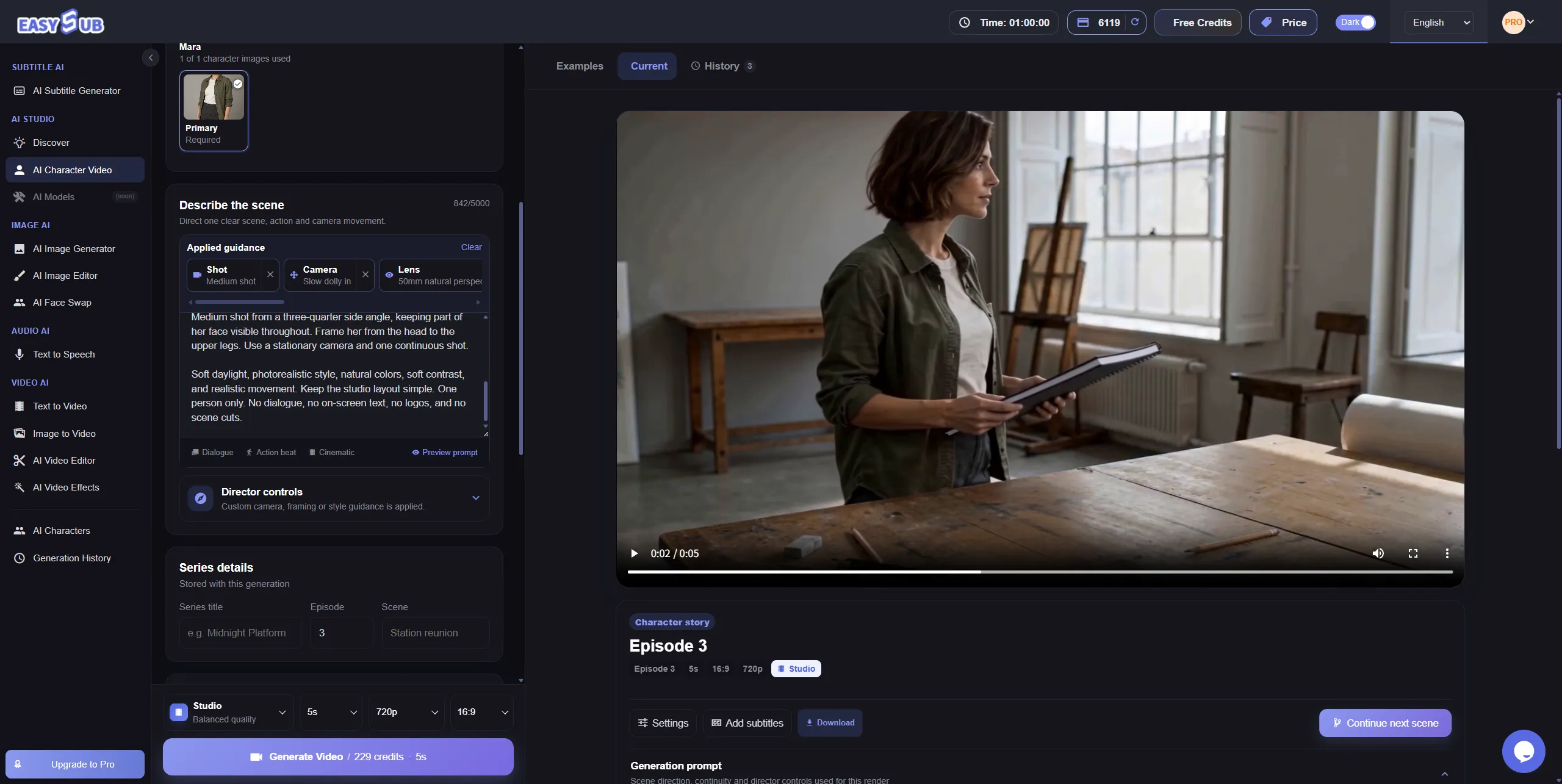
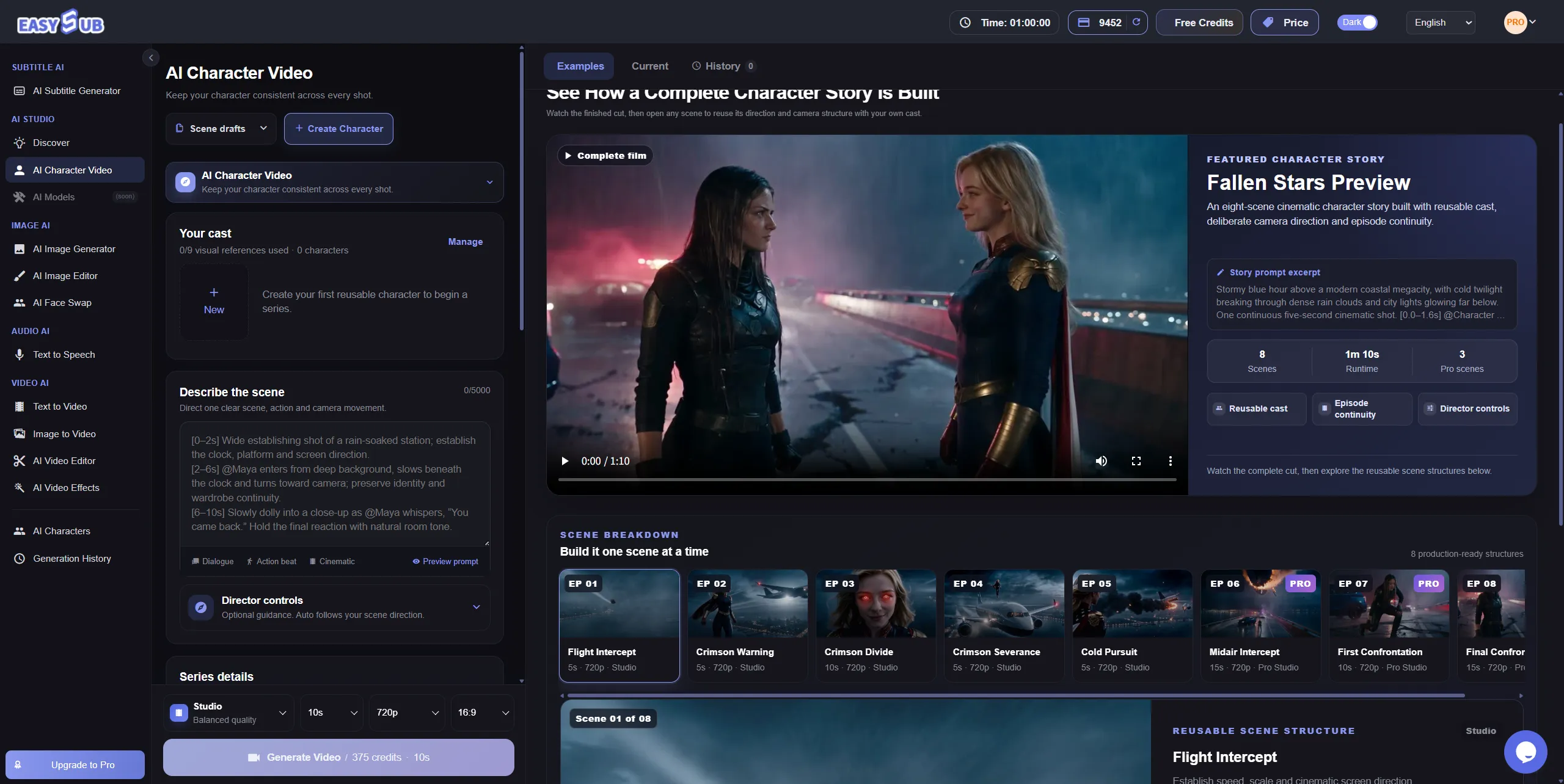
AI Character Video Generator — One Character, New Scenes
Bring your recurring character into new settings, actions, and camera angles. Build your story scene by scene, using character references to guide a recognizable appearance across connected shots.
- Reuse your character: Carry the same character reference into each new scene.
- Direct the next shot: Describe the action, setting, and camera angle.
- Review the continuity: Compare your clips and refine the details before assembling your story.
Sign in to create and save your project. Check the AI Credit quote before each generation.
See the Same Character Across Different Shots
Follow one character through three connected shots. Each clip uses the same character reference, with a different action and camera angle. Compare her face, hairstyle, and outfit as the scene progresses.
Meet Mara
The character reference used for all three shots. Look for her chestnut bob, olive overshirt, and cream T-shirt.

Shot 1 — Enter the Studio
A medium shot introduces Mara as she walks toward the workbench.
Shot 2 — Pick Up the Notebook
A closer view shows her facial features and outfit as she picks up a notebook.
Shot 3 — Move Toward the Window
A three-quarter side view follows Mara carrying the notebook toward the window.
A Consistent Character Video Generator for Connected Scenes
A consistent character video generator uses reusable visual references to guide the same character’s appearance across separately generated scenes. With EasySub, you can reuse your character reference, describe different shots, and compare the results for visual continuity.
Reuse Your Character Reference
Bring the same character reference into each new scene. Keep the facial features, hairstyle, clothing, and distinctive details you want to preserve clearly defined as you build your sequence.
Direct Each Shot
Describe a new action, setting, or camera angle while reusing your character reference. Explore medium shots, closer views, and side angles to develop your story around a recurring character.
Review Character Continuity
Compare your generated clips before assembling the sequence. Check the face, hairstyle, outfit details, and proportions, then refine individual shots where the appearance has changed.
How to Create Videos with Consistent AI Characters
Start with a clear character reference, describe one scene at a time, and review your results across shots. Follow these three steps to create character videos with EasySub.
Step 1 — Create or Select Your Character
Select an existing character or create one with clear reference images. Use references that show the face, hairstyle, clothing, and distinctive details you want to carry into your scenes.
Step 2 — Describe and Generate Each Scene
Reuse your character reference and describe the action, setting, and camera direction for each shot. Choose your generation settings, review the AI Credit quote, and generate the scene.
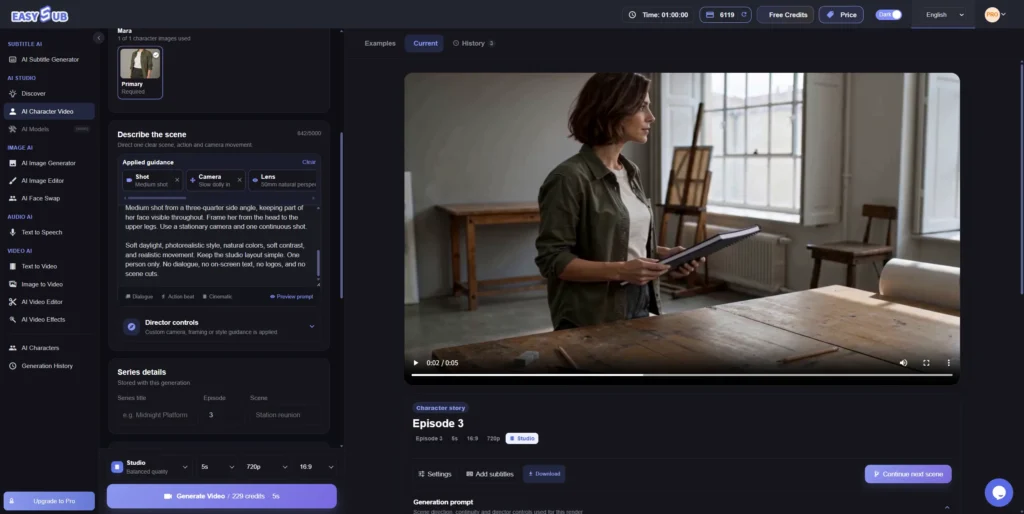
Step 3 — Preview and Review Your Clips
Preview each clip and compare the character’s appearance across shots. If a scene needs another attempt, check the new credit quote before generating again. Continue with editing and subtitles when your clips are ready.
How to Improve Character Consistency Across Shots
For better character continuity, reuse clear references, keep important character details consistent, and plan each shot around a simple action. These practical steps can help you guide your character consistency AI workflow and review the results.
Tip 1 — Use Clear, Compatible References
Choose character references with a clearly visible face, hairstyle, and outfit. When using multiple references, check that they show the same identity and the appearance you want for the sequence.
Tip 2 — Repeat the Details You Want to Preserve
Keep a short character description in each scene prompt. Repeat the hairstyle, clothing, and distinctive features that should remain consistent, then describe what changes in the new shot.
Tip 3 — Start with One Main Action
Give each shot one clear action, such as entering a room or picking up an object. Begin with a simple scene, review the result, and introduce more complex movement gradually.
Tip 4 — Compare Before You Continue
Review your clips side by side. Check the face, hair, outfit details, and body proportions, then decide which shots need another attempt. Review the new credit quote before generating again.
Create Character Videos for Stories, Series, and Brand Content
Use a consistent character video generator to develop connected story scenes, recurring character videos, and original visual concepts. Explore how a reusable character can support different content projects, then start your own scene in EasySub.
Short Films and Story Scenes
Carry a recognizable protagonist through connected scenes. Reuse your character reference while changing the action and framing, then review the clips for continuity as you build your story.
Recurring Social Video Series
Bring a familiar character back for new situations and episodes. Reuse the same visual reference across your recurring character videos, giving viewers a recognizable figure to follow as your content develops.
Original Brand Character Concepts
Explore different scenes around an original brand character. Reuse its reference across campaign concepts, compare how its appearance carries through, and develop a visual direction for your project.
Story-Based Learning Content
Use a recurring character to connect learning scenarios and visual examples. Create short scenes around a familiar figure, then add reviewed subtitles or translated captions when your video includes spoken audio.
Add Subtitles to Your Character Videos
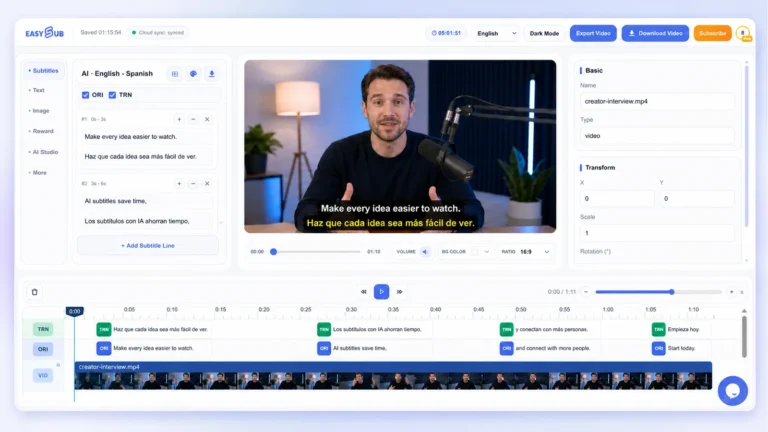
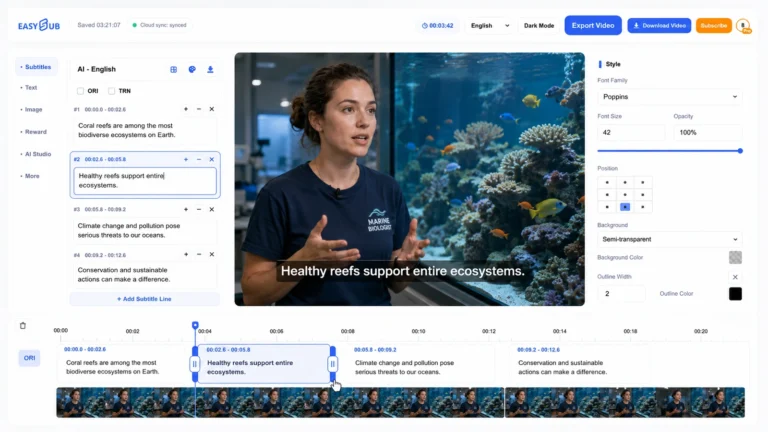
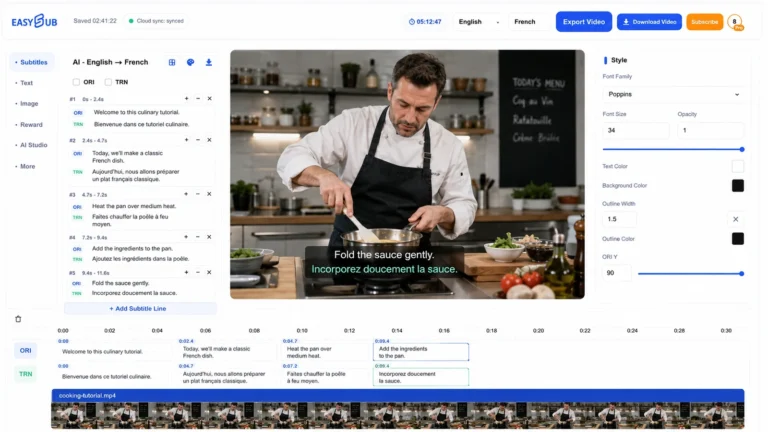
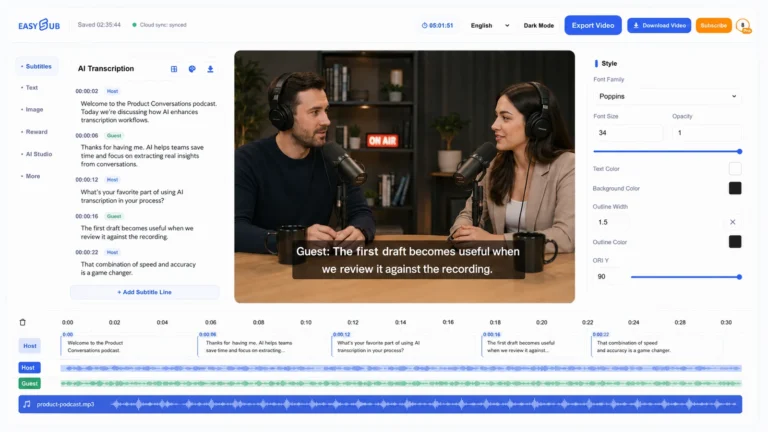
Create subtitles for AI videos from their spoken audio. Use EasySub to review your character video subtitles, adjust the wording and timing, and translate video subtitles for your audience.
Step 1 — Generate Subtitles from Speech
Add your character video with dialogue or narration. Select the spoken language and generate an editable subtitle track.
Step 2 — Review the Text and Timing
Play the video while checking names, punctuation, line breaks, and timing. Correct the source subtitles before preparing translated versions.
Step 3 — Translate and Export
Choose your audience’s language, review the translation, and export a captioned video or subtitle files such as SRT and VTT.
Generation Options and AI Credits
Choose the character video settings that fit your scene, then review the AI Credit quote before generating. Available options depend on the selected generation mode and your account access.
| Lựa chọn | Details |
|---|---|
| Character Reference | Create or select reusable characters for your scenes. The workspace displays a 9-image visual-reference budget; this does not establish the upload limit for each saved character. |
| Scene Direction | Describe the character’s action, setting, dialogue, and camera movement using up to 3,500 characters per scene prompt. |
| First & End Frame Uploads | Tải lên JPG, PNG, or WebP images, up to 20MB per image, to guide the opening and ending frames. |
| Reference Video Uploads | Upload up to 3 reference videos TRONG MP4 or MOV format. Each clip must be 2–15 seconds long and no larger than 50MB. |
| Audio Reference Uploads | Tải lên MP3, WAV, or M4A files, 2–15 seconds long and up to 15MB per file. Music, ambience, and character voice references share 3 audio slots. |
| Generation Modes & Duration | Economy, Fast, and Studio: 4–15 seconds per generation. Pro Studio: 4–30 seconds. Pro Studio and durations exceeding 15 seconds require an eligible paid subscription. |
| Aspect Ratios | Choose from 16:9, 9:16, 1:1, 4:3, 3:4, and 21:9. |
| Video Resolution | Economy and Fast: 480p or 720p. Studio and Pro Studio: 480p, 720p, or 1080p. 1080p requires an eligible paid subscription. |
| Audio Options | Enable or disable synchronized audio generation for dialogue, ambience, and effects. Enabling generated audio does not add a separate AI Credit surcharge. |
| AI Credit Usage | For a 5-second, 720p character video using character images only: Economy 100, Fast 150, Studio 188, or Pro Studio 300 AI Credits. Video inputs affect the quote. Review the exact task price before submitting. |
| Character Image Generation | AI-generated character images are charged separately: Standard: 8 Credits/image; Pro 1K: 15; Pro 2K: 22; Pro 4K: 24. Image editing has separate pricing. |
| Subtitle Allowance | Subtitle generation and translation use a separate duration allowance rather than AI Credits. |
| Account Access | Sign in to create characters, upload references, generate videos, save projects, and access exports. |
Swipe horizontally to view the full table.
Each scene is quoted according to its generation setup. Reference-video inputs and AI-generated character images may affect the total credits needed for your project. Review a new quote whenever you change the settings or generate another version.
AI Character Video Generator FAQs
Q1. What Is an AI Character Video Generator?
An AI character video generator creates scenes using character references and written direction. EasySub’s consistent character video generator helps you reuse a recognizable character across connected shots while describing the action, setting, and camera framing for each scene.
Q2. How Do I Keep the Same Character Across Different Shots?
Reuse the same character reference and keep important appearance details consistent in your prompts. Describe the hairstyle, outfit, and distinctive features you want to preserve, then change the action or camera direction. Review each generated clip for character continuity before building the sequence.
Q3. Can I Use My Own Character Reference Images?
Q4. Can I Reuse a Character in Another Scene or Project?
You can reuse a character across connected scenes in the character video workflow. Reusing a saved character in a separate project depends on the character-selection options available there. Confirm cross-project access before planning a series that spans multiple projects.
Q5. How Is This Different from Image to Video?
Image to Video starts with a still image and generates motion or development around it. The character video workflow focuses on reusing a character across separately directed scenes. Choose Image to Video to animate a specific image, or character video when recurring character identity is central to your sequence.
Q6. Can the Character’s Appearance Still Change?
Yes. Generated clips can vary in facial features, hair, clothing details, and body proportions, even when you reuse the same reference. Compare each result with your character reference and other shots. Refine scenes where needed, checking the new credit quote before generating another version.
Q7. Can I Add Subtitles and Translate the Video?
Yes. If your video includes dialogue or narration, use EasySub’s công cụ phụ đề to generate editable captions. Review the source text and timing, then translate the subtitles for your audience. Subtitle processing uses a separate allowance from AI generation credits.
Q8. How Many AI Credits Does Character Video Generation Use?
The cost depends on the selected model, generation settings, and any video inputs. Creating or editing character reference images with AI may use additional credits. Review the quote before each generation, and check the trang định giá for subscription allowances and credit packs.
Q9. Can I Try It for Free?
Check your account for any current AI Credit trial offer and its eligibility conditions. Character video generation requires AI Credits; a subtitle allowance cannot be used to generate videos. If a feedback reward is available, its approval requirements apply separately from any registration offer.
Q10. Can I Use Generated Character Videos for Commercial Projects?
Before using an output in advertising, branded content, or client work, contact Hỗ trợ EasySub to confirm the applicable commercial-use permissions. Review the Các điều khoản và điều kiện and ensure you have the necessary rights to your reference images and other source materials.
Q11. Can I Download Character Videos Without a Watermark?
Tiếp xúc Hỗ trợ EasySub before generating if watermark-free delivery is required. Confirm the rules for your account, including whether previews and downloaded files differ, and whether a subscription or credit purchase changes your export permissions.
Planning a Character Video Series?
Tell us about your recurring characters, planned scenes, publishing channels, and subtitle languages. Share your project requirements so the EasySub team can understand what you want to create.
Bring Your Recurring Character into the Next Scene
Reuse your character reference, describe a new shot, and review the AI Credit quote before generating. Preview the result and continue building your scene sequence.
Sign in to create and save your project.