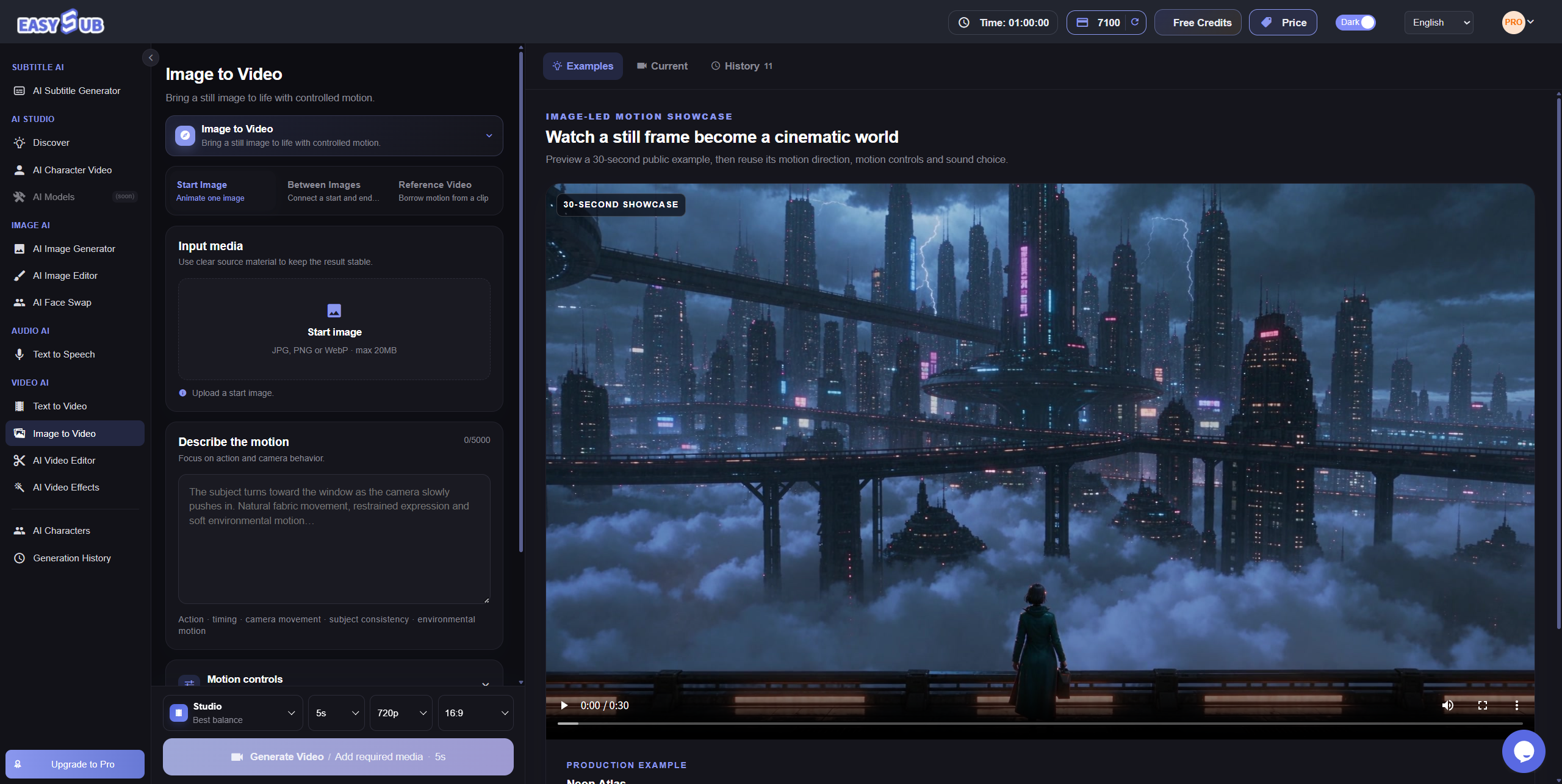
Transforme imagens em vídeos com IA
Carregue uma imagem ou fotografia no gerador de imagem para vídeo com IA do EasySub. Descreva o movimento do motivo, as alterações no fundo ou o movimento da câmara para dar vida à imagem.
- Comece com uma imagem: uma fotografia de produto, um retrato ou uma ilustração.
- Descreva a animação: experimente uma aproximação lenta da câmara ou nuvens a moverem-se suavemente.
- Veja antes de descarregar: reveja o resultado, confirme os detalhes e ajuste a instrução se necessário.
Exemplos de fotografias transformadas em vídeos
Experimente uma panorâmica sobre um produto, uma ligeira rotação da cabeça ou ondulações na água. Compare o vídeo com a imagem original para avaliar os detalhes, além da fluidez.
Fotografias de produtos
Uma aproximação lenta realça a forma e a textura do produto. Verifique o texto da embalagem, o logótipo e o contorno antes de usar o vídeo em materiais promocionais.
Exemplo de instrução: A câmara aproxima-se lentamente; o produto permanece imóvel e o fundo mantém-se simples.
Retratos
Uma pequena rotação da cabeça ou mudança de expressão pode animar um retrato. Comece com movimentos discretos e verifique as feições e proporções.
Exemplo de instrução: A pessoa vira ligeiramente a cabeça, com expressão natural e câmara fixa.
Paisagens
Anime nuvens, água ou folhas para dar profundidade a uma paisagem. Escolha primeiro um movimento principal para comparar os resultados.
Exemplo de instrução: Surgem pequenas ondulações na água; a margem permanece estável e a câmara fixa.
Ilustrações e imagens de IA
Anime cabelos, roupa ou partículas do fundo de uma ilustração. Comece com movimentos pequenos e localizados, verificando a pose e o estilo.
Exemplo de instrução: A roupa da personagem oscila suavemente com a brisa; a pose não muda e a câmara mantém-se fixa.
Como transformar uma imagem em vídeo com IA
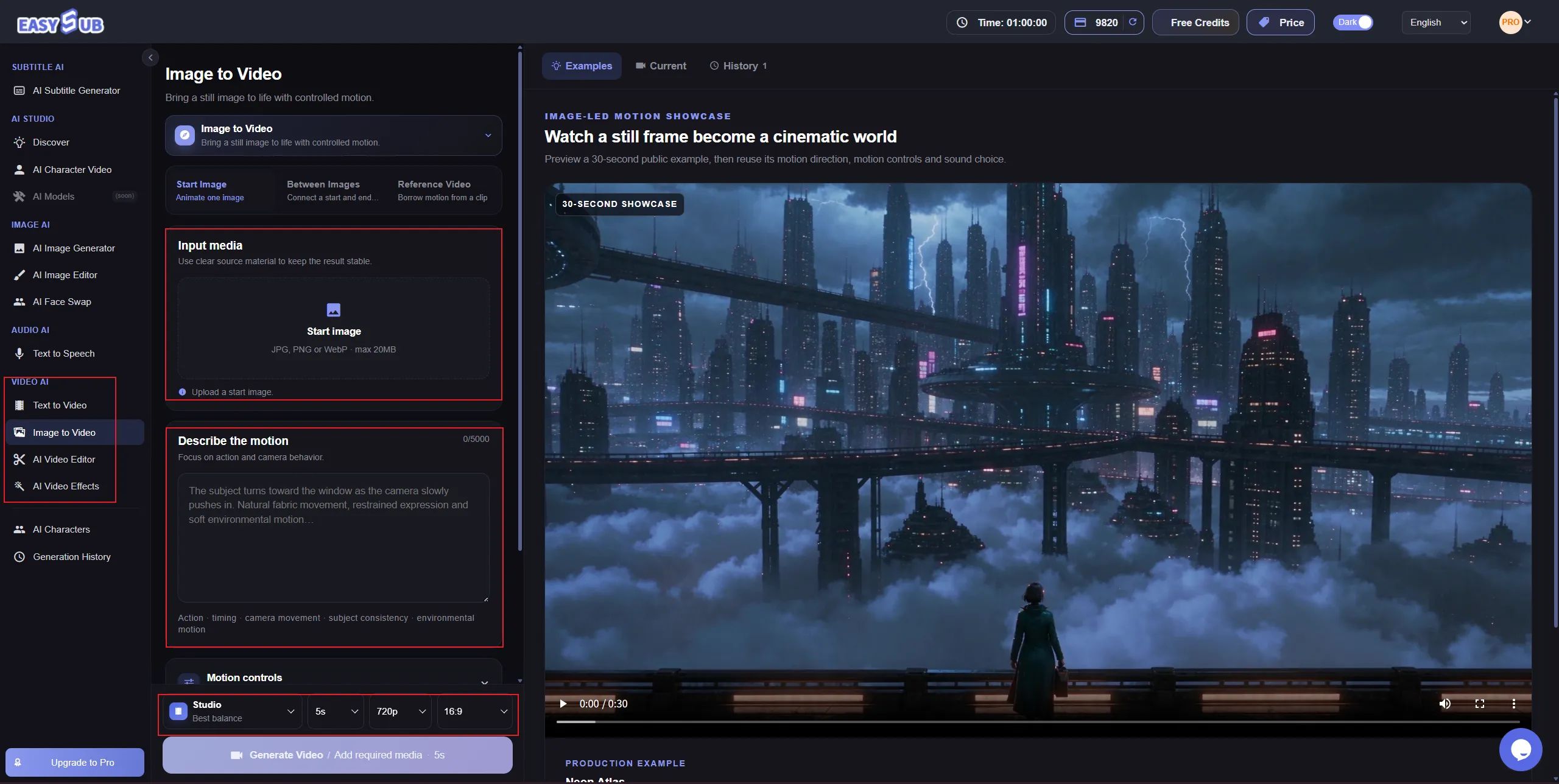
Carregue uma imagem, descreva o movimento e gere uma pré-visualização. Não precisa de animar fotograma a fotograma: indique claramente a ação desejada.
1. Carregue a imagem
Na área de trabalho de imagem para vídeo, carregue uma fotografia de produto, um retrato, uma paisagem ou uma ilustração que tenha direito a utilizar. Escolha uma imagem nítida, com detalhes visíveis e espaço para o movimento.
2. Descreva o movimento e escolha as definições
Indique o que deve mover-se, em que direção e se a câmara deve ficar fixa. Por exemplo: «As pétalas oscilam suavemente, o fundo permanece estável e a câmara aproxima-se devagar». Depois, escolha as definições de vídeo na área de trabalho.
3. Gere e reveja
Reproduza o vídeo e observe a continuidade do movimento, rostos, textos e contornos. Descarregue o resultado quando estiver satisfeito. Para comparar versões, altere apenas uma instrução de cada vez.
Definições de vídeo e créditos de IA
O custo depende do nível de qualidade, da duração e da resolução. Por exemplo, um vídeo padrão de 5 segundos, em Economy e 480p, custa 78 créditos de IA. O custo da tarefa é mostrado antes da geração.
a. Escolha as definições
| Definição | Opções disponíveis | Detalhes |
|---|---|---|
| Qualidade | Economy, Fast, Studio e Pro Studio | Teste a ideia em Economy antes de escolher um nível superior. |
| Duração | Economy, Fast e Studio: 4–15 s; Pro Studio: 4–30 s | A duração é escolhida em segundos inteiros; os créditos são arredondados por excesso. |
| Resolução | Economy e Fast: 480p e 720p; Studio e Pro Studio: também 1080p | Escolha de acordo com o destino do vídeo. |
| Proporção | Opções disponíveis na área de trabalho | A proporção não acrescenta custo em créditos. |
| Geração de áudio | Sem custo adicional em créditos | Ative o som conforme as necessidades do vídeo. |
| Subscrição | 1080p, Pro Studio e vídeos com mais de 15 segundos exigem uma subscrição de IA ativa | Beginner, Starter, Creator e Pro são níveis de subscrição paga elegíveis. |
b. Compare os custos em créditos de IA
Custos de referência, em créditos de IA, para gerar um vídeo padrão de 5 segundos a partir de uma imagem.
| Qualidade | 480p | 720p | 1080p |
|---|---|---|---|
| Economy | 78 | 94 | Não disponível |
| Fast | 120 | 144 | Não disponível |
| Studio | 150 | 180 | 460 |
| Pro Studio | 240 | 288 | 736 |
Não se trata de um pacote fixo de 5 segundos: vídeos mais longos costumam consumir mais créditos. Ao utilizar um vídeo de referência, a duração desse vídeo também entra no cálculo; a tabela não se aplica diretamente. Confirme o custo indicado antes de gerar.
c. Créditos de teste e falhas de geração
Novos utilizadores que cumpram as condições contra abuso podem receber 100 créditos de IA de teste uma única vez. Teste um movimento de baixo custo antes de aumentar a qualidade ou a duração. Os créditos são reservados ao iniciar a tarefa e devolvidos pelo processo do sistema se a geração falhar. Pode comprar pacotes de créditos sem alterar a subscrição. Os créditos de IA são contabilizados separadamente dos minutos de transcrição de legendas.
Dê movimento às suas imagens estáticas
Escolha uma ação principal do motivo, do ambiente ou da câmara. Assim, é mais simples escrever a instrução e comparar os resultados.
Movimento do motivo
Adicione um gesto subtil a uma pessoa ou uma pequena rotação da cabeça a um animal. Descreva a direção e a amplitude; uma ação complexa pode alterar a pose original.
Movimento do ambiente
Crie atmosfera com fumo, chuva ou folhas em movimento. Um fundo animado pode destacar um produto sem acrescentar ações complexas.
Movimento da câmara
Descreva uma aproximação, um afastamento ou uma panorâmica, com direção e velocidade. A instrução orienta o movimento, mas não corresponde a controlo fotograma a fotograma.
Fotografias em vídeo para produtos, retratos e criações
Use fotografias de produtos, retratos e ilustrações em promoções, histórias e redes sociais. Defina o objetivo do vídeo antes de escolher a animação.
Anime fotografias de produtos
Crie apresentações, anúncios e conteúdos sociais com movimentos da câmara ou do fundo. Verifique os rótulos, as cores e o design do produto antes de publicar.
Dê vida aos seus retratos
Use uma fotografia nítida que tenha direito a utilizar numa apresentação pessoal ou numa história. Comece com um gesto natural e discreto antes de aumentar o movimento.
Ilustrações e arte de IA
Transforme personagens ou composições criativas em planos curtos para histórias, portefólios ou vídeos de ambiente. Adapte a ação ao estilo da imagem original.
Conteúdos para redes sociais
Crie introduções, planos de apoio ou fundos animados a partir de imagens estáticas. Reserve espaço no enquadramento se quiser acrescentar texto.
Como escrever instruções para animar imagens
Explique o que se move, como, o que faz a câmara e o que deve permanecer estável. Pode combinar ação, ambiente, câmara e detalhes a preservar, sem incluir todos os elementos em cada instrução.
Plano de pormenor de um produto
Instrução: «O produto permanece imóvel e a câmara aproxima-se lentamente do rótulo frontal. O fundo e a iluminação mantêm-se estáveis».
Escolha um único movimento, em vez de pedir rotação e abertura ao mesmo tempo.
Movimento suave numa paisagem
Instrução: «As nuvens deslocam-se lentamente para a direita e surgem ondulações na água. Câmara fixa; os edifícios na margem permanecem estáveis».
Se houver alterações excessivas, retire um movimento e compare.
Movimento subtil num retrato
Instrução: «A pessoa vira lentamente a cabeça para a esquerda, os ombros permanecem estáveis e a câmara fixa».
Comece com uma ação, sem juntar uma volta, um aceno e uma caminhada no mesmo plano curto.
Ajuste um detalhe de cada vez
Parta de uma imagem nítida, um motivo e uma ação principal. Altere apenas a amplitude, a direção ou a câmara em cada teste. Verifique textos, logótipos, rostos e mãos, mesmo quando pedir que permaneçam estáveis.
Continue a criar o vídeo no EasySub
Depois de animar a imagem, pode editar o vídeo, adicionar narração e gerar legendas para a fala. Defina primeiro as imagens e depois o som e o texto.
Reveja e edite
Escolha os planos que quer manter e continue a edição. Para trabalhar noutra ferramenta, descarregue o vídeo e importe-o no editor pretendido.
Adicione voz ou texto no ecrã
Adicione narração a uma apresentação ou história, ou escreva nomes, benefícios e chamadas à ação no ecrã. Se apenas precisar de texto, não é necessário adicionar voz para gerar legendas.
Adicione legendas ao vídeo
Importe o vídeo com diálogo ou narração na área de legendagem. Gere as legendas, confirme o texto e os tempos e traduza se necessário. Um vídeo silencioso pode receber texto no ecrã, mas não contém fala para transcrever automaticamente.
Continuar a criar:Editor de vídeo com IA · Adicionar legendas
Perguntas frequentes sobre imagem para vídeo com IA
1. O que é um gerador de imagem para vídeo com IA?
Parte de uma fotografia, imagem de produto ou ilustração e gera movimento do motivo, do ambiente ou da câmara a partir de uma instrução. A IA cria novos fotogramas, pelo que alguns detalhes podem variar.
2. Como posso animar uma imagem com IA?
Abra a área de imagem para vídeo, carregue uma imagem, descreva o movimento e escolha as definições. Gere uma ação principal, veja o resultado e ajuste a instrução.
3. O EasySub transforma fotografias em vídeos?
Sim. Descreva o movimento do motivo, do ambiente ou da câmara na mesma ferramenta. Utilize uma fotografia com um motivo bem definido e confirme os detalhes do resultado.
4. Posso experimentar gratuitamente?
Novos utilizadores elegíveis podem receber 100 créditos de IA de teste uma única vez; não é geração gratuita ilimitada. O custo depende da qualidade, duração e resolução. Consulte os preços e confirme o custo antes de gerar.
5. Qual pode ser a duração do vídeo?
Economy, Fast e Studio permitem 4–15 segundos; Pro Studio, 4–30 segundos. Pro Studio e vídeos com mais de 15 segundos exigem uma subscrição de IA ativa. A duração é escolhida em segundos inteiros, não apenas em vídeos de 5 segundos.
6. Posso orientar a câmara e o motivo?
Sim. Descreva aproximações, afastamentos e panorâmicas, além da ação, direção e velocidade do motivo. As instruções orientam a geração, não controlam cada fotograma; evite acumular ações complexas.
7. Porque mudam alguns detalhes?
A IA cria novo conteúdo nos fotogramas seguintes. Se um detalhe mudar de forma indesejada, reduza a amplitude do movimento, simplifique a câmara e compare com a imagem original.
A sua equipa precisa de vídeos a partir de imagens?
Diga-nos que imagens utiliza, qual a finalidade dos vídeos e o volume mensal estimado. Podemos discutir as opções atuais para produtos, marcas ou projetos de clientes.
- E-mail: para responder ao pedido.
- Utilização prevista: imagens disponíveis e vídeos pretendidos.
- Volume mensal: indique uma estimativa, ou diga se ainda não sabe.
- Empresa ou site: opcional, para compreender o projeto.
Transforme a sua imagem num vídeo
Escolha uma imagem, descreva um movimento e comece o seu primeiro vídeo a partir de uma fotografia.
A geração utiliza créditos de IA. O custo aparece antes de enviar a tarefa.