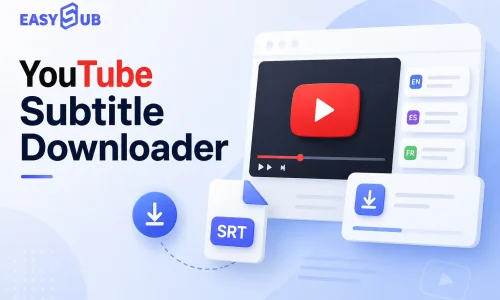
YouTube videos contain a wealth of valuable text content, such as tutorial explanations, product introductions, interview transcripts, course highlights, and marketing materials. Manually copying subtitles is time-consuming and prone to omissions. Using a subtitle downloader, you can directly extract and download YouTube captions and export them in SRT, VTT, or TXT formats. These subtitle files can be used for video editing, content translation, study notes, blog rewrites, and curating social media content. They can also be used to re-add subtitles to downloaded videos. This page will explain how to download YouTube subtitles and how to choose the right YouTube subtitle downloader tool.
Table of Contents
YouTube Subtitle Downloader

YouTube Subtitle Downloader is a tool designed to download subtitles and transcripts from YouTube videos. It helps users quickly extract subtitle content and export it to common formats such as SRT, VTT, and TXT.
With this tool, users can download YouTube subtitles, retrieve YouTube captions, and extract complete video transcripts. The downloaded subtitle files have a wide range of applications. Content creators can use them for video editing and content repurposing; translators can use them for multilingual localization; marketing teams can rewrite video content into blog posts, emails, or social media content; and educators and students can organize videos into study notes and course materials.
With the rapid growth of video content marketing, more and more businesses are beginning to convert video content into text. Subtitle files have become an essential foundation for content repurposing.
Recommend YouTube Subtitle Downloaders
Different YouTube subtitle downloader tools vary significantly in terms of download methods, supported formats, translation capabilities, and AI features. If you’re looking for a tool that can quickly download YouTube subtitles, extract video transcripts, or translate subtitles, the following products are worth considering.
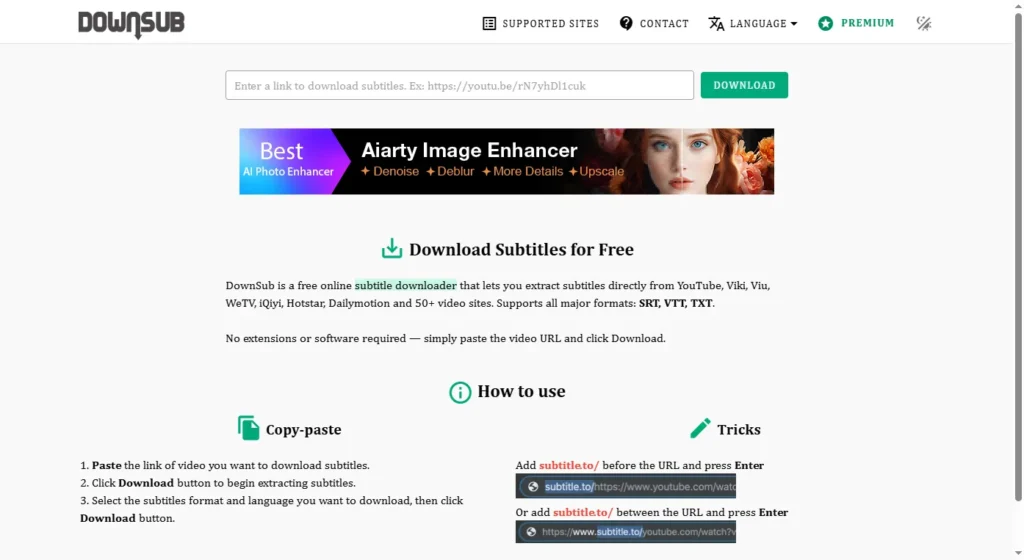
DownSub is one of the most well-known online video subtitle download tools available today. Users can download subtitle files simply by pasting a YouTube video link, with no software installation required. It supports exporting to common formats such as SRT, TXT, and VTT.
Ideal for:
- Individual users
- Students
- Light subtitle download needs
Key Features:
- No registration required
- Easy to use
- Supports multiple subtitle formats
- Supports partial automatic subtitle generation

EasySub not only supports YouTube subtitle downloads but also offers AI-powered subtitle generation, subtitle translation, and video-to-text conversion. For content creators, marketing teams, and cross-border businesses, EasySub can help users complete the entire process from subtitle extraction to multilingual localization.
Ideal for:
- Content creators
- SEO teams
- Cross-border marketing teams
- Video production companies
Key Features:
- Download YouTube subtitles
- AI-powered automatic subtitle generation
- Multilingual translation support
- Video-to-text conversion
- Online subtitle editing
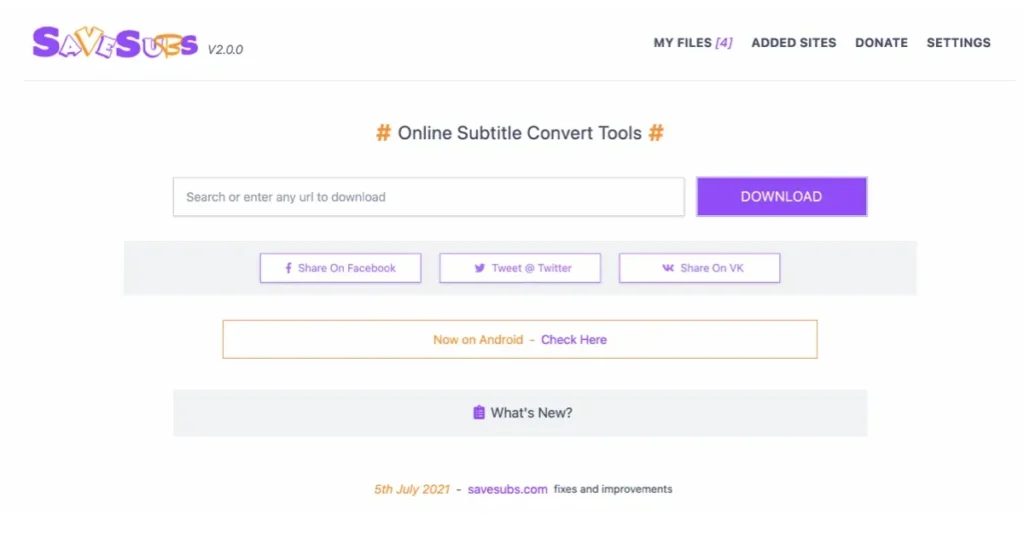
SaveSubs is an online tool dedicated to subtitle downloading. In addition to YouTube, it supports subtitle extraction from multiple video platforms. It features a clean interface and is easy to use.
Ideal for:
- Translators
- Learners
- Users with everyday subtitle download needs
Key Features:
- Supports multiple video platforms
- Multi-format export
- No software installation required
- Fast download speeds
4. YouTube Transcript
YouTube Transcript is primarily a video transcription tool. It quickly generates transcripts (word-for-word transcripts) from videos, making it easy for users to read, organize, and create content.
Ideal for:
- Bloggers
- Content managers
- Researchers
Key Features:
- Generates complete video transcripts
- Supports text copying
- Ideal for content rewriting
- Easy to use
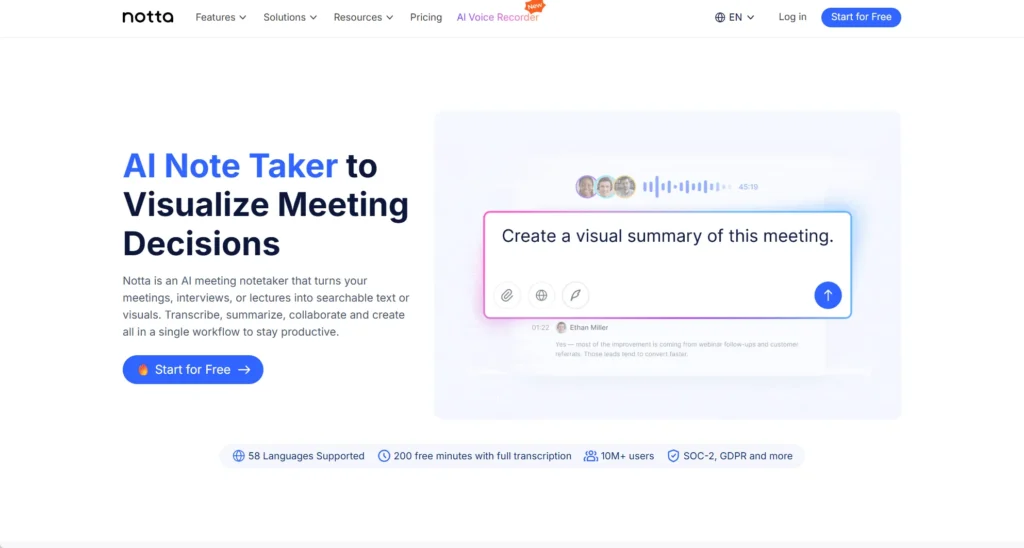
Notta is an AI-powered speech-to-text tool. In addition to video captioning, it offers features such as meeting transcription, video-to-text conversion, and multilingual translation. Notta supports multiple languages and is widely used for meeting minutes and content organization.
Ideal for:
- Corporate teams
- Remote workers
- Content production teams
Key Features:
- AI speech recognition
- Video-to-text conversion
- Multilingual subtitle generation
- Team collaboration features
How to Choose YouTube Subtitle Downloaders?
| Tool | Download Subtitles | Download Transcripts | AI Subtitle Generation | Subtitle Translation | Ideal For |
|---|---|---|---|---|---|
| DownSub | ✓ | ✓ | ✗ | ✗ | Individual users |
| EasySub | ✓ | ✓ | ✓ | ✓ | Creators, marketing teams |
| SaveSubs | ✓ | ✓ | ✗ | ✗ | Translators |
| YouTube Transcript | ✓ | ✓ | ✗ | ✗ | Content Creators |
| Notta | ✓ | ✓ | ✓ | ✓ | Enterprise Teams |
For occasional subtitle downloads, choose DownSub or SaveSubs. If you need subtitles for content creation, translation, localized marketing, or video production, we recommend platforms like EasySub that combine subtitle downloading, AI-powered subtitle generation, subtitle translation, and text extraction into one solution. This minimizes the need to switch between tools and improves overall workflow efficiency.
How to Download Subtitles from YouTube?
Downloading YouTube subtitles is not complicated. Most subtitle download tools allow you to obtain video subtitles or full transcripts in just a few steps. Whether you need them for translation, video editing, study notes, or content creation, the process can be completed quickly.
Step 1: Copy and paste the YouTube video link
.webp)
Open the YouTube video for which you want to download subtitles. Copy the video URL, then paste the link into the input field of the YouTube Subtitle Downloader. The system will automatically recognize the video information and check whether the video includes subtitles or supports automatic subtitle generation.
Step 2: Select the Subtitle Language
-1024x700.webp)
If the video offers subtitles in multiple languages, you can choose the language version you want to download.
Step 3: Select Export Format
-1024x486.webp)
Choose the appropriate subtitle format based on your use case. If you plan to use the subtitles in Premiere Pro, CapCut, or Final Cut Pro, the SRT format is generally recommended. If you need to organize video content into blog posts or study notes, the TXT format is more convenient.
| Format | Use Case |
|---|---|
| SRT | Video editing, subtitle uploads |
| VTT | Website videos, HTML5 players |
| TXT | Document organization, content creation |
| DOCX | Document editing and team collaboration |
Step 4: Download the Subtitle File

After confirming the format, click the download button to obtain the subtitle file.
Download YouTube Subtitles in Multiple Formats
Currently, most professional YouTube subtitle downloaders support common formats such as SRT, VTT, TXT, and DOCX. Users can choose the appropriate output format based on their specific needs.
Subtitle Format Comparison
| Format | Best For | Main Uses |
|---|---|---|
| SRT | Video Editing | Video editing, subtitle uploads |
| VTT | Web Videos | Website videos, HTML5 players |
| TXT | Reading & AI | Reading scripts, AI content creation |
| DOCX | Documentation | Document editing, team collaboration |
- For video editing → Choose SRT
- For web videos → Choose VTT
- For reading and AI analysis → Choose TXT
- For document editing → Choose DOCX
For most users, SRT and TXT are the two most frequently used formats. SRT is suitable for video processing, while TXT is suitable for content extraction and secondary creation.
How to Add Subtitles to a Downloaded YouTube Video?
Many users want to add subtitles to their videos after downloading them from YouTube. Adding subtitles to a video is not complicated. As long as you have the video file and the subtitle file ready, you can complete the process quickly.
Step 1: Download the Subtitle File
First, use a YouTube Subtitle Downloader to download the subtitle file. We recommend choosing the SRT format. SRT is one of the most widely used subtitle formats today. Almost all video editing software supports importing and editing SRT files. After downloading, verify that the subtitle file matches the video content.
Step 2: Open Video Editing Software
Select a video editing tool that supports subtitle import. Common software includes:
- CapCut
- Adobe Premiere Pro
- Final Cut Pro
- DaVinci Resolve
These programs all support SRT subtitle import and can automatically sync them to the timeline. CapCut is relatively simple to use. For professional creators, Premiere Pro and DaVinci Resolve offer more advanced features.
Step 3: Import the SRT Subtitle File
After importing the video into the editing software, locate the subtitle import function. Then upload the downloaded SRT file. Most software will automatically read the subtitle timeline and place the subtitles at the corresponding video positions. If the subtitle timeline is correct, no additional settings are usually required.
Step 4: Check and Synchronize Subtitles
Once the import is complete, it is recommended to play the video to check the subtitles. If you notice any timing discrepancies, you can fine-tune them using the software’s subtitle editing features. This step is particularly important for auto-generated subtitles.
Step 5: Export the Final Video
After confirming that the subtitles are correct, you can export the video. There are typically two options:

- Hardcoded Subtitles: Subtitles are permanently embedded within the video. Viewers cannot turn them off. Suitable for social media videos, short-form video platforms, and advertising videos.
- Soft Subtitles: Subtitles exist as a separate file. Viewers can freely turn them on or off. Suitable for YouTube, online courses, and training videos, among others. Simply select the appropriate method based on the specific publishing platform.
FAQs About YouTube Subtitle Downloaders
Q1. Can I download subtitles from YouTube videos?
Yes, as long as the video provides subtitles, you can download the subtitle file.
Most YouTube subtitle downloaders support extracting video subtitles and exporting them in SRT, VTT, or TXT formats. The downloaded subtitles can be used for video editing, translation, learning, and content creation.
Q2. Can I download auto-generated subtitles?
Yes, many tools support downloading YouTube auto-generated subtitles.
Even if the video creator hasn’t uploaded manual subtitles, YouTube may automatically generate subtitles using speech recognition technology. It’s important to note that the accuracy of auto-generated subtitles can be affected by audio quality, speaking speed, and the language context.
Q3. Can I download subtitles as SRT or TXT?
Yes, SRT and TXT are the most common subtitle download formats.
The SRT format includes timestamp information, making it suitable for video editing and subtitle uploads. The TXT format retains only the text content, making it suitable for reading, translation, content organization, and AI analysis.
Q4. Can I download subtitles from YouTube Shorts?
Yes, as long as the Shorts video includes subtitles, you can download them.
The process for downloading subtitles is essentially the same as for regular YouTube videos. Simply copy the Shorts video link, and the system will extract the corresponding subtitles or video transcript.
Q5. Can I translate downloaded subtitles?
Yes, downloaded subtitle files can usually be translated directly.
Many subtitle tools have built-in translation features that support multilingual conversion. You can also import SRT or TXT files into translation software for editing, enabling the localization and international distribution of video content.
Q6. How do I add subtitles to a downloaded YouTube video?
First, download the subtitle file, then import it into video editing software.
Usually, you just need to download the SRT file and import it into tools like CapCut, Premiere Pro, Final Cut Pro, or DaVinci Resolve. After ensuring the subtitles are synchronized with the video timeline, you can export the video file with subtitles. This enhances the viewing experience and helps more users understand the video content.
Start Using EasySub to Enhance Your Videos Today

Downloading subtitles is just the first step. The real value lies in how effectively you can utilize that content. Our YouTube Subtitle Downloader not only supports fast downloads of YouTube subtitles and video transcripts, but also offers features such as subtitle translation, format conversion, text extraction, and AI-powered subtitle generation. You can complete the entire process—from subtitle retrieval to content processing—all within a single platform.
Looking for a simpler, faster way to download and manage YouTube subtitles? Start your experience now. No complicated steps required. No software installation needed. Just paste the video link to get subtitle files and video transcripts.
Start downloading YouTube subtitles now and unlock more value from your video content.
Download subtitles, extract transcripts, and translate content—all in one place.
Thanks for reading this blog. Feel free to contact us for more questions or customization needs!