AI를 이용한 온라인 자막 편집

더 많은 창의성을 위한 기사 및 튜토리얼

AI를 이용한 온라인 자막 편집

With the advancement of AI technology, Subtitle Edit is no longer limited to traditional desktop software. Now, you can generate, edit, synchronize, translate, and convert subtitles directly in your browser—without having to download or install complex software. AI Subtitle Editor can automatically recognize video audio and quickly generate subtitles.

This online AI subtitle editing tool helps you edit SRT files more quickly, fix subtitle synchronization issues, translate multilingual subtitles, and even modify YouTube subtitle content. In this guide, you’ll learn what Subtitle Edit is, how to edit subtitles online, and how to use AI technology to improve subtitle production efficiency.

목차

What Is Subtitle Edit?

자막 편집 refers to the complete process of creating, editing, synchronizing, translating, and exporting subtitle files. Subtitle files typically include formats such as SRT, VTT, and ASS, which are used to display text in video content.

Traditional subtitle editing relies on manual labor. Users must manually enter text and adjust the timeline line by line. This process is quite time-consuming. Research shows that manually creating subtitles for a 1-minute video takes an average of 5–10 minutes, depending on the complexity of the content.

Modern subtitle editors are being transformed by AI technology. AI subtitle editors can automatically recognize spoken content and generate initial subtitle text. At the same time, they can automatically align the timeline, reducing the need for manual synchronization.

In practical applications, AI subtitle editors can boost subtitle production efficiency by 60%–90%, particularly in scenarios involving multilingual videos, YouTube content creation, and marketing videos.

Common Subtitle Editing Challenges

In the actual subtitle production process, the issues users encounter most frequently center on four areas: the timeline, efficiency, multilingual support, and the complexity of platform operations.

a. Subtitle Timing Is Out of Sync

Subtitle timing misalignment is one of the most common issues. It typically occurs after video editing when the timeline has not been realigned. It can also result from errors in automatic subtitle recognition.

The solution usually involves manually correcting the timing using subtitle sync or subtitle timing adjustment tools. However, in practice, manually adjusting each subtitle line is time-consuming.

b. Manually Editing Subtitles Takes Too Long

Traditional subtitle editing software relies on manual input and line-by-line proofreading. The main issues are the high repetitiveness of timeline adjustments and the difficulty of batch processing large volumes of video. For content teams—especially those managing YouTube or short-form video channels—subtitle production often becomes a bottleneck in the production process.

c. Need for Subtitles in Multiple Languages

Cross-border content creators typically require multilingual subtitle support, such as English, Spanish, or French. Manual translation is costly, and since the length of expressions varies across languages, the timeline must be realigned. Subtitle translation tools can improve efficiency, but traditional methods still require manual proofreading. In global content distribution, multilingual subtitles are one of the key factors in improving view-through rates.

d. Editing YouTube Subtitles Is Complicated

YouTube subtitles are typically managed through YouTube Studio or external SRT files. Workflows are inconsistent, and the learning curve is steep for beginners. The accuracy of automatic subtitles is also inconsistent, often requiring further editing.

How AI Subtitle Editor Solves Subtitle Editing Problems?

The AI Subtitle Editor primarily improves efficiency through five key processes: generation, editing, synchronization, translation, and export.

AI Subtitle Editor
AI Subtitle Editor

그만큼 AI 자막 생성기 can automatically generate subtitle content based on speech recognition. Users do not need to enter text sentence by sentence. The system directly extracts speech from the video’s audio and generates an initial subtitle file. Compared to traditional manual transcription methods, efficiency is typically improved by more than 70%.

2. Edit Subtitles Online

Users can edit subtitle content directly in their browser without installing any subtitle editor software. All subtitles are displayed on a timeline, allowing for quick text modifications, sentence restructuring, and expression optimization. The tool also supports real-time video previews.

The AI system automatically aligns subtitles with the audio, reducing the need for manual timing adjustments. Even if the video has been edited or trimmed, the system can recalculate the timeline positions. This results in a significant efficiency boost compared to manual adjustments.

4. Translate Subtitles Instantly

AI 자막 번역 can quickly convert subtitles into multiple languages, such as English, Spanish, and French. The translated output automatically preserves the original timeline structure, eliminating the need to reformat each line individually. For cross-border content distribution, this step can significantly reduce labor costs.

5. Export SRT, VTT, ASS

The system supports exporting to multiple mainstream subtitle formats, including SRT, VTT, and ASS. Users can export files directly for use on different platforms—for example, VTT is used on YouTube, while ASS is commonly used in film and television post-production.

The core process of online subtitle editing is actually quite standard. For modern AI subtitle editors, this process has been significantly simplified. Users can create professional subtitles with just a few simple steps.

1단계: 동영상 업로드

Easysub으로 자막을 생성하는 방법(2)

The first step is to upload a video file or paste a video link. The system will automatically parse the audio content.

Common supported formats include MP4, MOV, and YouTube links. The primary purpose of this step is to allow the system to capture audio data in preparation for subsequent subtitle generation.

Easysub으로 자막을 생성하는 방법(3)

Once the upload is complete, the AI system automatically recognizes the speech and generates subtitles. This process does not require manual text entry. Compared to traditional subtitle editing software, the efficiency gain is significant. A first draft of subtitles is typically generated in just a few minutes.

Step 3: Review and Edit Subtitle Text

Easysub으로 자막을 생성하는 방법(4)

After the subtitles are generated, users can access the editing interface to make changes, such as correcting typos, adjusting sentence structure, and optimizing semantic expression. Online subtitle editors usually support real-time video previews, making it easy to check content accuracy in sync with the video.

Step 4: Adjust Subtitle Timing

If there is a discrepancy between the subtitles and the audio, you can adjust the timeline manually or automatically. AI tools usually offer a subtitle sync feature that automatically aligns with the rhythm of the speech. For YouTube videos or short-form video content, this step can significantly reduce the time required for manual correction.

Step 5: Export Subtitle Files

Easysub으로 자막을 생성하는 방법(5)

The final step is to export the subtitle files. Common formats include:

  • SRT (universal subtitle format)
  • VTT (used for the web and YouTube)
  • ASS (for film and TV post-production)

You can download them directly or embed them into your video for use.

How to Edit YouTube Subtitles (3 Practical Methods Explained)

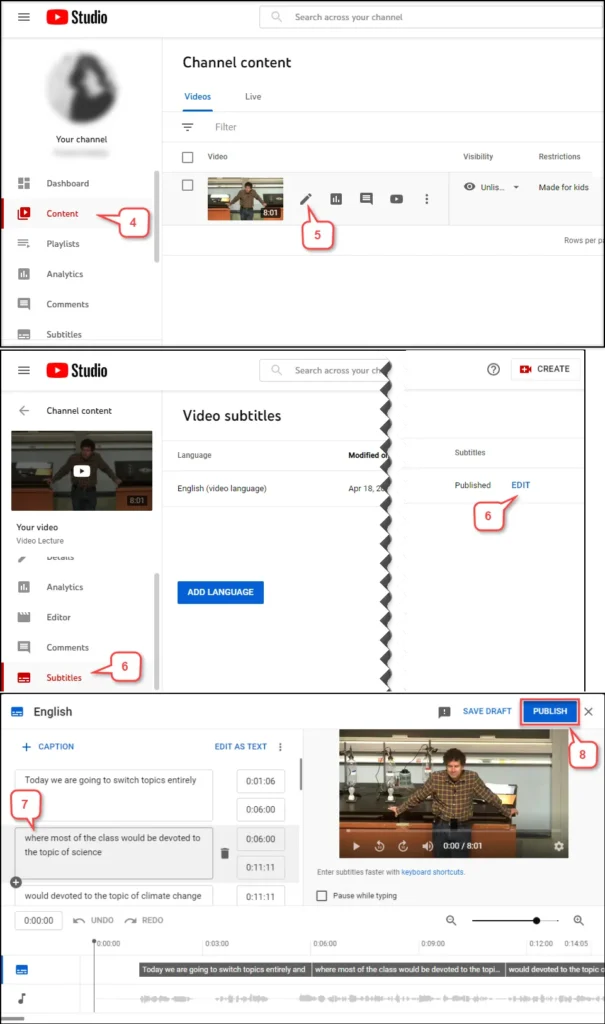
Edit Subtitles in YouTube Studio

There are three main ways to edit YouTube subtitles: editing directly in YouTube Studio, downloading an SRT file for manual editing, and using an AI subtitle editing tool for automatic processing.

Method 1: Edit Subtitles in YouTube Studio

This is the most basic method. You can directly modify automatically generated subtitles or uploaded subtitle files in YouTube Studio. The process is relatively simple, but the functionality is limited. The main issues, however, are that the editing interface is not very intuitive and timeline adjustments are inefficient, making it unsuitable for batch processing of videos. It is only suitable for minor edits to individual videos.

Method 2: Download SRT and Edit Manually

The second method involves exporting the subtitle file (usually in SRT format) and then modifying it using subtitle editing software. First, download the subtitles, edit them locally, and then upload them back to YouTube.

The advantage of this approach is that it offers more precise control, allowing you to adjust the timing and text content of each subtitle. However, it involves multiple steps and relies on subtitle editing software. It is suitable for users with experience in subtitle production.

Method 3: Use an AI Subtitle Editor

The third method is currently the most efficient solution. An AI subtitle editor can handle the entire process directly: upload video → automatically generate subtitles → automatically sync the timeline → edit online → export with one click. Compared to traditional methods, this approach can reduce subtitle production time by approximately 60%–90%. Additionally, it supports multilingual subtitle generation and translation, making it ideal for international YouTube content operations.

Can You Edit Anilab Subtitles? (Embedded vs Editable Subtitle Explained)

If the subtitles are separate files, such as SRT or VTT, you can edit them directly using a subtitle editor. If the subtitles are embedded directly into the video (embedded subtitles), you cannot edit the text directly; you’ll need to extract the subtitles or use OCR recognition first.

Case 1: Editable Subtitles

When subtitles exist as separate files, such as SRT or VTT, you can edit them directly.

Download the subtitle file → Open a subtitle editor → Edit the text and timeline → Re-export

This method is simple and works for subtitles exported from most mainstream video platforms.

Case 2: Embedded Subtitles

If the subtitles have been “embedded” into the video frame, they are considered embedded subtitles. In this case, the subtitles are no longer a separate file and cannot be edited directly. Typically, you’ll need to use an OCR tool to recognize the subtitles or transcribe the audio to generate new subtitles.

This process is more complex than standard subtitle editing and may involve recognition errors.

In the actual subtitle processing workflow, it is recommended to prioritize obtaining the original subtitle file. If only the video file itself is available, you will need to rely on an AI subtitle editor to regenerate the subtitles.

Subtitle Edit FAQs

Q1. What is subtitle editing?

Subtitle editing refers to the process of creating, modifying, synchronizing, translating, and exporting subtitle files. Common subtitle formats include SRT, VTT, and ASS. The primary goal is to ensure that the subtitles are accurately synchronized with the video audio.

Q2. How do I edit subtitles online?

Online subtitle editing typically involves three steps: uploading a video, automatically generating subtitles, and editing the content and timeline online. Modern subtitle editors support browser-based operations, allowing you to complete edits without installing any software.

Q3. Can I edit YouTube subtitles?

Yes, you can edit YouTube subtitles. You can modify them directly in YouTube Studio, or download the SRT file, edit it using subtitle editing software, and then re-upload it.

Q4. Can I edit SRT files?

예. SRT is one of the most common subtitle formats. You can open it with a subtitle editor to modify the text content and timeline, then re-export it for use.

Q5. What subtitle formats are supported?

Mainstream subtitle formats include SRT, VTT, ASS, SSA, and STL. Different platforms use different formats; for example, YouTube commonly uses VTT, while film and television production often uses ASS.

Yes. An AI subtitle generator can automatically recognize speech in a video and generate subtitles, while also supporting timeline synchronization and multilingual translation, significantly improving production efficiency.

Q7. What is the best subtitle editor?

The best subtitle editing tool depends on the use case. Traditional subtitle editing software is suitable for professional manual editing, while an AI subtitle editor is better suited for rapid generation, batch processing, and multilingual subtitle needs.

오늘부터 EasySub을 사용하여 비디오를 향상시키세요

온라인 자동 자막 생성기 AI 자막 생성기 EASYSUB

EasySub is an AI-powered online subtitle editing tool that helps users quickly complete the entire process of subtitle generation, editing, synchronization, and translation. You can create professional-quality subtitles right in your browser—no software download or installation required.

Simply upload a video, and the system will automatically generate subtitles. You can then edit the text and adjust the timeline online while previewing the results in real time. This streamlined process is more efficient and better suited for frequent content creators and teams. It supports exporting to multiple mainstream subtitle formats, including SRT, VTT, and ASS, to meet the needs of various scenarios such as YouTube, social media, and film and television production.

👉 무료 체험판을 원하시면 여기를 클릭하세요: easyssub.com

이 블로그를 읽어주셔서 감사합니다. 더 많은 질문이나 맞춤형 서비스가 필요하시면 언제든지 문의해 주세요!
인기 있는 독서

AI를 이용한 온라인 자막 편집

AI를 이용한 온라인 자막 편집

AI 기술의 발전으로 자막 편집은 더 이상 기존 데스크톱 소프트웨어에만 국한되지 않습니다. 이제 복잡한 소프트웨어를 다운로드하거나 설치할 필요 없이 브라우저에서 직접 자막을 생성, 편집, 동기화, 번역 및 변환할 수 있습니다. AI 자막 편집기는 비디오 오디오를 자동으로 인식하여 자막을 빠르게 생성합니다. 이 온라인 AI 자막 편집 도구를 활용해 보세요.

유튜브 및 소셜 미디어 영상 SEO 솔루션

유튜브 및 소셜 미디어 영상 SEO 솔루션

동영상 SEO는 동영상 성장의 핵심 동력이 되었습니다. YouTube와 같은 플랫폼에서 알고리즘은 동영상 순위 및 추천을 결정하기 위해 콘텐츠 이해에 점점 더 의존하고 있습니다. 제목, 태그, 설명에 대한 기존 최적화 방식으로는 현재의 검색 및 추천 메커니즘을 지원하기에 더 이상 충분하지 않습니다. 플랫폼들은 AI 기반 콘텐츠 이해 시스템으로 전환하고 있습니다. 이것이 바로 핵심입니다.

AI 자막 번역기

빠르고 정확한 영상 번역을 위한 AI 자막 번역기

인공지능 음성 인식(ASR) 및 기계 번역(MT) 기술을 활용하는 AI 자막 번역기를 사용하면 자막을 자동으로 생성하고 100개 이상의 언어로 동영상을 빠르게 번역할 수 있습니다. AI 자막 번역은 속도가 빠를 뿐만 아니라 현지화 비용도 크게 절감해 줍니다. 이 블로그에서는 AI 자막 번역기의 작동 방식에 대해 자세히 살펴보겠습니다.,

DMCA
보호됨