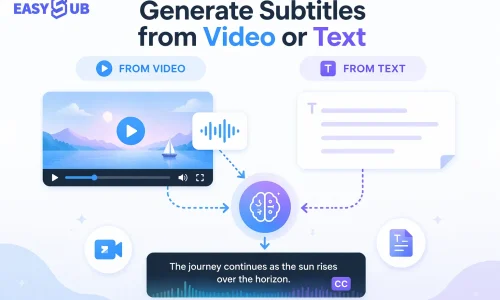
When creating subtitles, you don’t always have access to complete source material. Sometimes you only have a pre-edited video clip, while other times you might only have a script or text content. The methods for generating subtitles differ in these two scenarios. Understanding the distinctions between input types is key to improving efficiency and subtitle quality. An increasing number of creators and teams are choosing to generate subtitles from video or text to adapt to different workflows. Video input captures authentic speech more closely, making it ideal for quickly generating timed subtitles.
Text input is more efficient, particularly suited for courses, training materials, and multilingual content. This guide systematically outlines both approaches to help you select the most appropriate subtitle generation solution based on your specific needs.
Table of Contents
Two Main Ways to Generate Subtitles
Subtitle generation can begin with two distinct input methods. Each approach suits different scenarios and user needs. Understanding their differences helps you make the right choice faster.
Generate Subtitles from Video
When you have a video file, you can generate subtitles directly from its audio. This method most closely follows the “real speech to subtitles” workflow. Modern subtitle tools automatically recognize speech in the video and convert it into timed subtitle text. Simply upload your video (e.g., MP4) to the generator. The tool will analyze the audio, perform speech recognition, and generate a subtitle file.

These subtitles are typically editable and can be refined. This approach is the most direct and commonly used for interviews, lectures, or presentation videos.
Generate Subtitles from Text
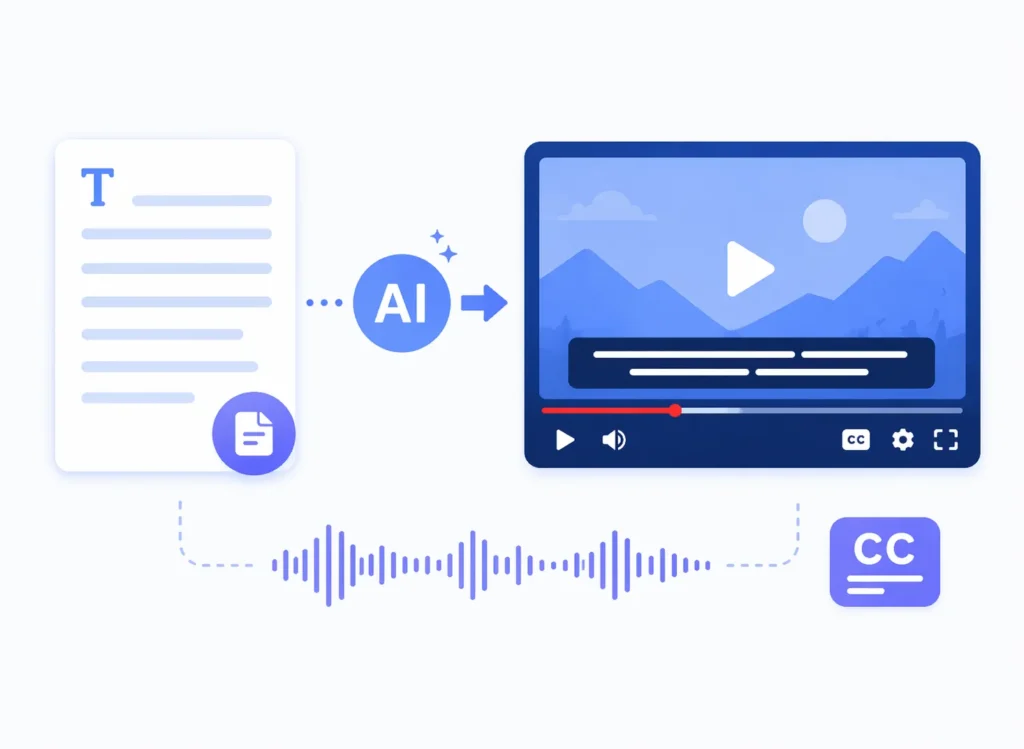
If you already have a complete transcript or script, you can generate subtitles from text. For instance, if you possess documents like speeches, translations, or lecture notes, the subtitle generator can utilize this text alongside timing information to automatically create a timed subtitle file.
This workflow is particularly valuable for multilingual localization, course content, and educational videos, as you can directly use existing text to create subtitles, then make minor adjustments to the timeline based on the video’s pacing. This approach eliminates the need for audio-to-text conversion, significantly improving efficiency.
Video vs Text – Which Subtitle Method Should You Choose?

When choosing how to generate subtitles, it’s crucial to understand the differences between the two primary methods. Different content types and objectives will influence your decision to generate subtitles either from video or from text. The following comparison chart and clear guidelines will help you select the most suitable approach.
Subtitle Generation Comparison Table
| Dimension | Generate Subtitles from Video | Generate Subtitles from Text |
|---|---|---|
| Input Requirements | Video file with audio | Existing script or translated text |
| Accuracy | Depends on audio quality; AI recognition may produce errors | Text is already written, so accuracy is higher |
| Timestamp Alignment | Automatically synced with speech | Requires alignment based on pacing |
| Editing Effort | Requires reviewing and correcting transcription errors | Mainly focuses on text and timing adjustments |
| Best Use Cases | Interviews, lectures, recorded content | Educational scripts, translations, course materials |
| Processing Speed | Fast | Faster (no speech recognition needed) |
Advantages and Limitations of Generating Subtitles from Video
The core advantage of generating subtitles from video lies in its proximity to actual speech, using AI to automatically recognize speech and convert it into text. This method is particularly suitable when you have recorded content but lack a written transcript. Most automatic captioning systems analyze the speech in a video and convert the recognized dialogue into a time-stamped subtitle file. While automation significantly boosts efficiency, recognition accuracy can be affected by factors like audio quality, dialects, and background noise, often requiring subsequent editing and correction.
Suitable scenarios include interview videos, lecture recordings, online course videos, and speeches. Such content typically lacks pre-prepared scripts but demands rapid subtitle generation. This approach proves exceptionally efficient for short videos and fast-paced publishing.
Advantages and Limitations of Text-to-Subtitle Generation
When you already possess a content script, translation draft, or other textual materials, generating subtitles from text yields faster and more accurate final subtitle files. Text-based generation bypasses speech recognition, minimizing the risk of identification errors. Prepare your dialogue script or screenplay beforehand, then import it into the subtitle tool, which will create a timeline based on the text. This generation process is best suited for projects with complete written scripts, such as instructional content, educational courses, and corporate training materials.
However, the challenge lies in timeline alignment. If the original video and text script don’t perfectly match, manual adjustments to the timeline based on speaking pace are still required. Additionally, text-to-subtitle generation typically demands more editing involvement to ensure precise synchronization of timestamps.
Generating subtitles using online tools is actually quite simple. Whether you’re generating them directly from a video or creating subtitles from existing text, most modern platforms offer a visual workflow that lets you complete the task in minutes. Below are two common scenarios and their corresponding steps.
Using Video as Input
When you have a video file (such as an MP4), follow these steps to generate subtitles:
Upload the Video File
Upload your local video to the caption generator. Most online tools support drag-and-drop uploads.
Select the Language
Choose the audio language in the generation settings so the AI can accurately recognize the spoken content.
Initiate automatic subtitle generation
The tool automatically transcribes speech based on the audio content. This step is typically handled by AI speech recognition technology, requiring no manual input.
Review and edit subtitles
After generation, you can proofread the text, adjust sentence breaks, and modify timestamps in the editing interface.
Export the subtitle file
After proofreading, export the subtitles in common formats like SRT, VTT, or TXT. Some tools also support exporting video files with embedded subtitles.
This workflow is ideal for videos without existing transcripts, such as interviews, lectures, or recorded content. It eliminates the tedious steps of manual transcription and boosts subtitle generation efficiency.
Using Text as Input
If you already have a video script, presentation notes, or translated text, you can generate timed subtitles using the following steps:
Prepare Your Text Content
Ensure the text is clear, divided into sentences, and closely matches your video content.
Upload the Text Document
Upload or paste the text into an online tool that supports text-to-subtitle generation.
Set Timeline Parameters
Some tools allow you to input the start time for each text segment or automatically estimate timecodes based on speaking speed.
Generate timecode subtitles
The tool will create a subtitle file based on the text structure and timing settings.
Proofread and adjust timelines
Verify subtitle synchronization with the video and fine-tune timecode segments as needed.
Export Subtitle Files
After proofreading, download formats like SRT or VTT for video publishing or further editing.
This method suits content creators, educational video producers, or translation teams. It leverages pre-translated text to enhance subtitle generation accuracy.
Which Online AI Subtitles Tools Can You Use to Generate Subtitles?
Numerous online AI tools can automatically transcribe speech and generate captions. The following tools cater to varying levels of need, from basic automatic captioning to support for multiple languages and export formats. These AI tools share the following characteristics:
- Utilize speech recognition technology to automatically generate captions.
- Support multilingual options or allow editing of caption content.
- Offer downloadable formats for easy subsequent publishing or secondary editing.
Different tools vary in terms of accuracy, language support, export formats, and free usage policies. You can select the most suitable tool based on your input source (video/text), usage frequency, and publishing platform.
1. EasySub – Supports Both Video and Text Subtitle Inputs
-1024x700.webp)
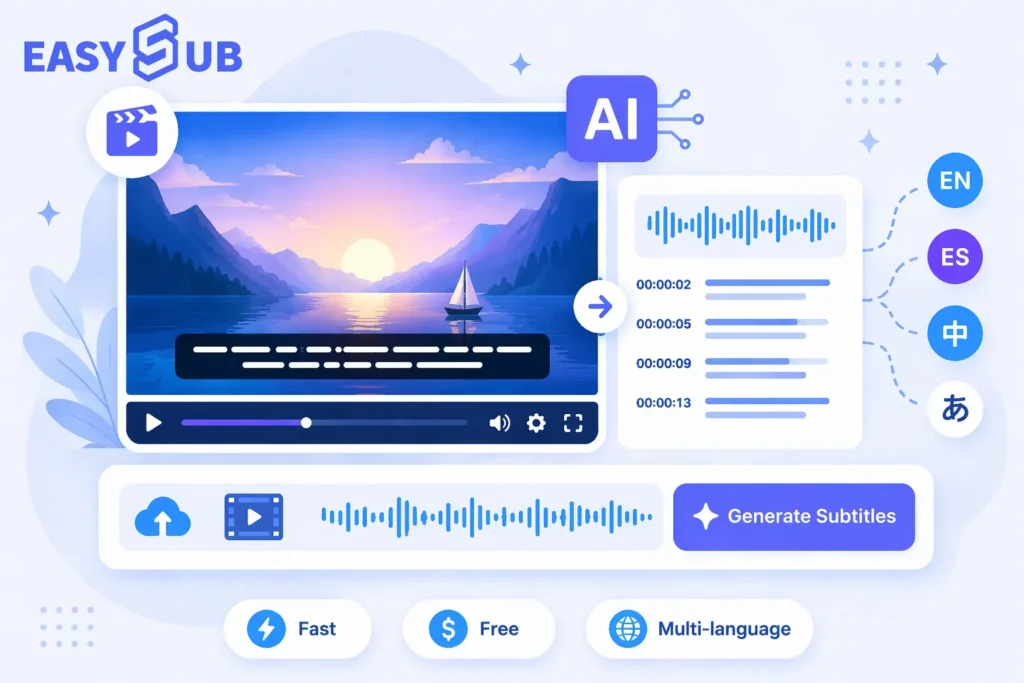
EasySub automatically extracts audio from videos and generates captions. Simply upload your video, and it uses AI speech recognition to create timed captions. It also supports generating timed captions from text, converting existing scripts or translations into standard caption files. EasySub supports recognition and translation in over 150 languages, making it ideal for global content creators.
Veed.io offers online automatic subtitle generation. Upload your video, and it will automatically transcribe speech and generate downloadable subtitle files (like SRT) or videos with embedded subtitles. This tool supports multiple languages and offers various subtitle styles. Its automatic recognition capabilities stand out among similar tools, processing video content rapidly.
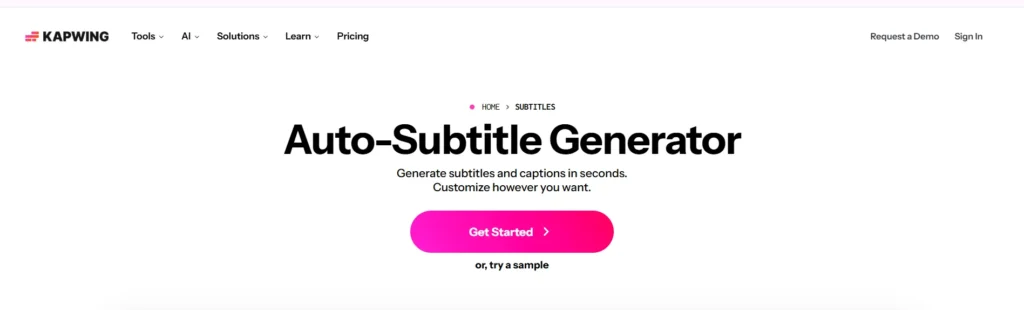
Kapwing‘s automatic subtitling feature allows you to generate and download subtitles in formats like SRT or MP4 with subtitles online. You can upload videos from any device, using AI to automatically recognize speech and generate captions. Kapwing’s process is intuitive, making it ideal for users who prefer not to install software.
Clipchamp‘s online subtitle generator uses AI technology to analyze video audio and generate captions. You can select subtitle languages, adjust styles, then download videos with embedded subtitles or standalone subtitle files. The platform also supports language customization and audio enhancement operations.
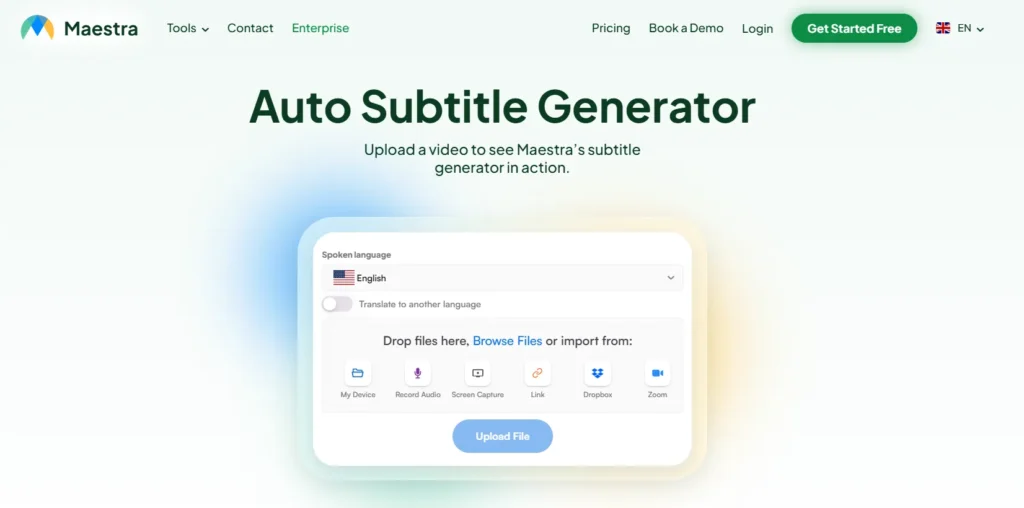
Maestra AI supports automatic subtitle generation and translation for over 125 languages. Upload your video, select the target language, then generate, edit, and export subtitle files (e.g., SRT, VTT formats). This tool is particularly suited for users requiring multilingual subtitles.
When Should You Use Video, Text, or Both to Generate Subtitles?
In practical subtitle production, different input methods each have their advantages. Choosing the appropriate method can enhance efficiency and accuracy. Below are expert recommendations to help you make informed decisions based on various scenarios.
When to Use Video as Input
- When you only have video footage. You lack a prepared script or written transcript.
- When the video contains natural conversations, live speeches, or interviews. AI speech recognition can directly extract text from the audio.
- Ideal for recorded content like lectures, speeches, or interviews. These often lack transcripts but require subtitles.
Advantages: No need for additional text preparation.
Note: Audio clarity impacts accuracy. Significant background noise requires more proofreading.
When to Use Text as Input
- When you already have a complete transcript. Examples include speeches, scripts, or translated documents.
- When content has been translated into other languages. You can directly use text to generate multilingual subtitles.
- Suitable for educational videos, training materials, corporate content, etc. These typically have pre-existing scripts or handouts.
Advantages: High subtitle generation accuracy.
Note: Requires timeline alignment; otherwise, timecode adjustments remain necessary.
When to Use Both Video and Text Together
- When you have a script but want to improve timeline accuracy. Generate a draft using video first, then proofread or translate using the text.
- For lengthy or complex videos (multiple speakers). Combining both methods reduces errors.
- When high-quality, multilingual subtitles are required. Use video to establish a foundation, then refine accuracy with text.
This approach is common in professional production workflows, particularly suited for content requiring broadcast-level subtitles.
FAQ – Generate Subtitles from Video or Text
Q1. Can I generate subtitles directly from a video?
Yes. You can upload a video file and use AI tools to automatically recognize the audio and generate timed subtitles.
Q2. Can I create subtitles from a text script?
Yes. If you already have a script or text content, many online tools support converting it into a timed subtitle file.
Q3. Do I need timestamps in my text for subtitle generation?
Not necessarily. Some tools can automatically estimate timelines based on speech rate, though accuracy improves with existing timecodes.
Yes. After generation, most subtitle tools allow you to proofread text, modify sentence breaks, and adjust timelines.
Q5. What subtitle formats can I export?
Common export formats include SRT, VTT, and TXT, each suited for different platforms and distribution needs.
Conclusion – The Smart Way to Generate Subtitles
When choosing how to generate subtitles from video or text, the most important factor is matching your actual workflow and content requirements. Whether you have only video, only transcripts, or need to handle both simultaneously, there are suitable methods and tools to help you efficiently complete subtitle production.
Applying AI-powered automatic subtitling technology to videos can significantly reduce the time and effort required for manual transcription while boosting publishing efficiency. Leveraging advanced speech recognition and processing capabilities, you can swiftly convert videos or text into timecoded subtitle files, saving substantial time on repetitive tasks.
For scenarios requiring both video-to-subtitle generation and the refinement of existing text scripts, selecting an online tool that supports dual workflows is a more practical solution. Platforms like EasySub enable automatic transcription of video audio into subtitles while also supporting text-to-subtitle generation and exporting in standard formats.
👉 Click here for a free trial: easyssub.com
Thanks for reading this blog. Feel free to contact us for more questions or customization needs!