

YouTube is currently the most popular video site. We can get all kinds of information every day. Therefore, it is very necessary to let Youtube auto generate subtitles.
However, sometimes Youtube videos didn’t exist automatic subtitles. Thus, it’s difficult to understand these videos. We cannot perform some operations concerning subtitles we need as well.
A quick way to let Youtube auto generate subtitles
At this time, we need a convenient YouTube auto subtitle generator to meet our daily needs.
EasySub will solve your problem perfectly!
First of all, we need to copy and paste the URL of the YouTube video. We needn’t download any videos. The following is a guide for first step.
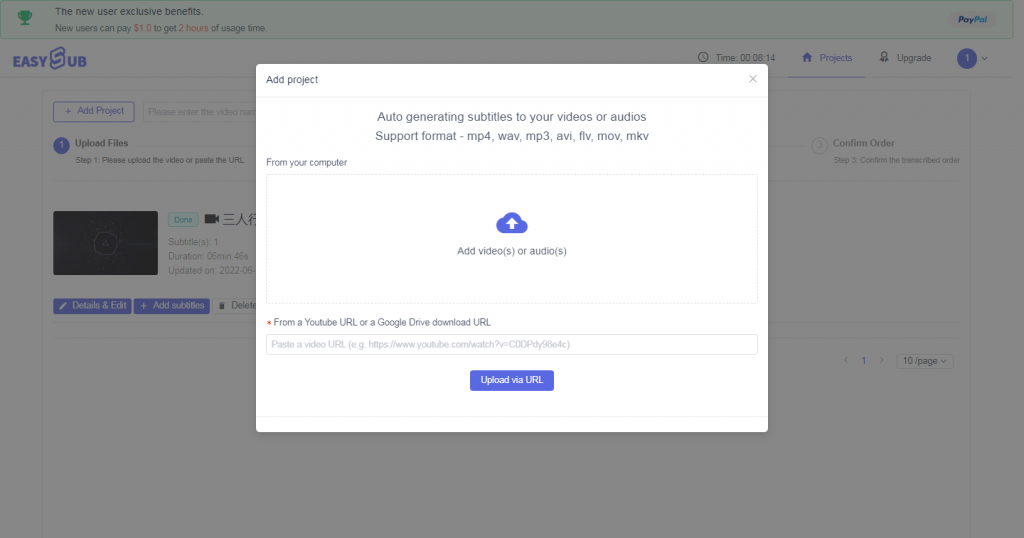
Click “Add Project” and paste the URL of the YouTube video.
Then click “Upload via URL”, Get YouTube to auto generate subtitles. It will download your YouTube videos and provide some basic configurations for you to choose, like this.
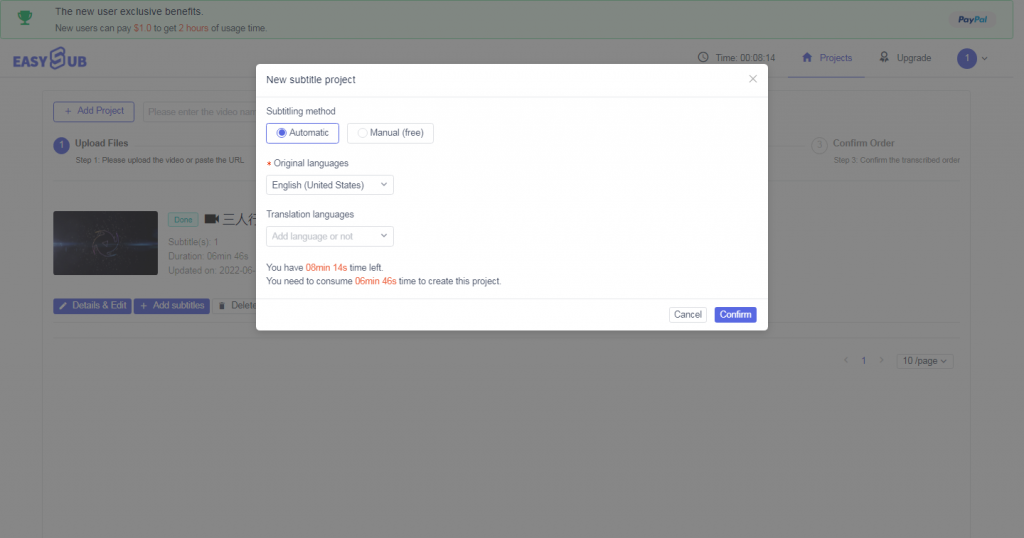
Configure information for YouTube automatic subtitles
The last step is to click “Confirm” to transcript and wait for seconds. After finishing the transcription, you can find your the list and click to see the details.
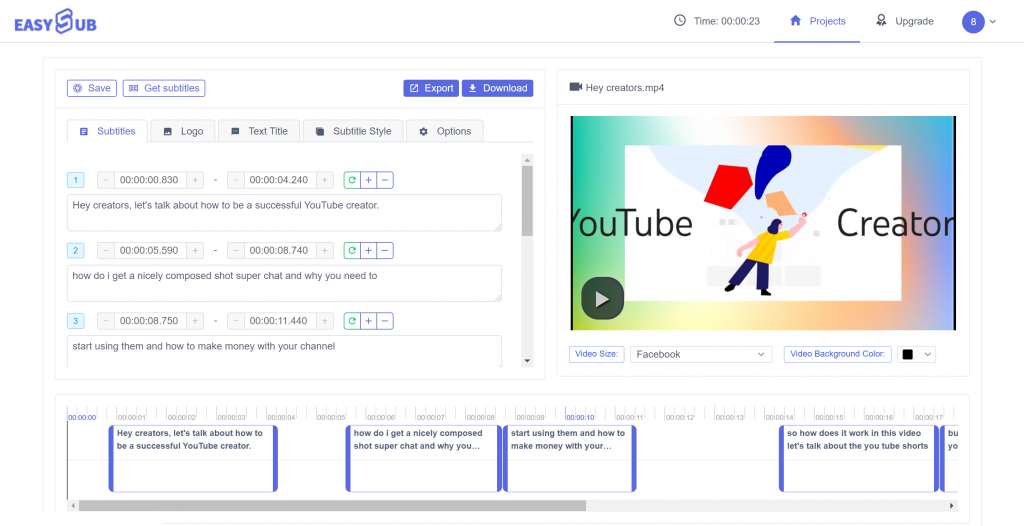
Now you can modify YouTube to auto generate subtitles. Then click to download the YouTube subtitles or export them with videos together. Through EasySub, you only need a few short steps to obtain the subtitles.
When you’re satisfied with the effect, you can export the new file. First, make sure the “Format” icon appears “MP4” format, or you have to click the Output Format: on the right side to select the MP4 from the format list as its output formats. Of course, you want to save the files in other formats, just select the format you want here. After that, press the Start All button to convert SRT subtitles to MP4 videos. When it’s over, you can find the new MP4 file with the SRT subtitle in the output folder.