Looking for a free subtitle generator with no watermark? EasySub gives free accounts a fixed 30 minutes every month to generate, edit, and export subtitles. Start with a video upload or any YouTube/video URL, then download a subtitle file or export your video with captions.
The important comparison is the result you can download, not just whether a tool lets you generate a preview. This guide separates subtitle-file downloads from subtitled-video exports and compares EasySub with Media.io, Vmaker AI, Kapwing, and SubtitleBee.
Start adding subtitles — 30 free minutes every month
Editorial note: This guide is published by EasySub. Competitor policy information was checked against the official pages linked below on September 13, 2026. This update is a documentation review, not a new hands-on export benchmark.
Quick comparison: free subtitles and watermark-free exports
“Free to generate” and “free to export without branding” are different promises. Read the subtitle-file and video-output columns separately.
| Tool | Free access | Subtitle files | Video export without a watermark | Best fit |
|---|---|---|---|---|
| EasySub | Fixed 30 minutes every month | Watermark-free SRT/VTT; ASS and TXT also available | Watermark-free subtitle workflow | Generate, edit, translate, and export captions in one workflow |
| Media.io | Official subtitle page advertises free caption generation | SRT download is described on the official tool page | Official tool page advertises no-watermark output; current account allowance was not independently tested | An alternative to compare for browser-based captions |
| Vmaker AI | Free generation and editing | Check the selected plan for subtitle-file downloads | Free videos include a watermark; paid plans remove it | Caption styling when a paid export plan is acceptable |
| Kapwing | Limited free auto-subtitling | SRT/VTT supported; check plan access separately | Free videos include a watermark; eligible paid plans remove it | Subtitling alongside broader video editing |
| SubtitleBee | Free trial for subtitle generation | Pricing FAQ says trial downloads are disabled | Watermark-free exports are listed with paid Starter access | Trying recognition before choosing an export plan |
Some alternatives are included to explain why a free preview does not make them a free, watermark-free publishing option. Their policies can change; use the linked official page when choosing a plan.
Subtitle files or captions burned into the video?
A separate subtitle file contains timed text. SRT and VTT let a player or publishing platform display captions alongside your original video. Downloading the file does not automatically place visible captions into the picture.
A subtitled video has captions rendered into the image, so they stay visible wherever that video plays. This is useful for short-form clips and other destinations where you want consistent caption placement. Video watermark rules concern branding added to that exported picture; they should not be inferred from an SRT download.
- YouTube or a player with selectable captions: download SRT or VTT and add it as a caption track.
- Always-visible captions: export the video with subtitles after reviewing their size, position, and timing.
- Text for notes or reuse: choose TXT for a plain transcript without subtitle timestamps.
Which subtitle generator should you choose?
1. EasySub: a recurring free allowance for subtitle creation
EasySub's automatic subtitle generator combines speech recognition, editing, translation, and export. Free accounts receive a fixed 30 minutes each month, rather than an unspecified preview allowance.
EasySub supports 150+ languages and 90%+ recognition accuracy with clear audio. You can correct names, punctuation, terminology, and timing before publishing. Input can be a local video or audio file, or any YouTube/video URL.
Choose SRT, VTT, or ASS for timed subtitles, TXT for a transcript, or export a video with visible captions. For a translated project, select source-only, translated-only, or bilingual subtitles according to your audience. See the EasySub plans and included minutes when you need more processing time.
Why choose it: the recurring allowance and direct subtitle workflow are useful when you regularly caption short videos and want to reuse the same text for multiple publishing formats.
2. Media.io: an alternative advertising no-watermark captions
Media.io's official subtitle page describes automatic captions, subtitle editing, SRT downloads, and no-watermark video output. That makes it relevant to this comparison. The documentation review did not independently establish the current free account's processing allowance or complete an export test.
Why consider it: compare its browser-based caption workflow if you want another option alongside EasySub. Confirm the allowance shown in your account before editing a long project.
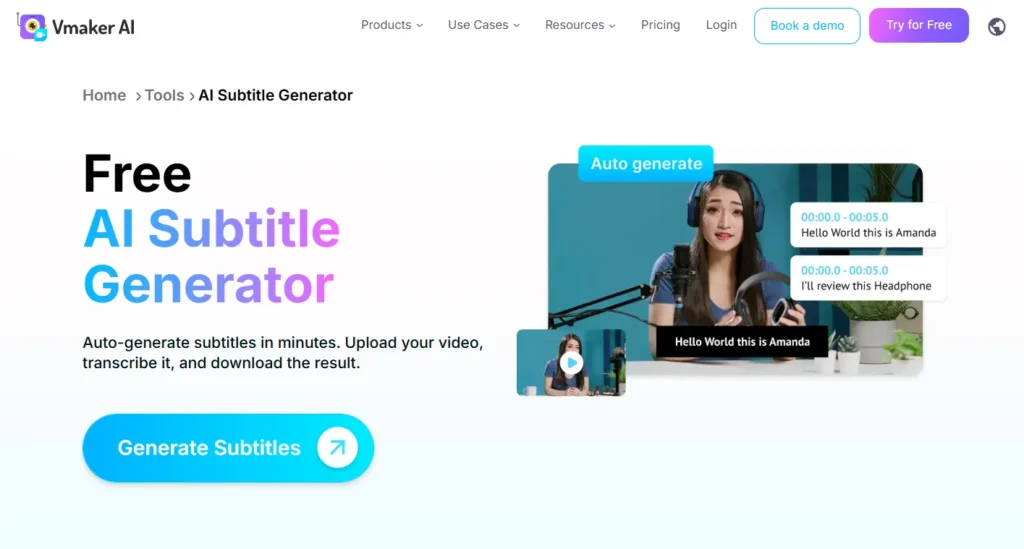
3. Vmaker AI: free editing, paid watermark-free video exports
Vmaker's subtitle FAQ states that free-plan video exports include a watermark and paid plans remove it. It also explains that earlier free plans exported without a watermark, which accounts for older descriptions online.
Why consider it: caption styling may suit your workflow when you are willing to use a paid export plan. Do not select the current free plan solely because an older comparison calls it watermark-free.
4. Kapwing: video editing with a watermarked free export
Kapwing's current pricing page lists watermarked exports on the free plan and watermark removal on paid plans. Registering for a free account does not, by itself, provide watermark-free video exports.
Kapwing supports subtitle editing and subtitle-file formats, but file-download access and rendered-video exports are separate plan checks. Why consider it: it can suit a wider editing project if its paid features fit your needs; it is not the free watermark-free video option in this list.
5. SubtitleBee: trial generation before a paid download workflow
SubtitleBee's pricing FAQ says downloads are disabled during the trial, while Starter lists watermark-free exports. A generated preview therefore should not be counted as a completed free download.
Why consider it: use the trial to assess recognition and editing before choosing a plan. If your immediate requirement is to download free subtitles, compare the export access first.
How to add subtitles to a video without a watermark in EasySub
- Import your video. Open the subtitle workspace. Upload a video or audio file, or paste any YouTube/video URL.
- Generate the subtitles. Select the language actually spoken in the recording. If you want another language, enable Add translation and select the target language before generation.
- Edit the result. Review text and timestamps against the audio. Correct names and specialist vocabulary, and adjust caption styling and placement for your video.
- Choose your output. Download a subtitle file or export the video with captions. If you generated a translation, choose Source only, Translated only, or Bilingual for the subtitle download.
- Check the finished file. Open the downloaded result, check a section near the beginning and end, and confirm that the captions are readable and synchronized.
For more detail, see how to generate an SRT file or edit subtitle text and timing. These are links to the relevant tools, not to movie-subtitle download directories.
Example: one tutorial, two publishing outputs
Suppose you have a five-minute English tutorial and want English captions plus a translated version. Import it once, choose English as the source language, enable the target translation, and review both tracks. Download SRT for a selectable caption track, then export a captioned video for destinations where captions should always remain visible.
This is a workflow example, not a measured benchmark. Processing usage follows your account's allowance; the example does not claim a measured generation time or a specific translation-credit cost.
What to check before publishing your captions
- Text: check names, numbers, technical terms, and words that change the meaning of a sentence.
- Timing: captions should start with the speech and give viewers enough time to read.
- Layout: keep text away from important faces, demonstrations, and platform controls.
- Output: use timed subtitle files for selectable tracks and a captioned video for permanently visible text.
- Allowance: EasySub includes 30 free minutes every month; compare additional plans against your actual publishing volume.
A useful comparison should show the exported result and the account plan used. This guide does not assign invented test scores or present reference images as proof of a current free export.
Frequently asked questions
Can I generate subtitles for free without a watermark?
Yes. EasySub includes 30 free minutes every month for its subtitle workflow, with watermark-free subtitle outputs. Upload your video, generate captions, edit them, and choose your download. Check the plans page for additional processing time.
Can I download SRT or VTT subtitles?
Yes. EasySub can export SRT and VTT subtitle files, as well as ASS and plain-text TXT. Use the subtitle generator and export workflow to create your own captions.
Can I export the video with subtitles instead of a separate file?
Yes. EasySub supports exporting the video with visible subtitles. Choose this output when you want captions to remain in the picture, or download a separate file for a selectable caption track.
Can I use a YouTube link or translate my captions?
Yes. EasySub accepts any YouTube/video URL and supports 150+ languages. Choose the spoken language and enable Add translation when generating translated captions. Review both tracks before exporting.
How accurate are the automatic subtitles?
EasySub provides 90%+ recognition accuracy with clear audio. Use the editor to check names, accents, punctuation, and specialist terms, then play back the final captions before publishing.
Does signing up remove Kapwing or Vmaker's video watermark?
Not on their current free plans. Their official pages list free video exports with a watermark and paid access for watermark removal. Subtitle-file downloads should be checked separately from video exports.
Start with the output you actually need
Choose a subtitle generator by its downloadable result, editing workflow, and recurring allowance. EasySub brings subtitle generation, translation, correction, and watermark-free output together, with 30 free minutes every month.
Generate subtitles with EasySub · Explore the subtitle generator