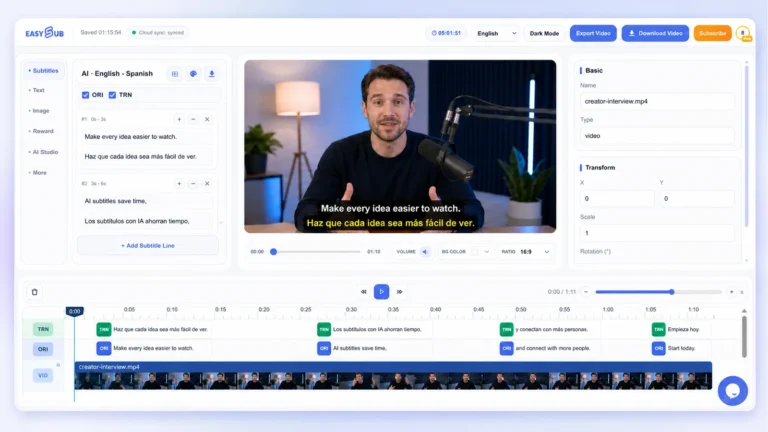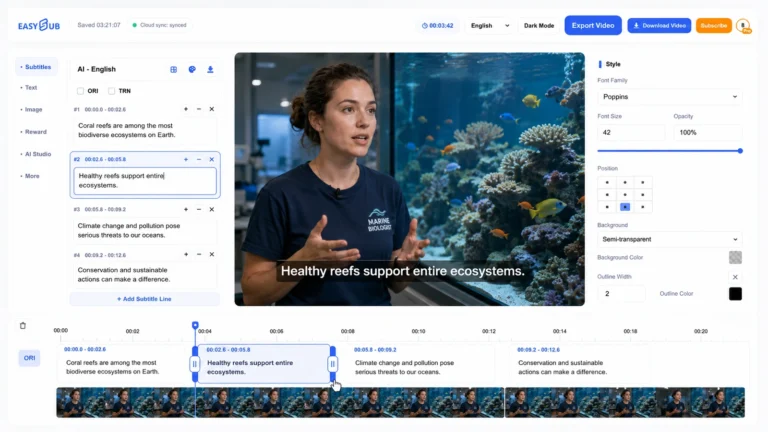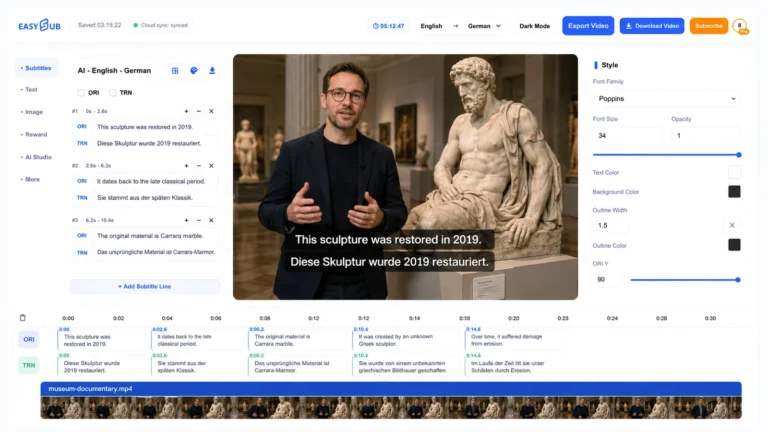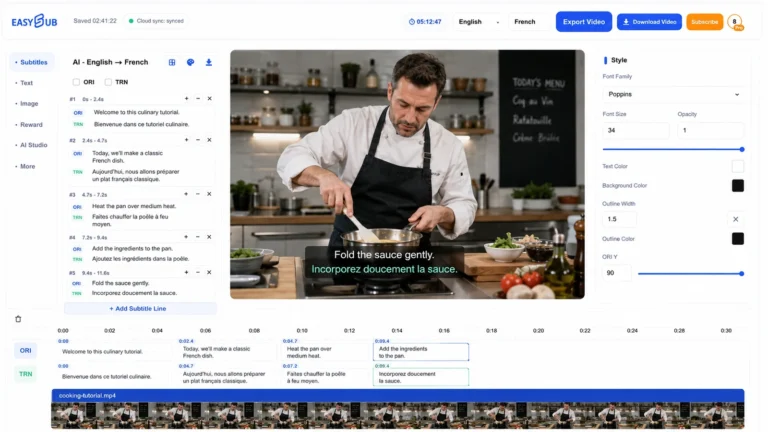

EasySub creates editable, timed Arabic subtitles from spoken Arabic and can also translate subtitles from another spoken language into Arabic. Upload a video or audio file, or paste any YouTube/video URL, choose the correct source language, review the draft, and download a subtitle file or export a video with captions visible on screen.
How to generate Arabic subtitles online
- Add the recording. Open the EasySub subtitle workspace, upload a file from your device, or paste any YouTube/video URL.
- Choose the language workflow. For Arabic speech, choose Arabic as the source language. To translate another language into Arabic, choose the real spoken language, turn on Add translation, and select Arabic as the target.
- Review the source and Arabic text separately. Listen again for names, numbers, negatives, dialect words and technical terms. When translation is enabled, correct the source transcript first, then check the corresponding Arabic translation as a separate text track.
- Check right-to-left display and export. Inspect line order, joined letter shapes, punctuation and mixed Arabic/Latin text in the destination player. Then download SRT, VTT, ASS or TXT, or export a captioned video.


Arabic speech recognition and Arabic subtitle translation are not the same
Transcribe spoken Arabic
The audio already contains Arabic speech. Select Arabic as the source language and generate an editable Arabic transcript with timestamps. Check dialect words, names and any phrases masked by music or overlapping speakers.
Translate subtitles into Arabic
The audio is spoken in another language. Select that source language, enable Add translation, and choose Arabic as the target before processing. A fluent Arabic sentence can still be wrong if the source transcript misheard a name, number or negative.
Edit an existing subtitle track
If a project already contains subtitles, use the subtitle translator for translation work and the subtitle editor to correct text, line breaks and timing.
What to check in Arabic subtitles
Arabic is written from right to left, but subtitle lines often contain left-to-right items such as product names, model numbers, web addresses and timestamps. A sentence can be linguistically correct while appearing in the wrong visual order in a particular player.
| Check | What to review | Why it matters |
|---|---|---|
| Dialect and terminology | Compare regional expressions, names, places and specialist terms with the recording and your approved spelling. | The Arabic source option does not make every dialect or recording condition equally accurate. |
| Letter shaping | Confirm Arabic letters join correctly and no character appears as a missing box or an isolated form. | Font fallback and player support can change the rendered result. |
| Mixed scripts | Test Arabic text beside Latin brand names, email addresses, URLs and model names such as “iPhone 15 Pro”. | Bidirectional layout can move punctuation or reorder mixed-language fragments. |
| Numbers and punctuation | Use Arabic-Indic or Western digits consistently for the audience, and check dates, prices, percentages, parentheses and minus signs. | A visually misplaced number or negative can change the meaning. |
| Timing and line breaks | Keep each caption readable, start it with the speaker, and avoid breaking a phrase where the meaning depends on the next word. | Correct text is still difficult to follow when timing or segmentation is wrong. |
Arabic dialects and recognition accuracy
EasySub provides Arabic as a source-language choice. The first draft can vary with dialect, microphone quality, background noise, speaker overlap and subject vocabulary, so do not assume that Modern Standard Arabic, Gulf, Egyptian, Levantine, Maghrebi and other varieties will produce identical accuracy.
For interviews, lessons and technical recordings, prepare a short review list of speaker names, places, brands, abbreviations and domain terms. Listen again wherever the generated wording is fluent but does not fit the scene or the speaker’s intent.
Arabic subtitles for YouTube and video URLs
You can paste any YouTube or video URL into the input field. For an Arabic-language video, select Arabic as the source. For a video in English or another language that needs Arabic captions, select the actual spoken language and add Arabic translation before generation.
EasySub does not automatically publish the finished result to your YouTube channel. Download the reviewed subtitle file or export the captioned video, then upload it through your normal publishing workflow.
Which Arabic subtitle format should you download?
| Format | What it contains | Use it when |
|---|---|---|
| SRT | Subtitle text and timestamps in a widely supported plain-text format. | You need a separate caption file for YouTube, an editor or a compatible player. |
| VTT | Timed WebVTT caption text. | Your website, course platform or web player asks for VTT. |
| ASS | Timed subtitles with additional styling information. | Your player or editing workflow supports ASS styling. |
| TXT | Readable text without subtitle timestamps. | You need a transcript for editing or reuse, not a synchronized subtitle track. |
| Captioned video | A rendered video with the selected captions visible in the picture. | You want viewers to see the Arabic captions without loading a separate subtitle file. |
Save text-based subtitle files as UTF-8 and test the final file in the actual player. SRT stores text and timing, but it does not guarantee that every app will apply the same font, right-to-left base direction or bidirectional punctuation behavior.
Font and player checks before publishing
Use an Arabic-capable font
Confirm the chosen font contains the Arabic glyphs you use and displays connected letter forms correctly. Check common letters as well as less frequent names and symbols.
Preview in the destination
Open the SRT, VTT or ASS in the real web player, mobile app, editing software or course platform. Browser preview alone cannot prove that another player will render it identically.
Check safe placement
Make sure line breaks remain readable and captions do not cover faces, names, lower-third graphics or other essential on-screen information.
Review source and translation
When Arabic is the target language, compare the source transcript with the recording first, then review the Arabic wording, tone and line length separately.
Can I create Arabic subtitles for free?
You can open the sample subtitle editor to inspect the workflow before creating a project. Available processing time, models and export options depend on the current account balance and plan; “start for free” does not mean unlimited Arabic transcription or translation. Check the current pricing page before processing long recordings.
For same-language captions in other languages, use the AI subtitle generator. For full source-to-target subtitle translation, see the video translator.
Create and review Arabic subtitles
Add a file or any YouTube/video URL, choose the correct source and target languages, review Arabic text direction and timing, and export the result you need.